
(v 1.0)

Raffaello + MosaicONE
Raffaello is DMG’s 65,000 color TFT display, now available with various graphic templates that can be customized directly from the MosaicONE platform.
Its various sizes can cover multiple widths of fixtures:
Raffaello 2″
Raffaello 2,8″
Raffaello 4,3″
Raffaello 5″
Mounting
With welded pins on 1,5/2 mm pushbutton panel
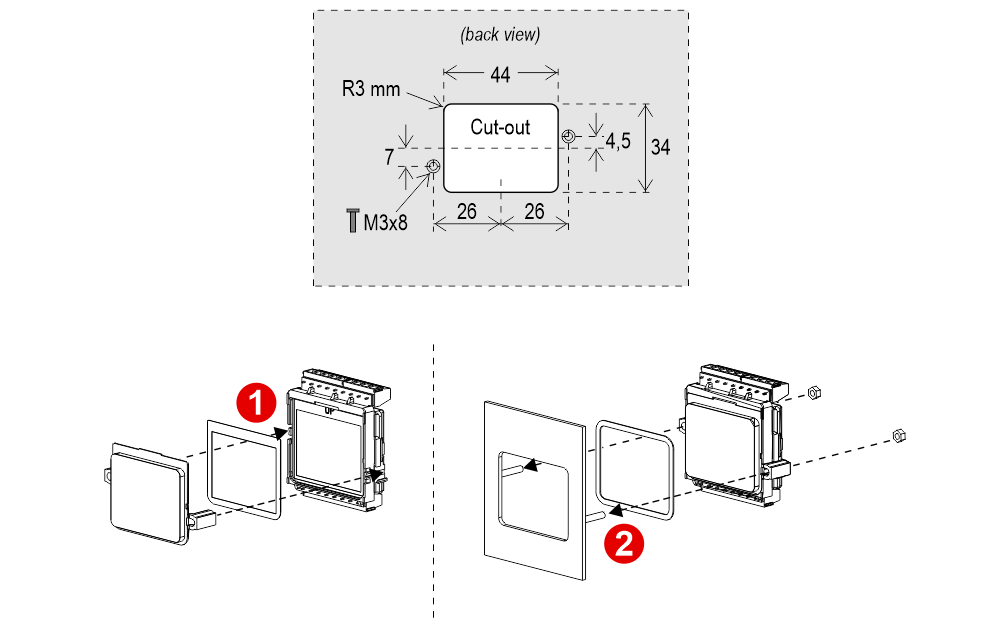
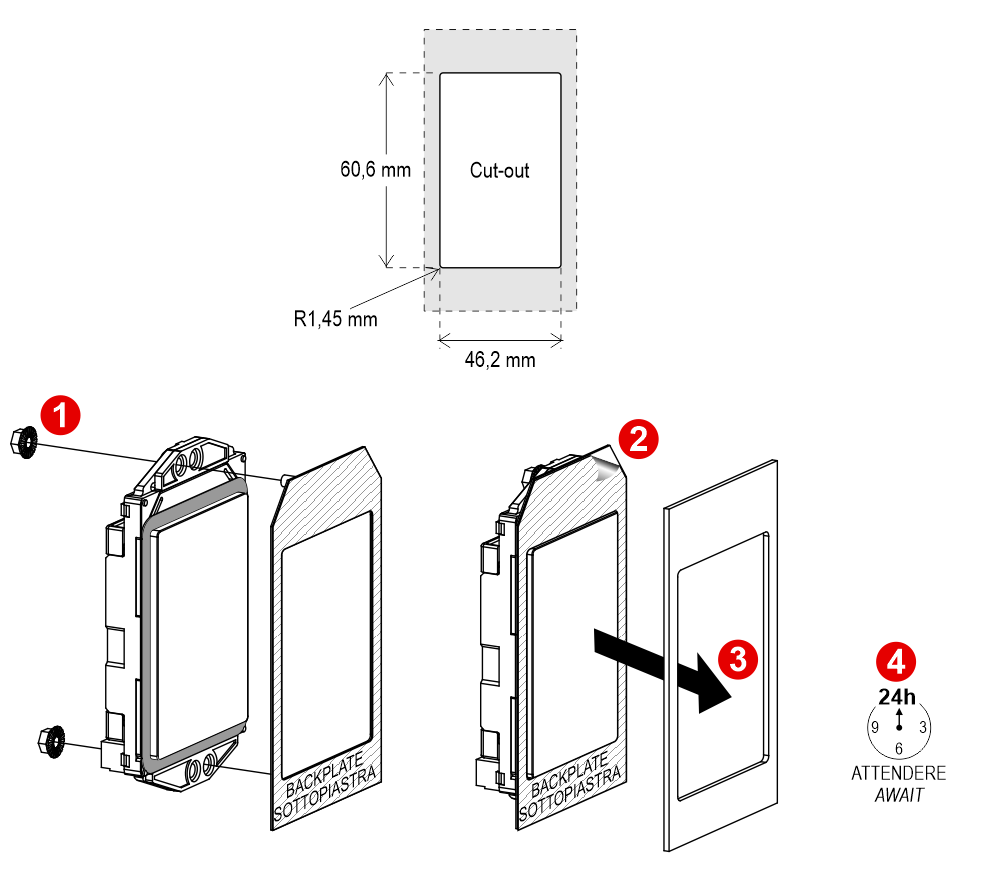
With pins on backplate (for 0,7/1,5 mm pushbutton panel)
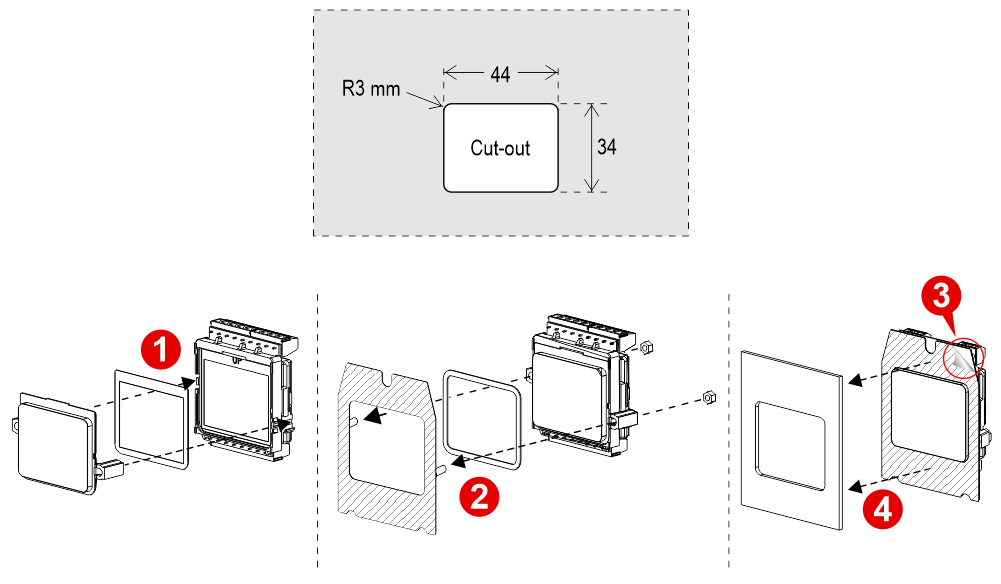 3) Remove the double-sided adhesive tape.
With D13 screen (frontal mounting)
Frontal mounted on 1/2 mm pushbutton panel
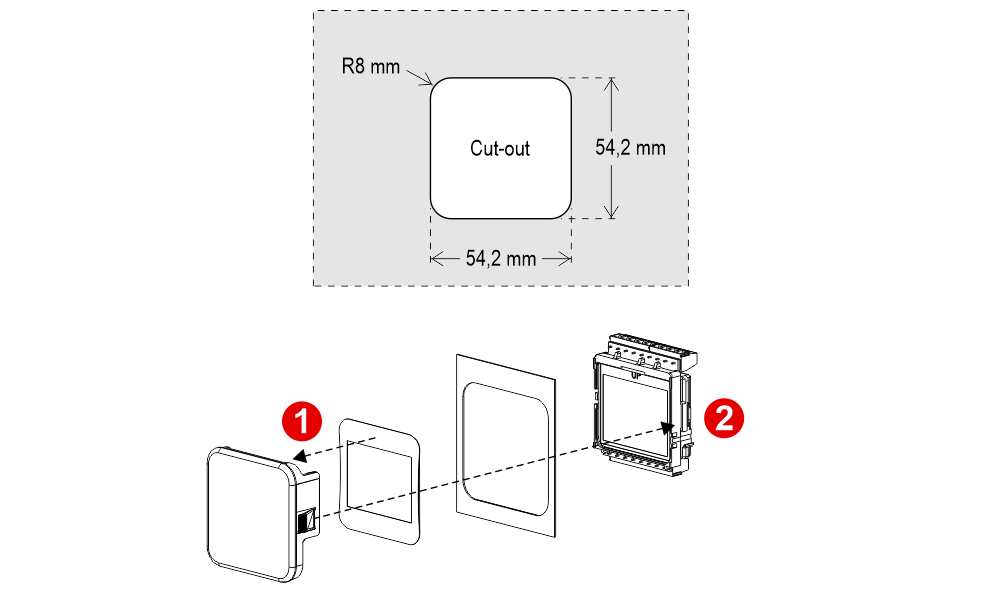
With DZ1 screen (frontal mounting)
Frontal mounted on 1/2 mm pushbutton panel
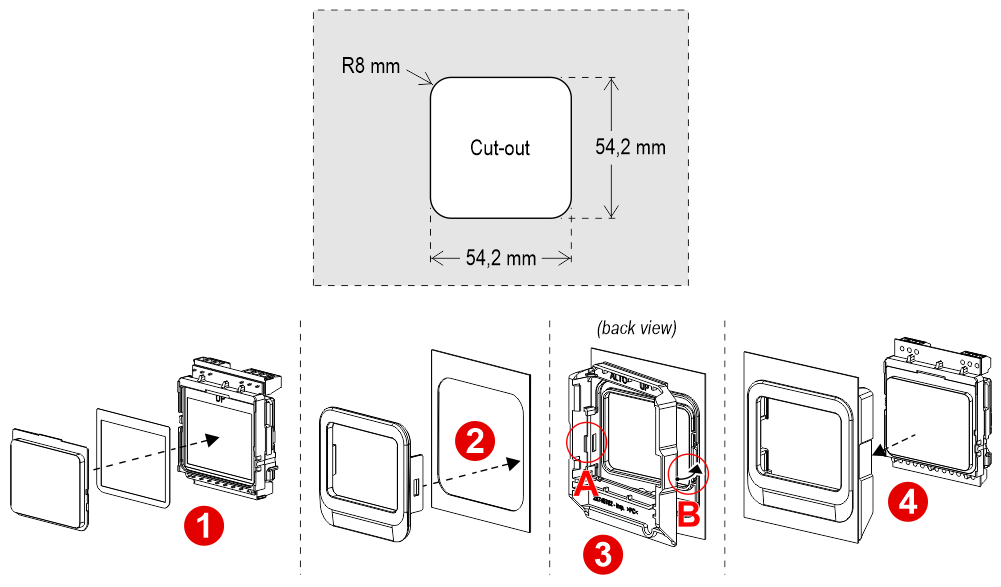
With welded pins on 1,5/2 mm pushbutton panel
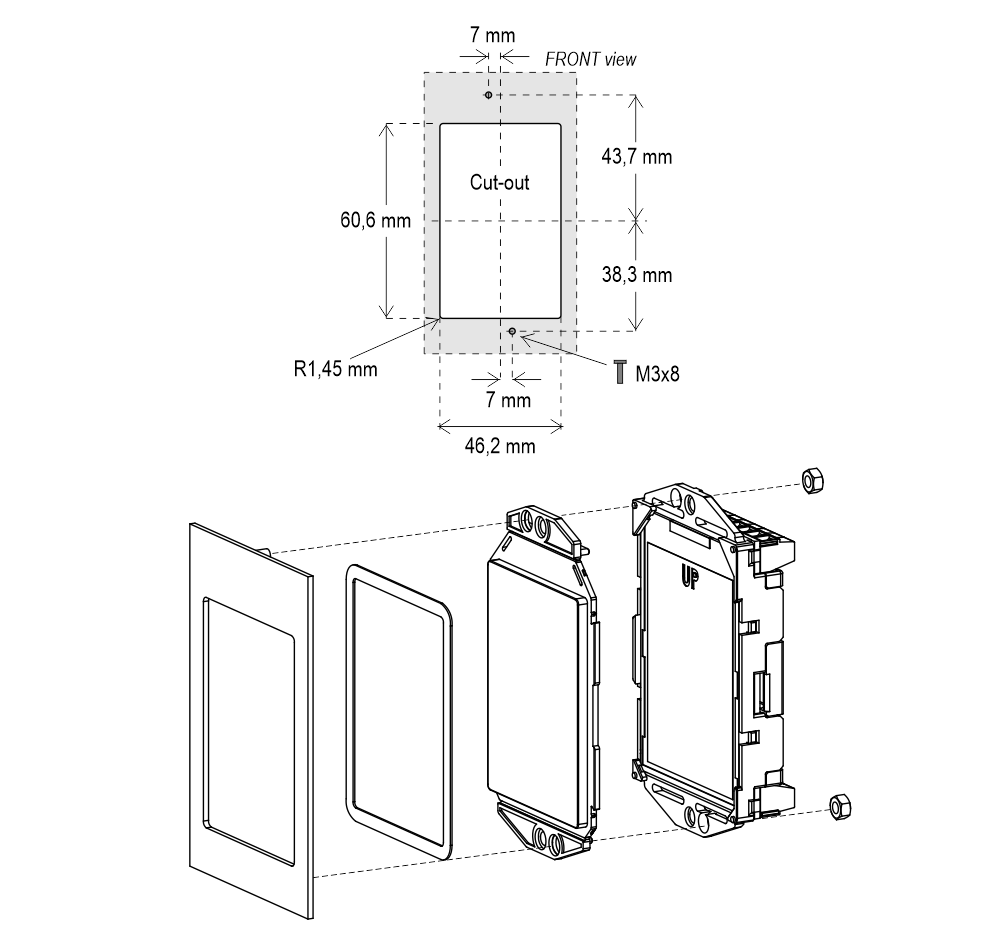
With pins on backplate (for 1 mm pushbutton panel)
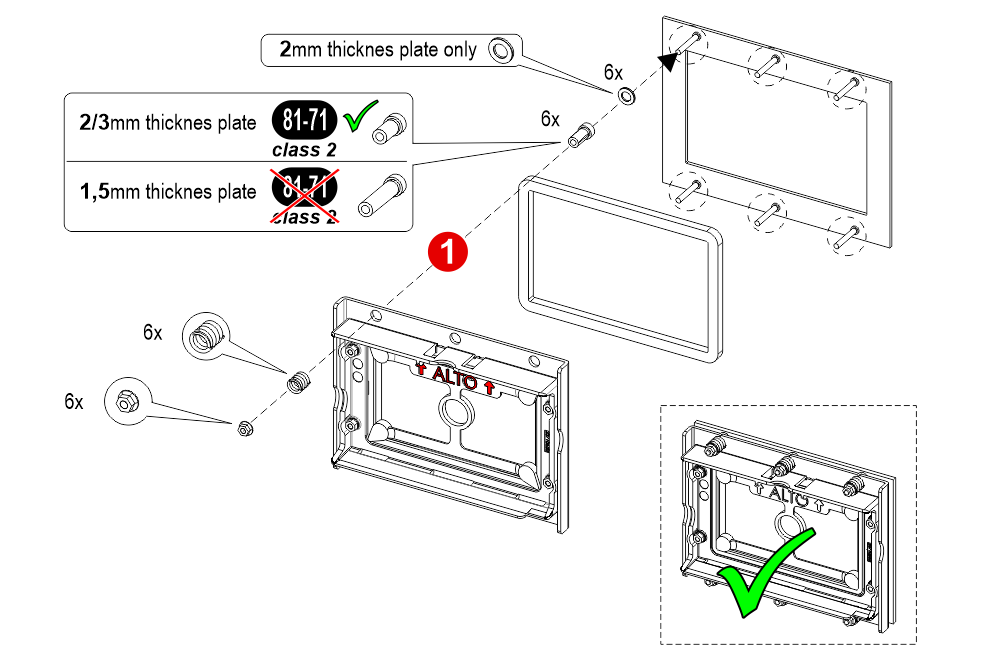
With welded pins on 2/3 mm pushbutton panel
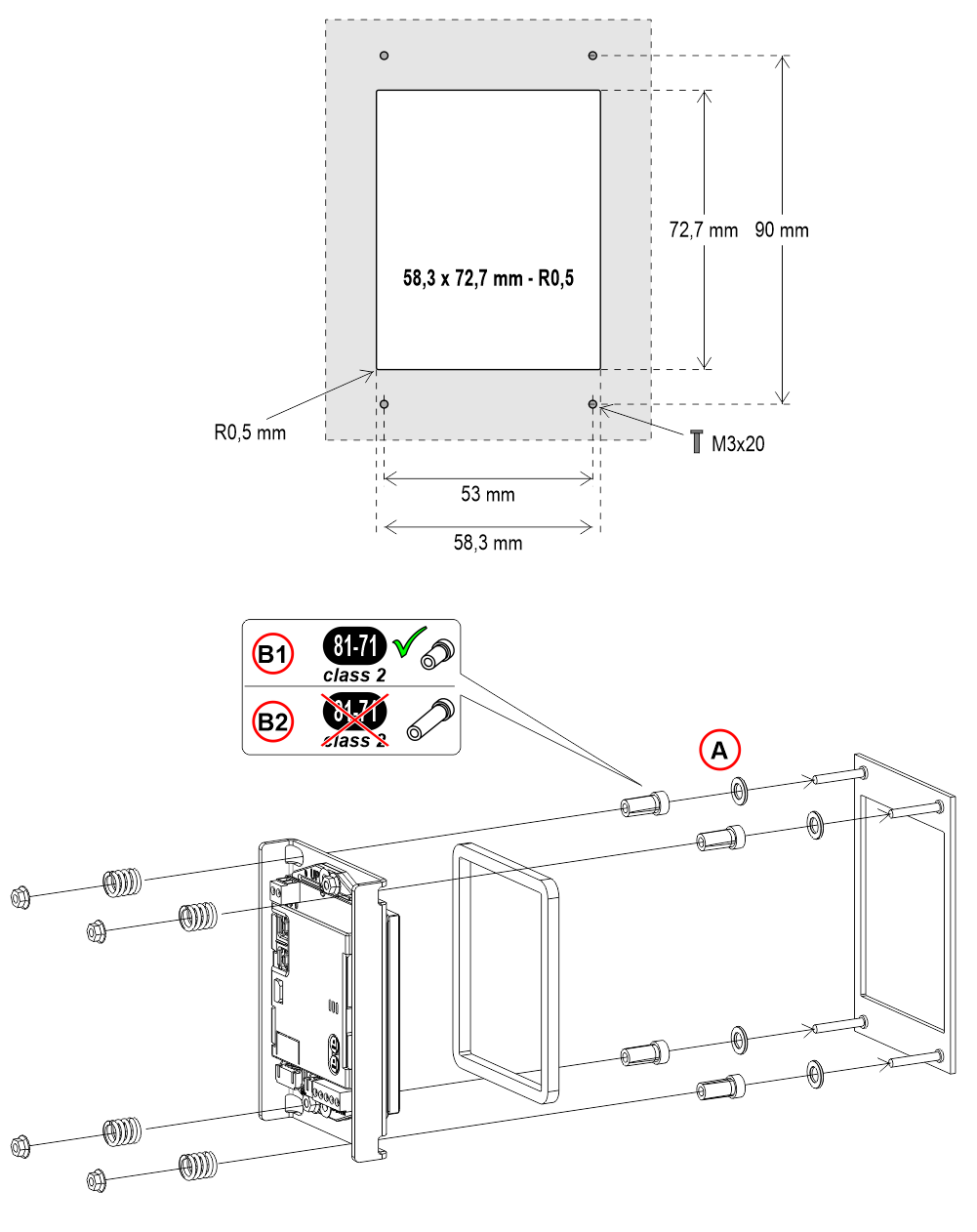
A) – 2mm thicknes plate only
B1) – For 2mm/3mm thicknes plate
B2) – For 1,5mm thicknes plate
With welded pins on 1,5/3 mm pushbutton panel
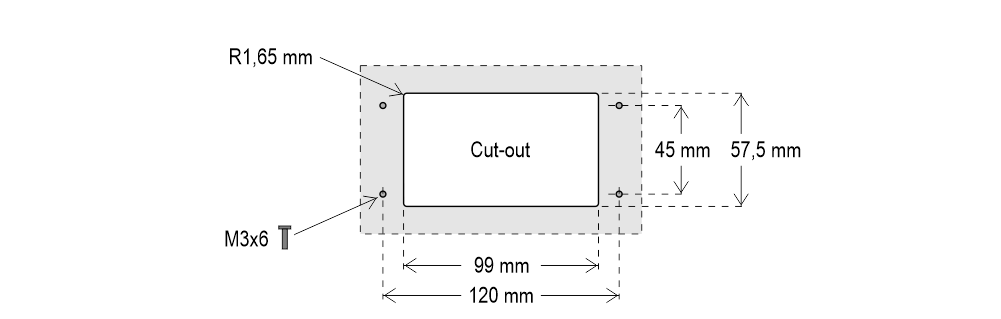
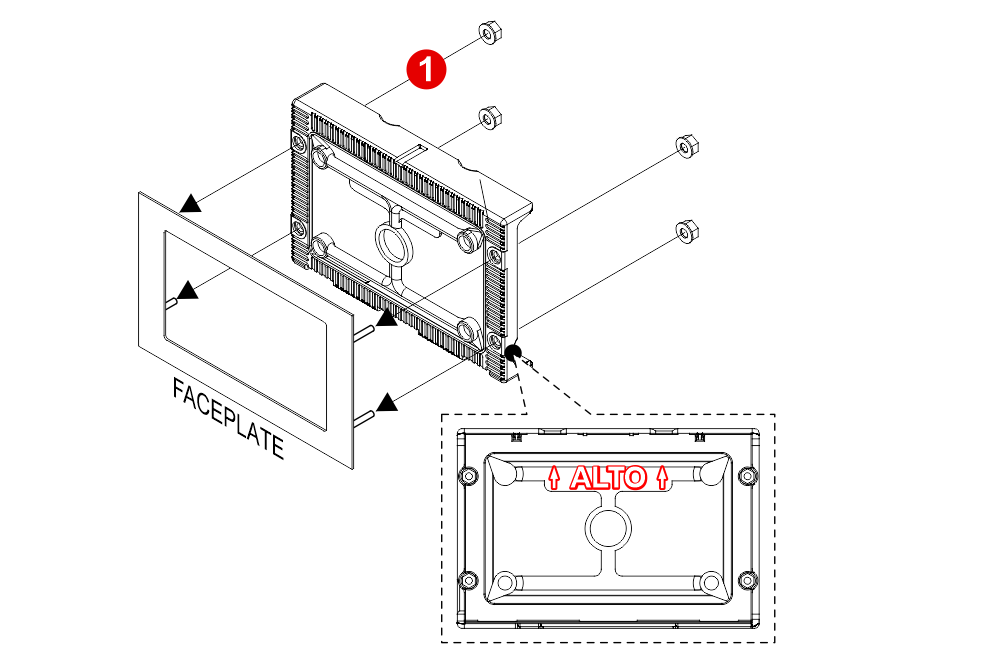
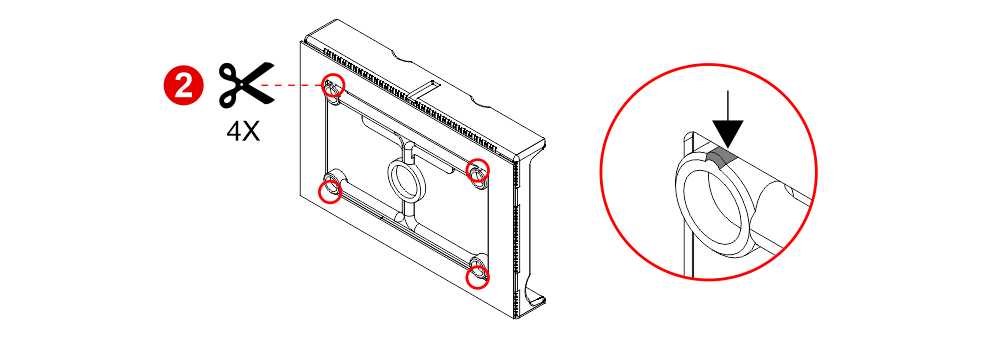

 If you are replacing an existing position indicator, please verify that studs’ length match the above mentioned one; if not, please shorten them.
With pins on backplate (for 1 mm pushbutton panel)
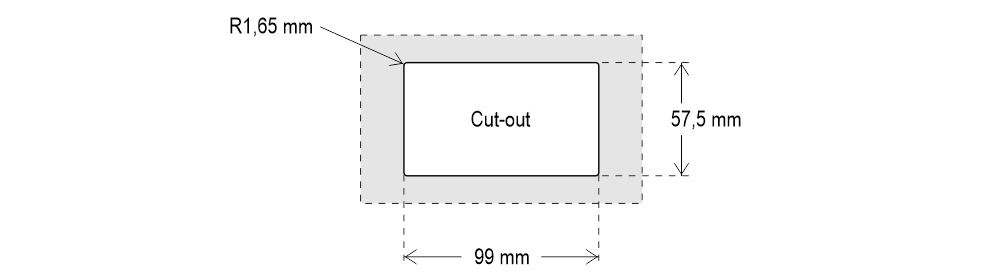
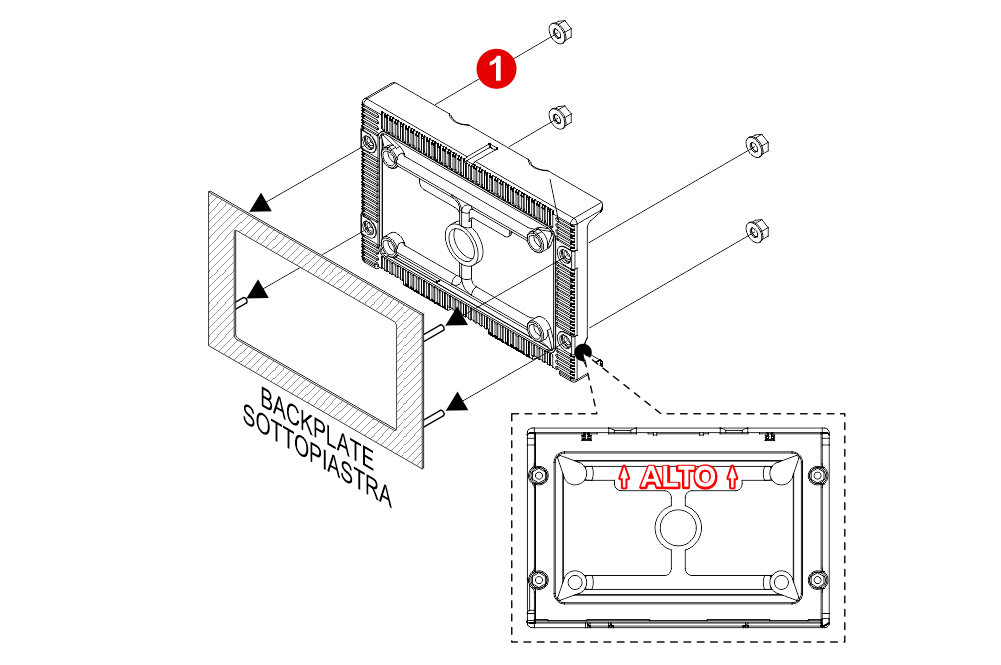
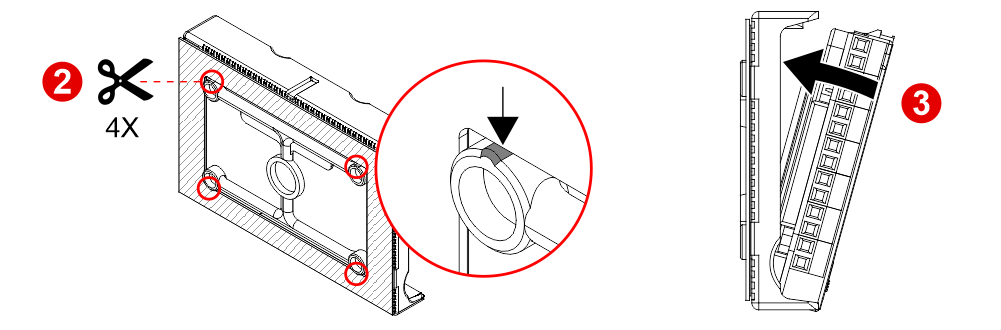
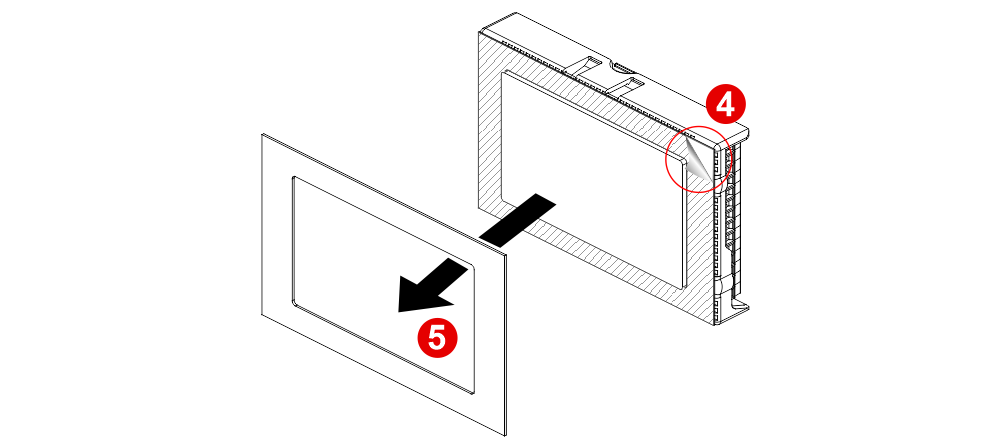 If you are replacing an existing position indicator, please verify that studs’ length match the above mentioned one; if not, please shorten them.
With welded pins on 2/3 mm pushbutton panel
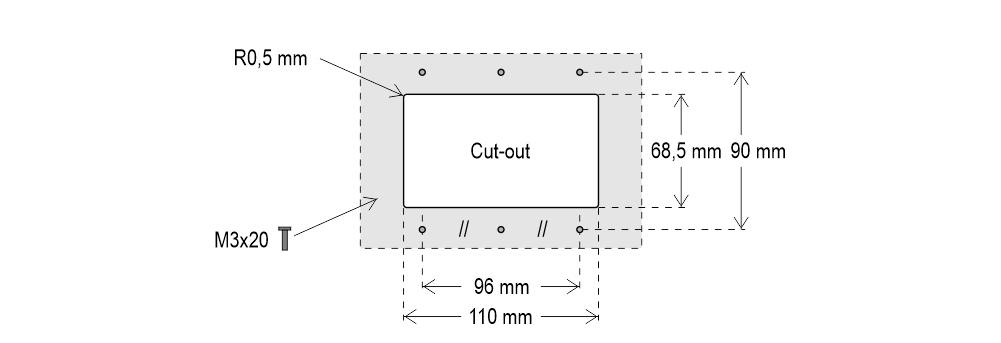
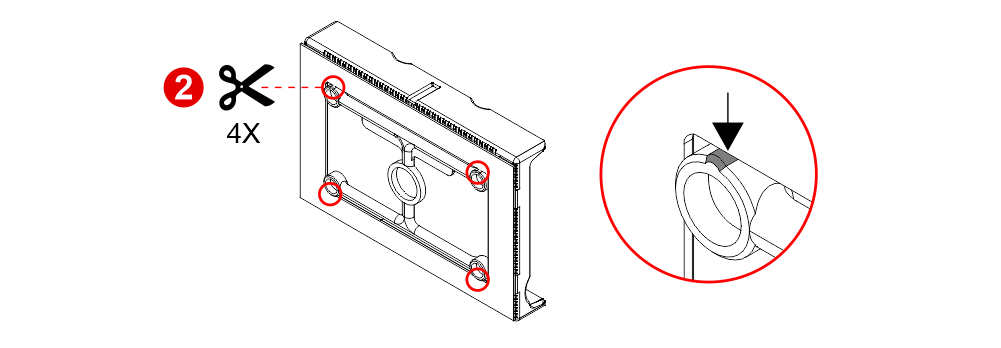
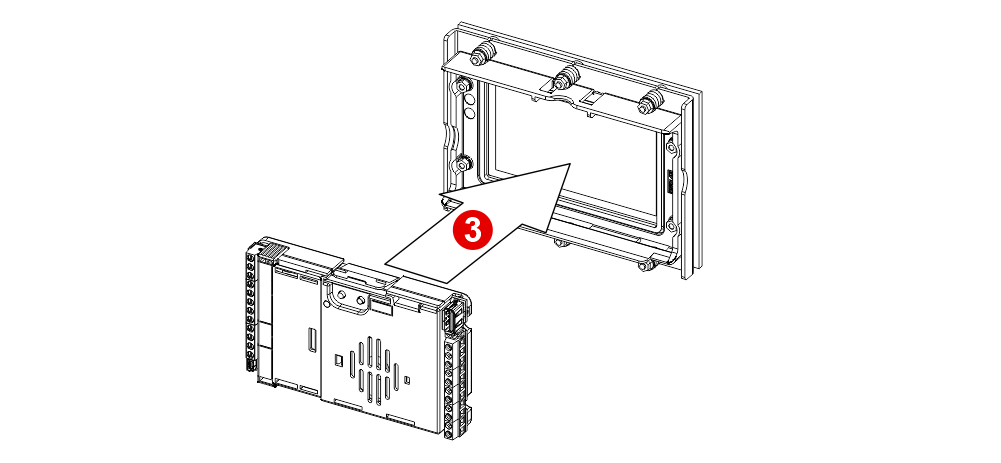
 If you are replacing an existing position indicator, please verify that studs’ length match the above mentioned one; if not, please shorten them.
With welded pins on 2/3 mm pushbutton panel
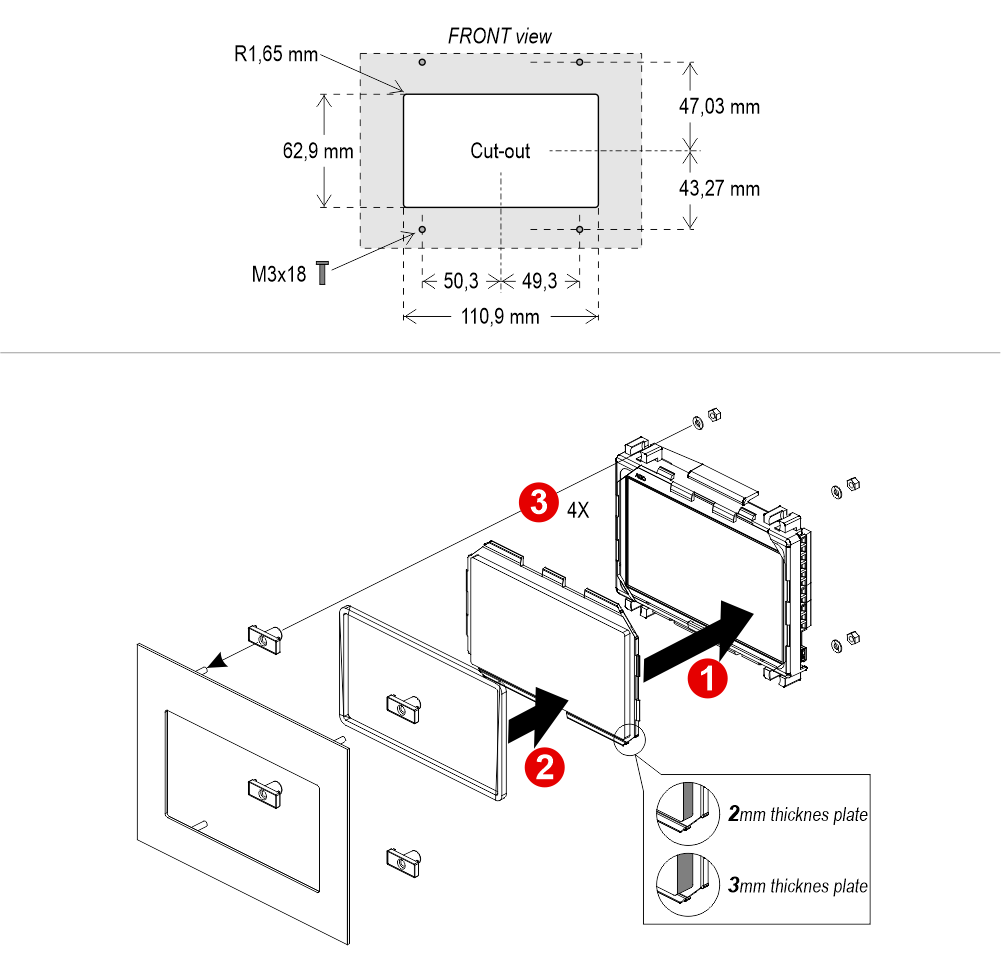
With pins on backplate (for 1/1,5 mm pushbutton panel)
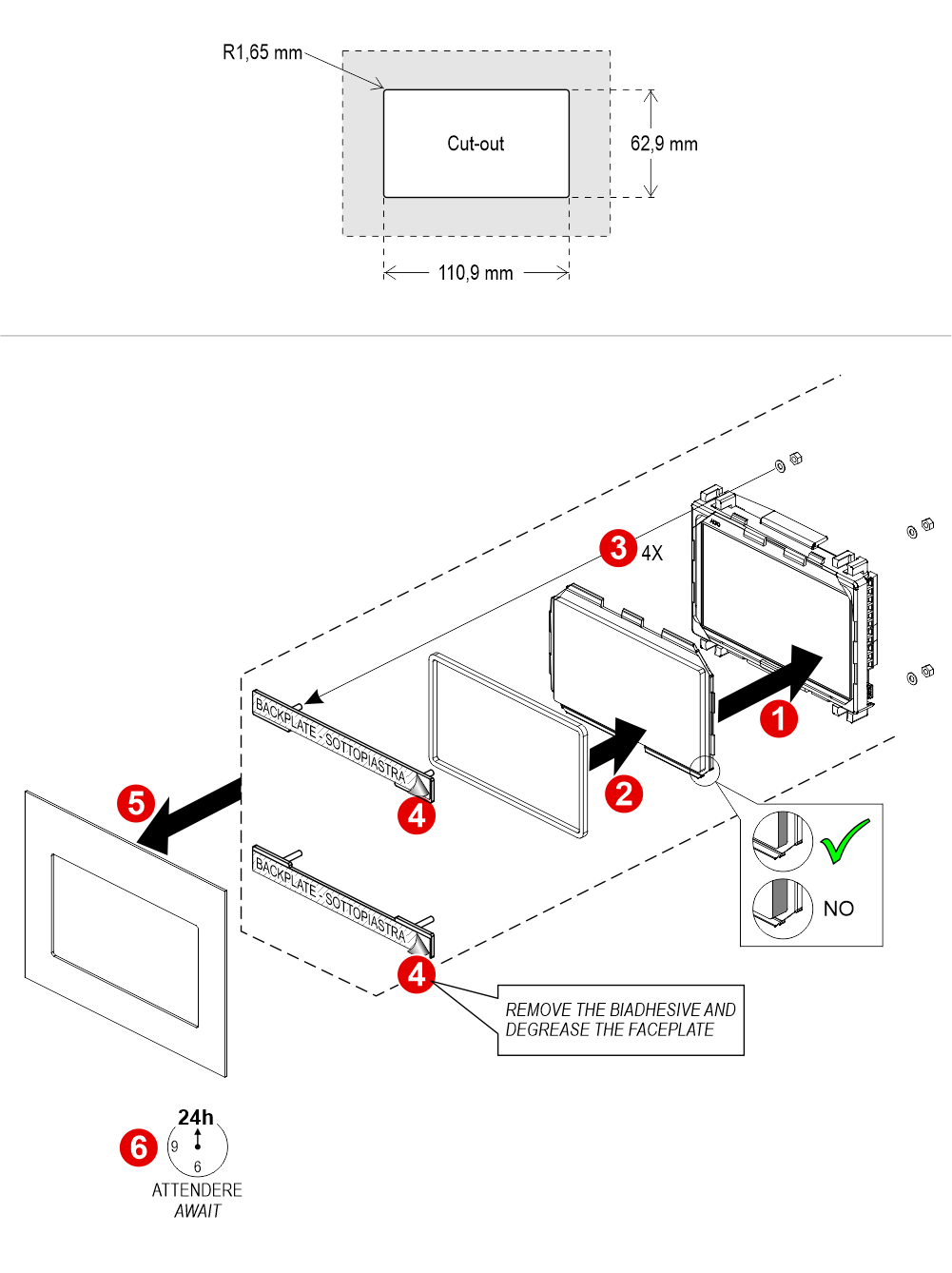
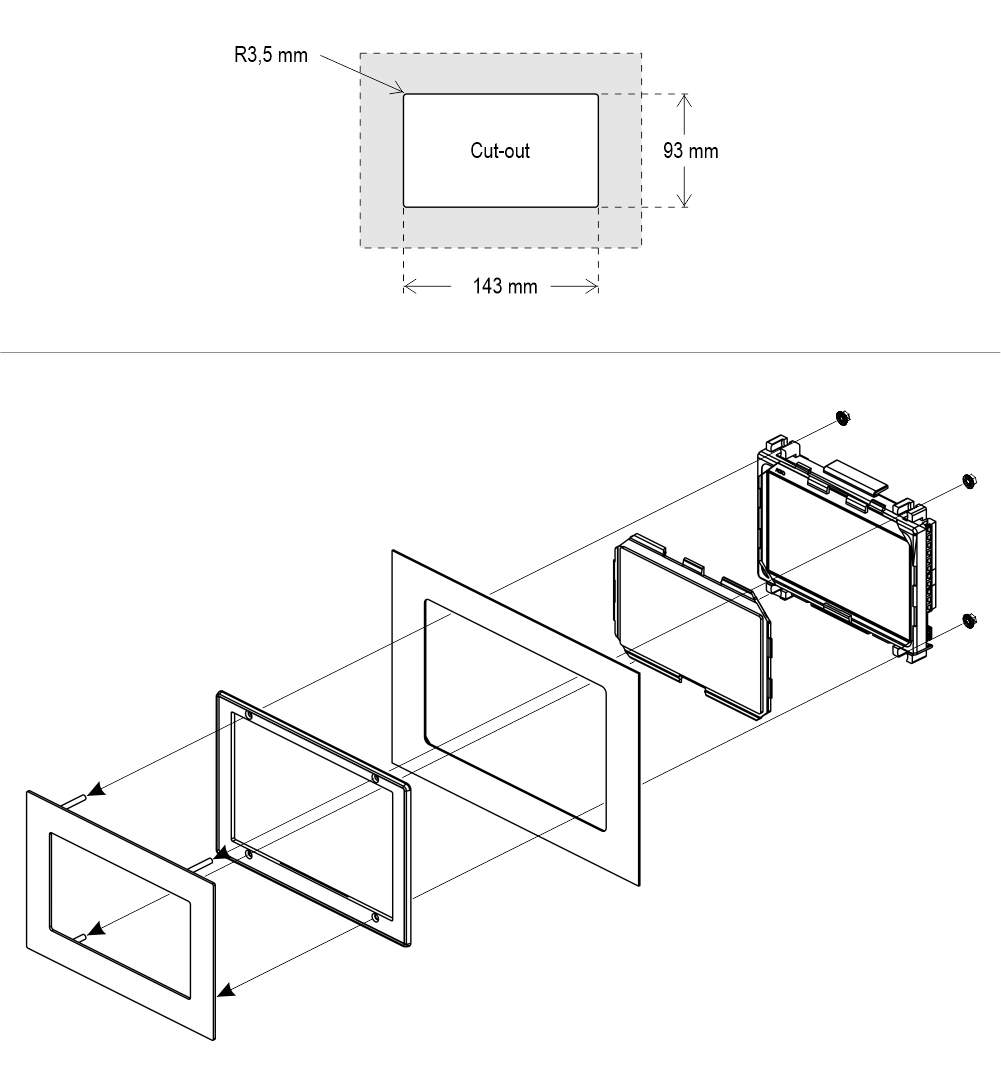
Frontal Mounting
Frontal mounted on 1/2 mm pushbutton panel
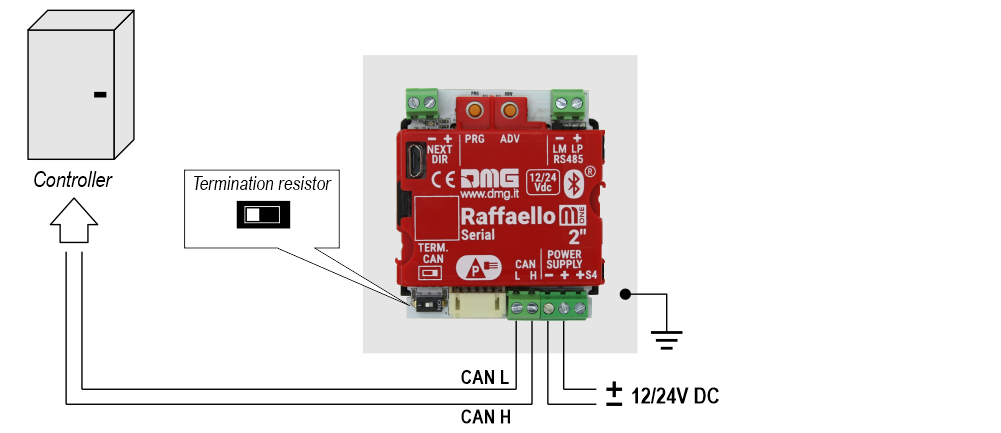
Wiring
Basic Wiring (Raffaello 2″)
1 Wire / Floor
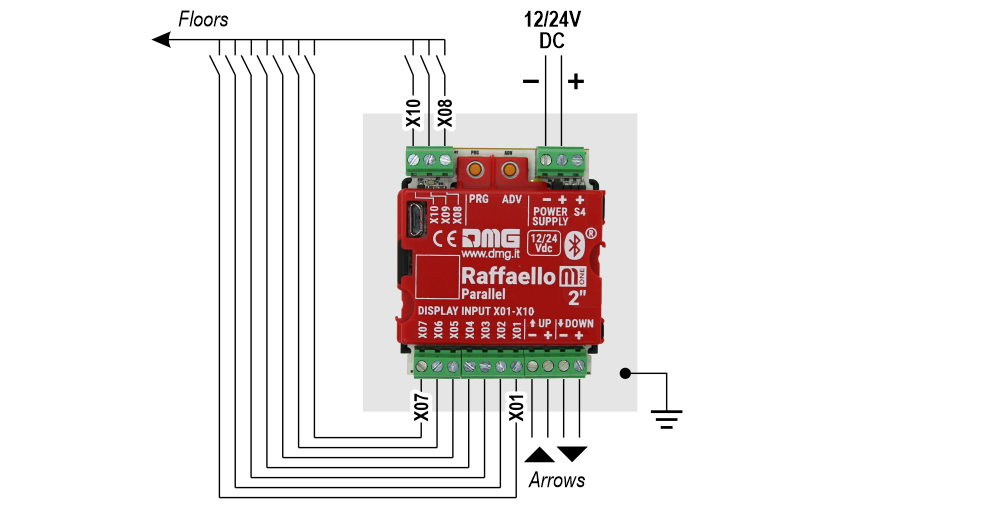 10 floors max.
1 Wire / Segment
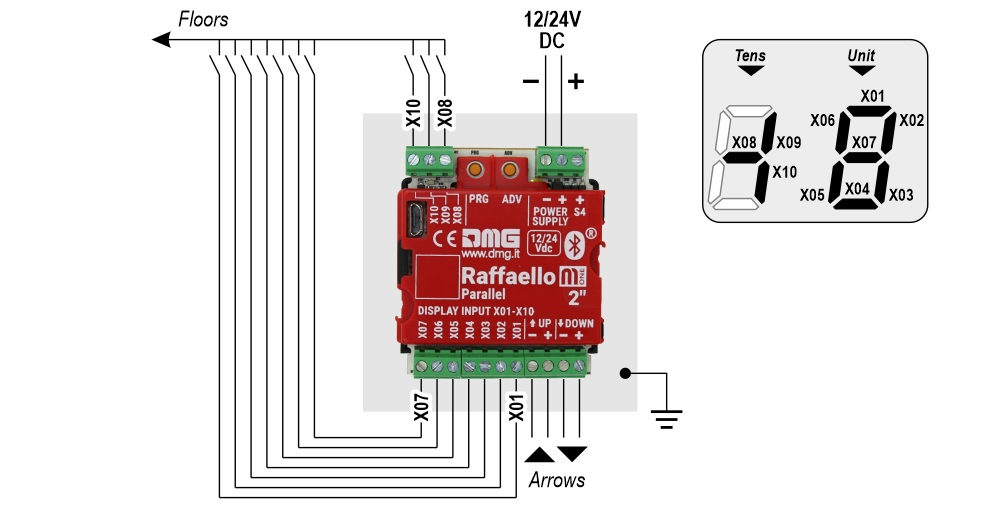 29 floors max. (-9, 0, 19)
Gray / Binary
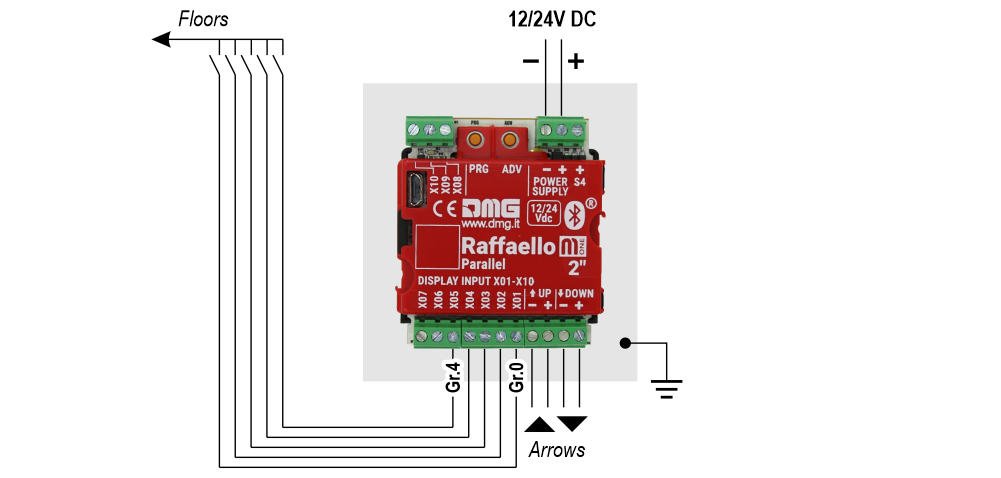 72 floors max. (-9, 0, 62)
TKE/MEA/Autinor
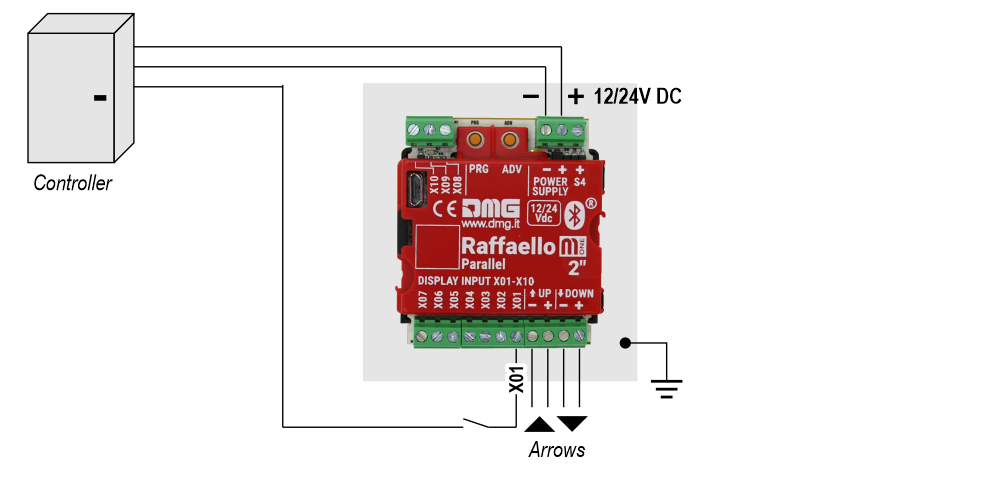
Indipendent sensor
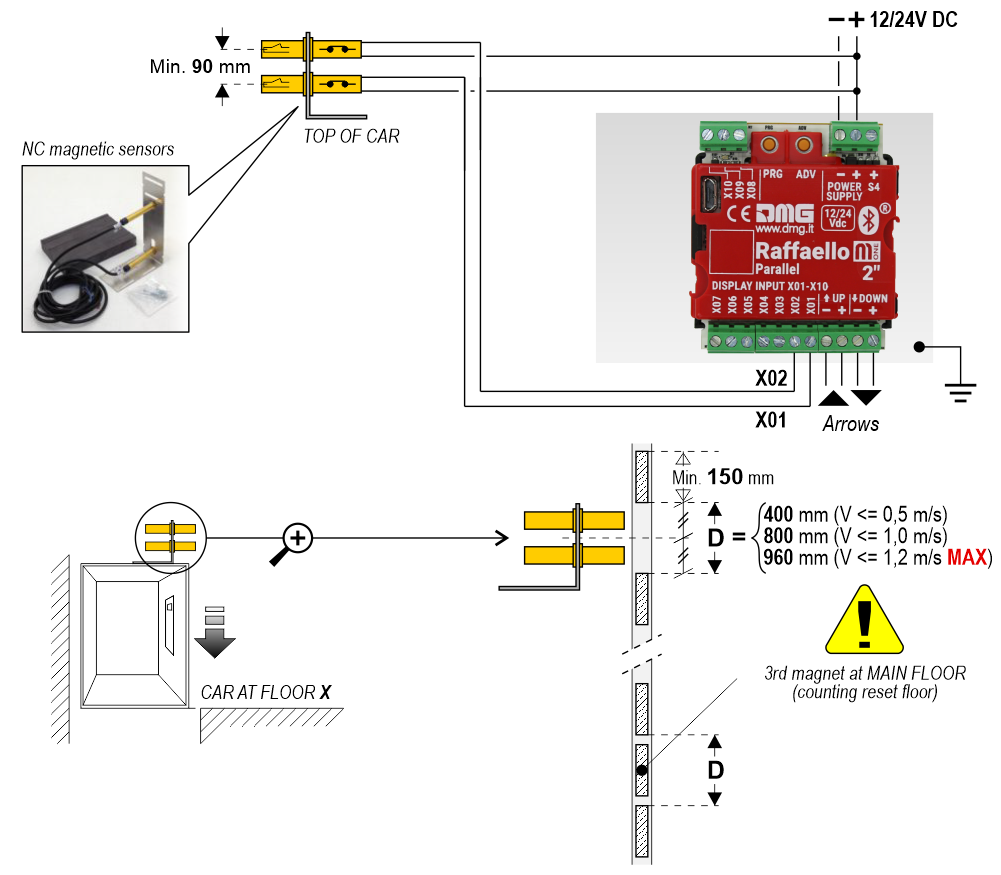
 For more details please refer to the Encoder DEUM support page
DMG CAN serial protocol
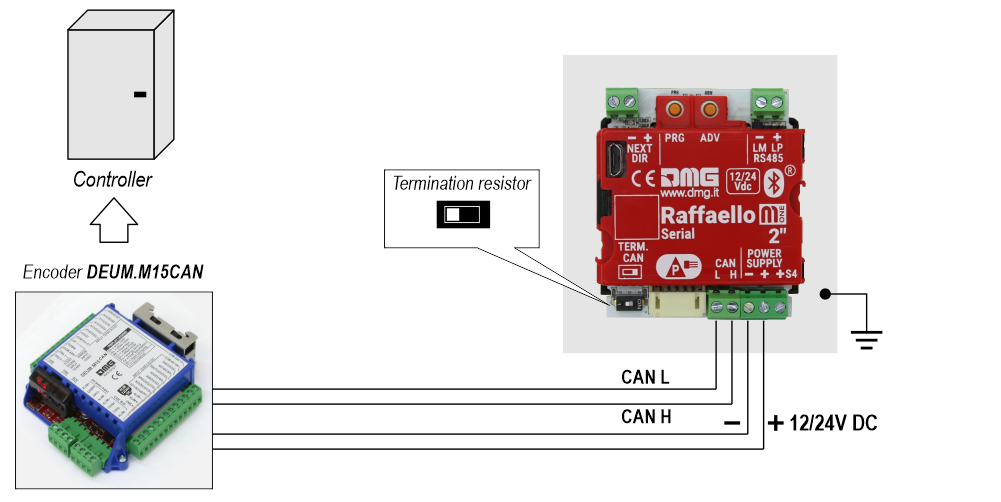
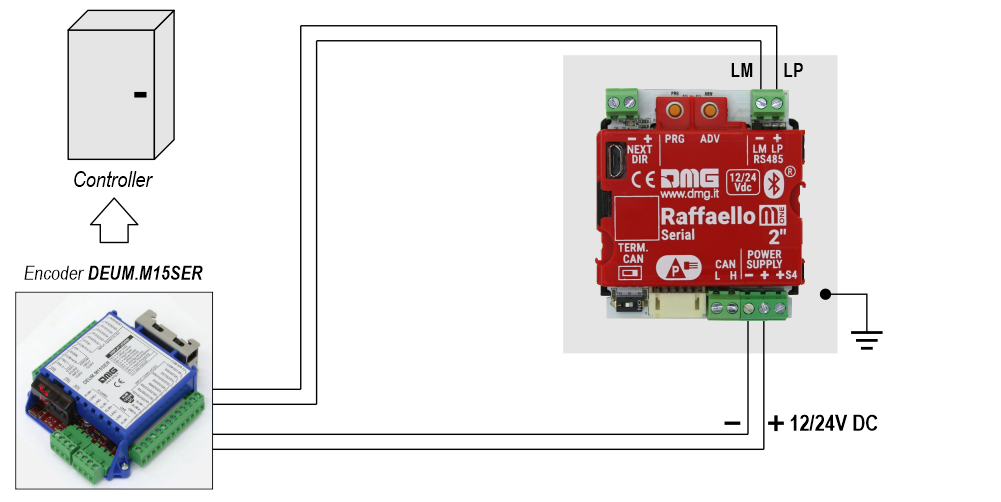
DMG 3-wires serial protocol
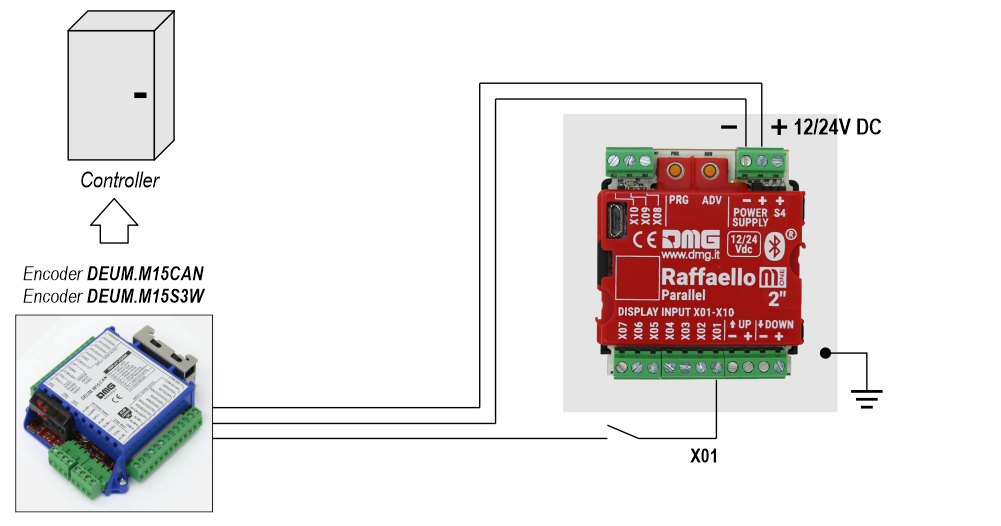
RS485 serial
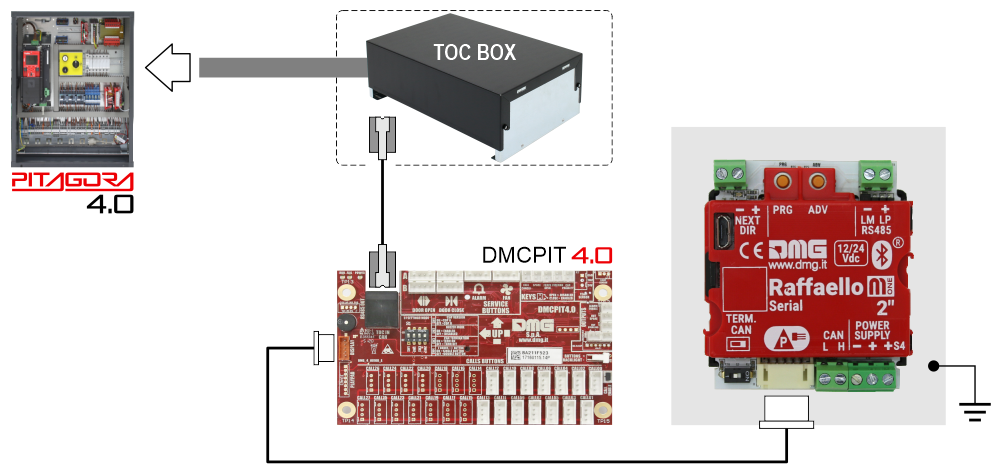
FLOOR
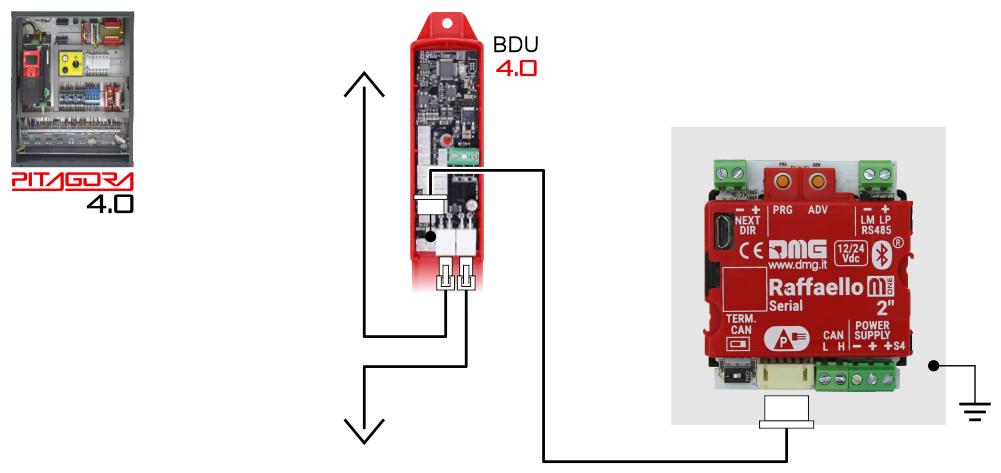
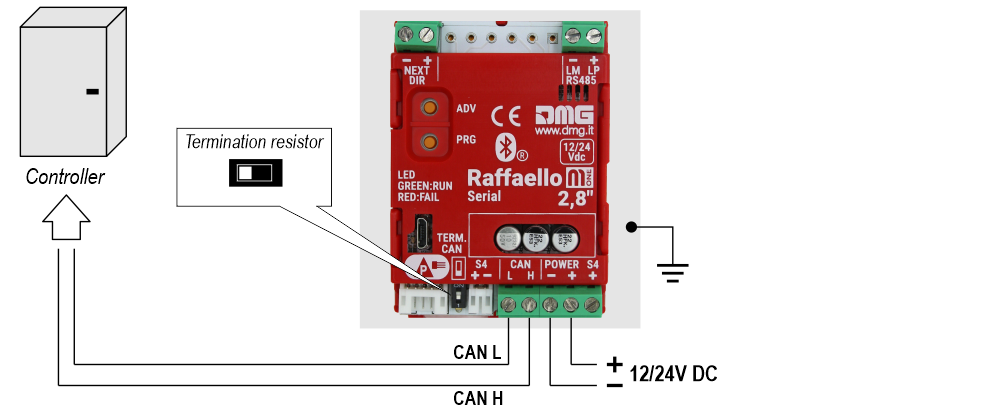
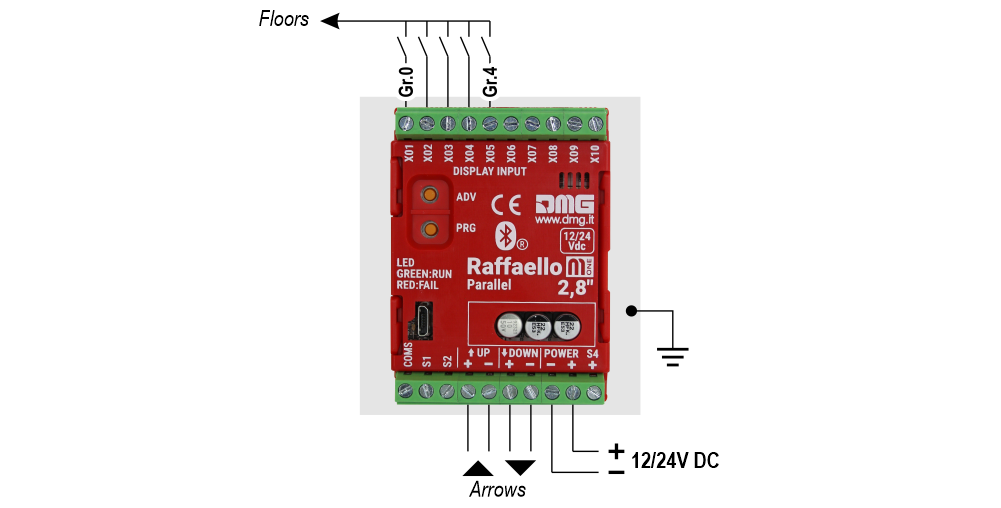
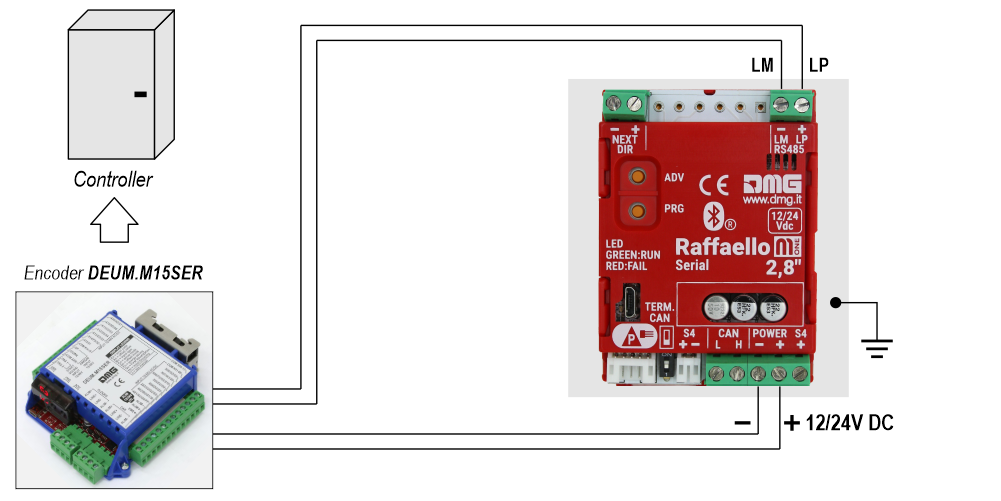
Basic Wiring (Raffaello 2,8″)
1 Wire / Floor
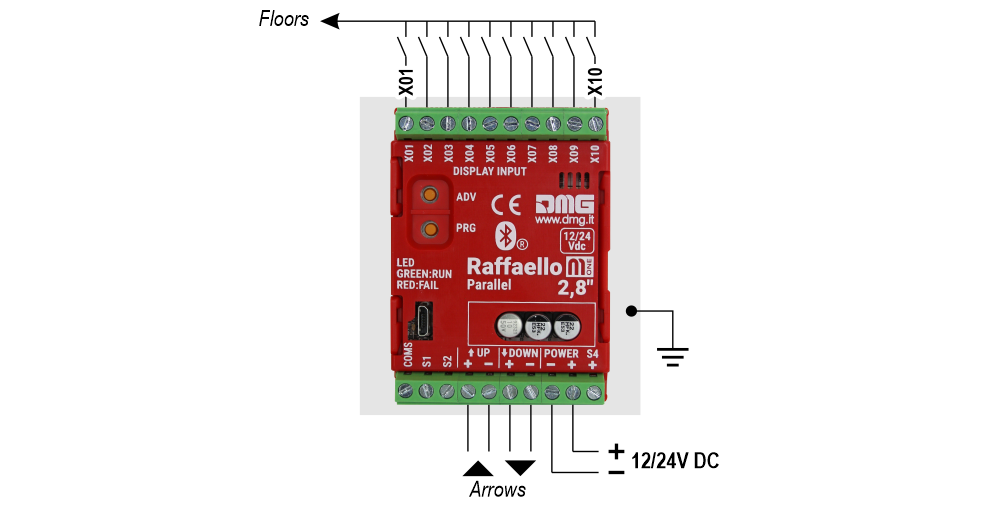 10 floors max.
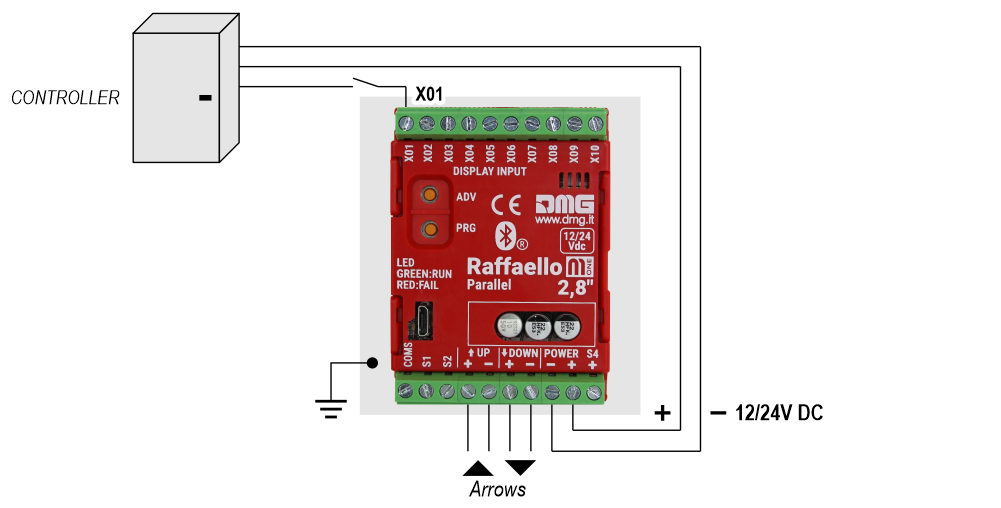
1 Wire / Segment
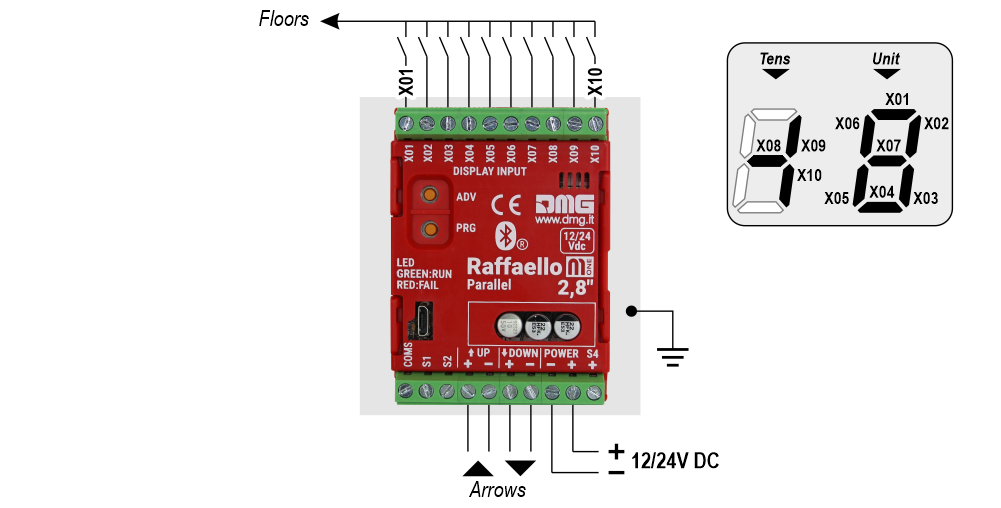 29 floors max. (-9, 0, 19)
Gray / Binary
 72 floors max. (-9, 0, 62)
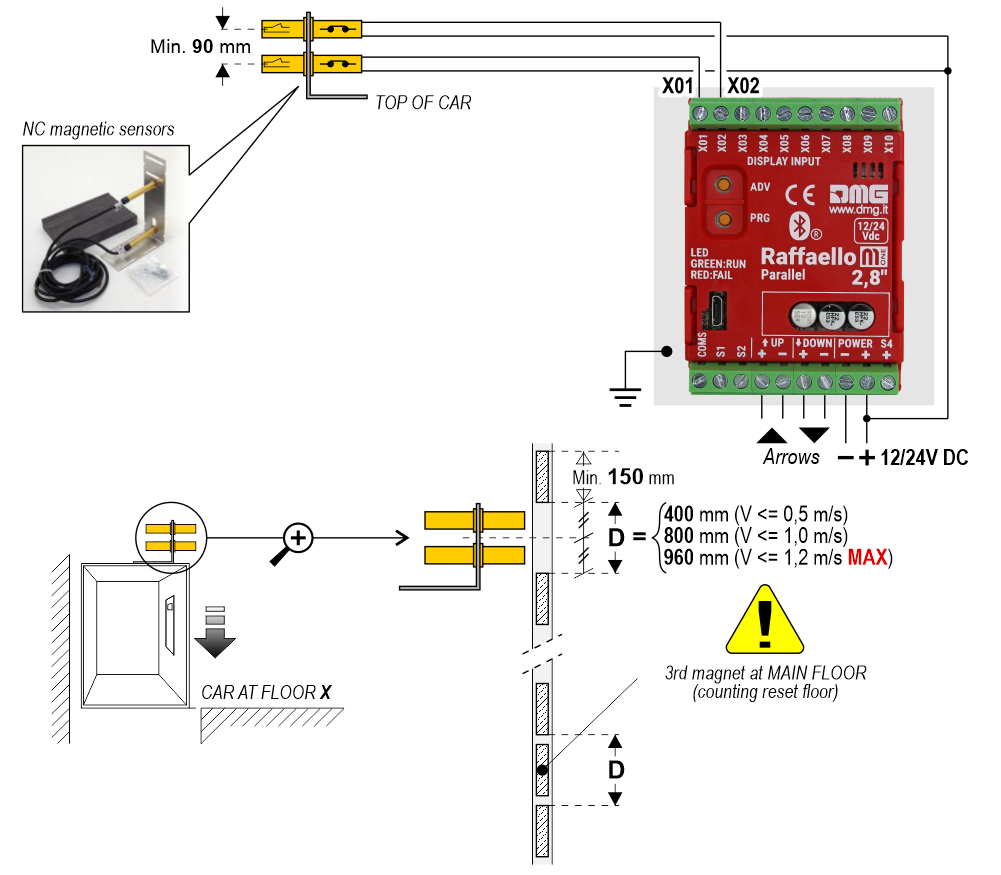
TKE/MEA/Autinor
Indipendent sensor
 For more details please refer to the Encoder DEUM support page
DMG CAN serial protocol
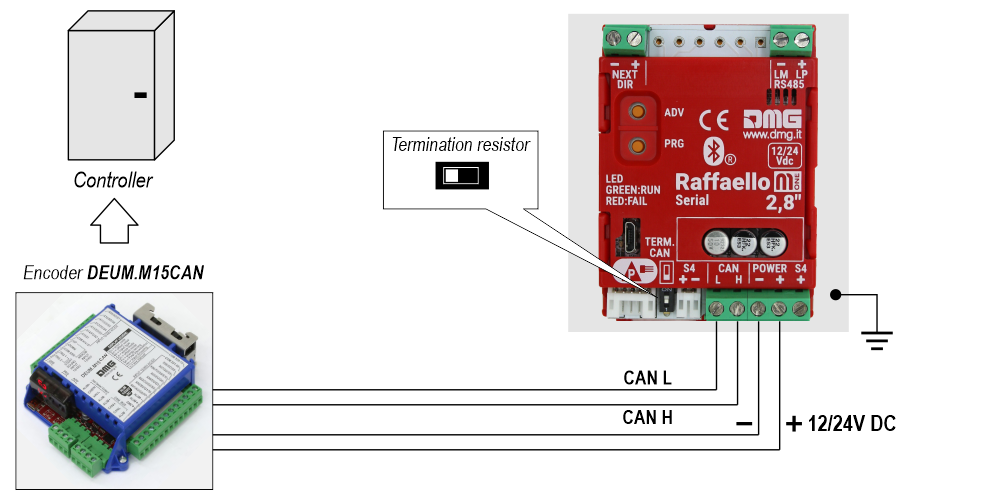
DMG 3-wires serial protocol
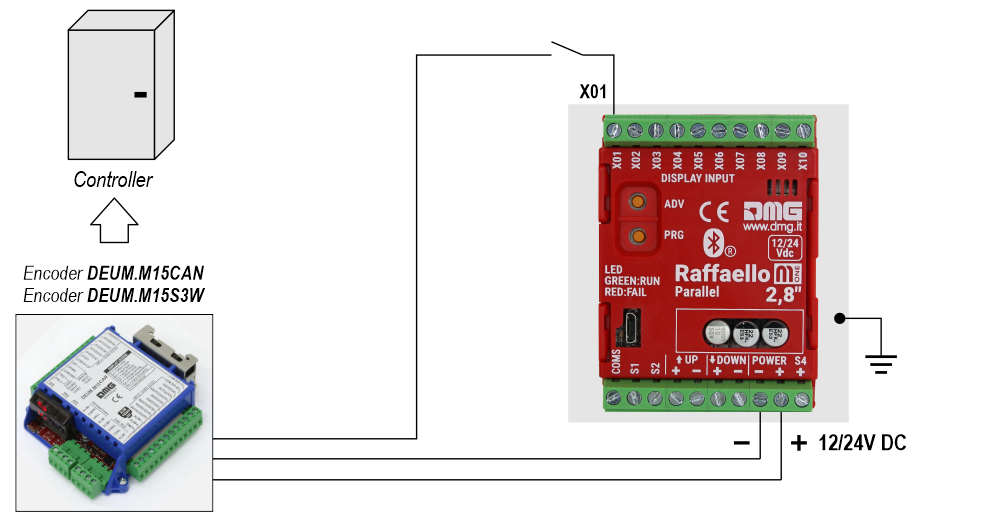
RS485 serial
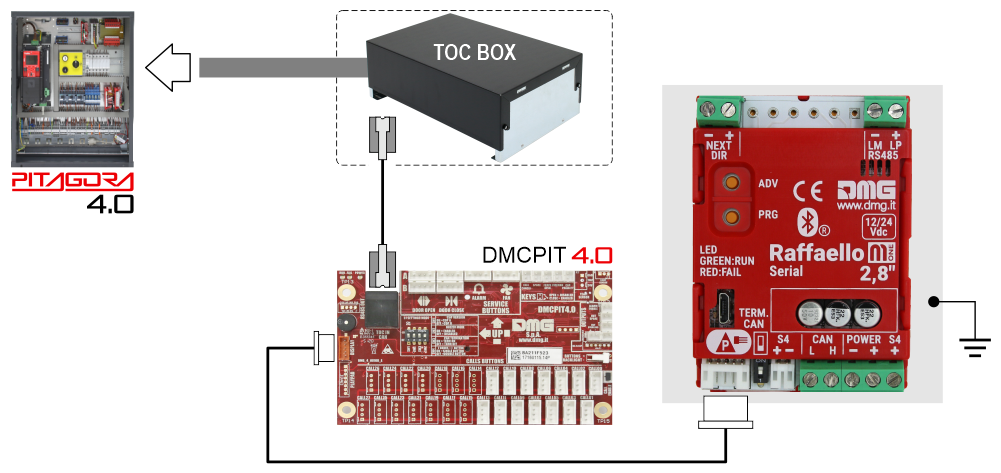
FLOOR
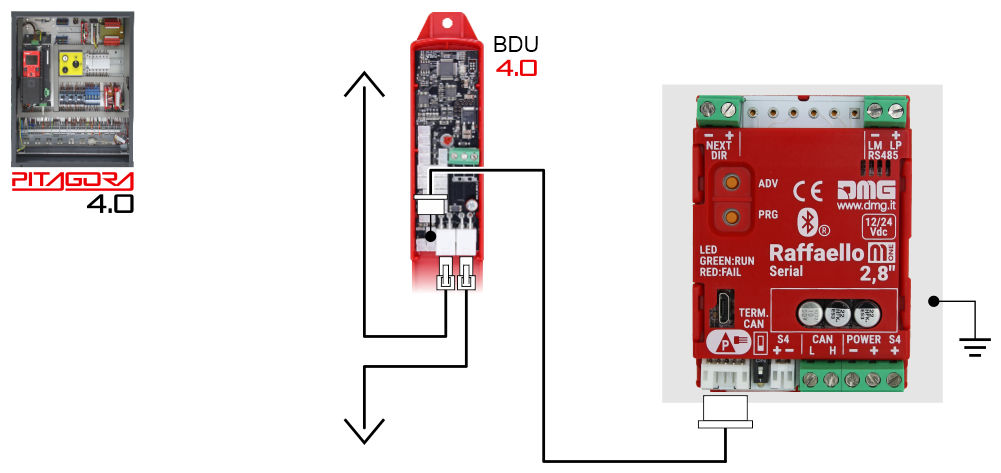
Basic Wiring (Raffaello 4,3″ / 5″)
1 Wire / Floor
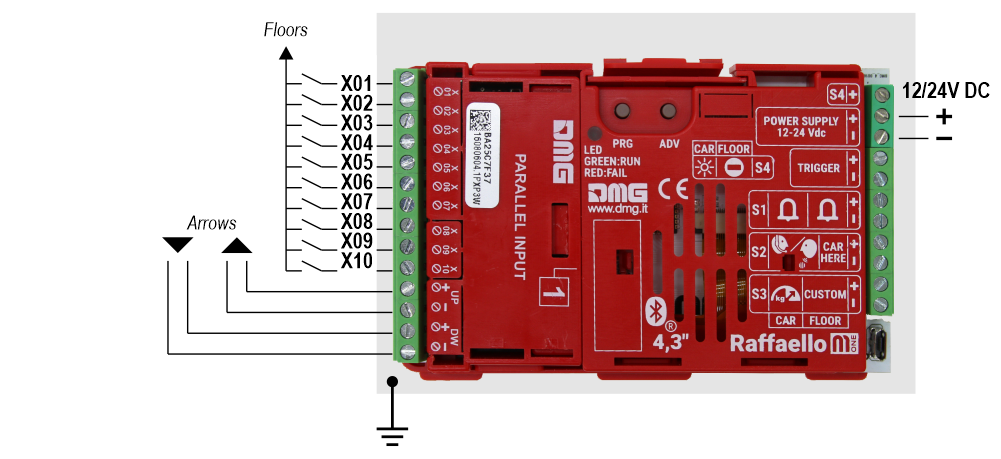 10 floors max.
1 Wire / Segment
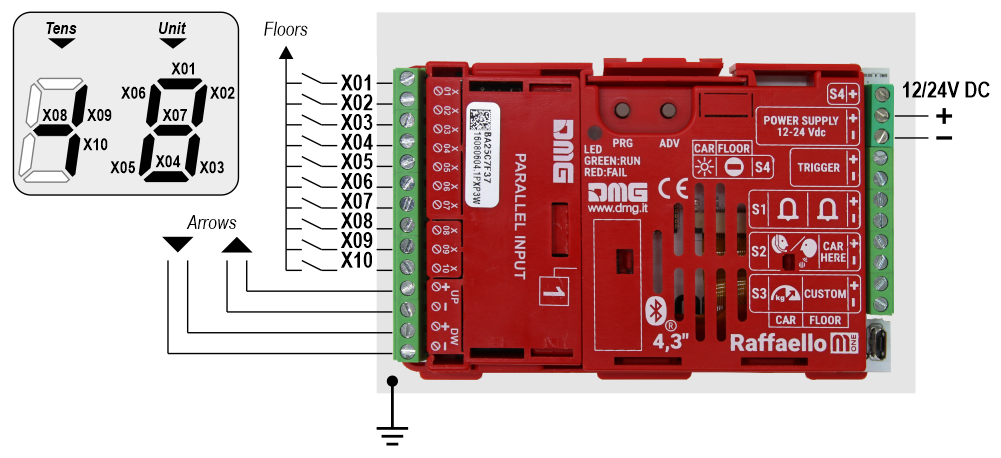 29 floors max. (-9, 0, 19)
Gray / Binary
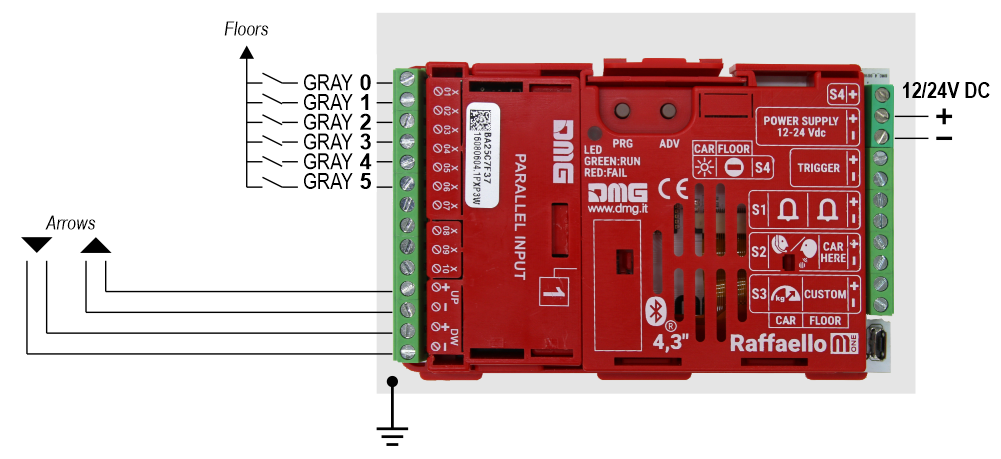 72 floors max. (-9, 0, 62)
TKE/MEA/Autinor
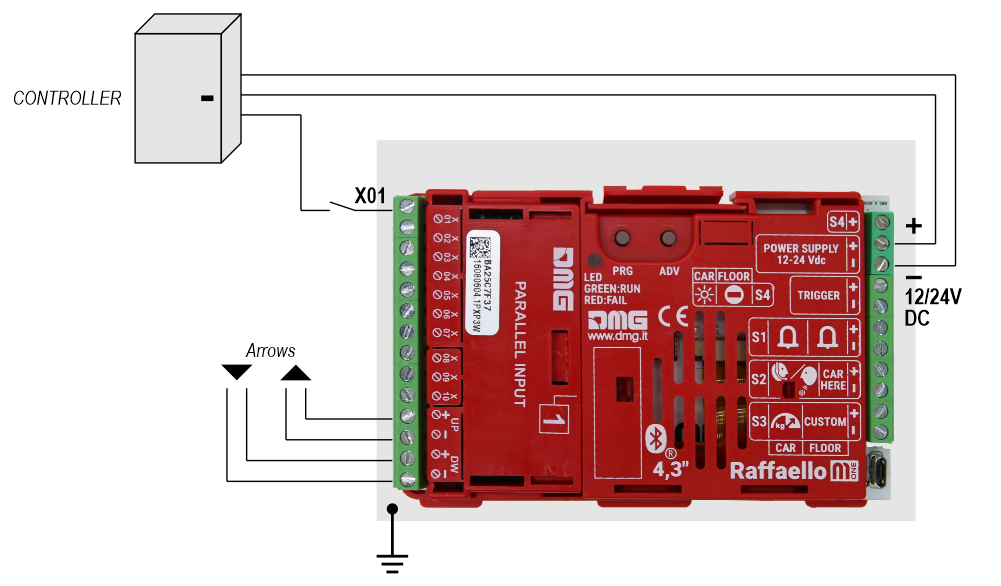
Indipendent sensor
With this connection, the following settings are required in the programming menu:
Raffaello M1 / Input
• Pos. Sensor (Manual) – The arrows are controlled by inputs
• Pos. Sensor (Auto) – The arrows are controlled by sensors
Raffaello M1 / Options / Interface options / Display configuration
• COP (Car operating panel display)
Raffaello M1 / Options / Interface options / Common selections
• Negative
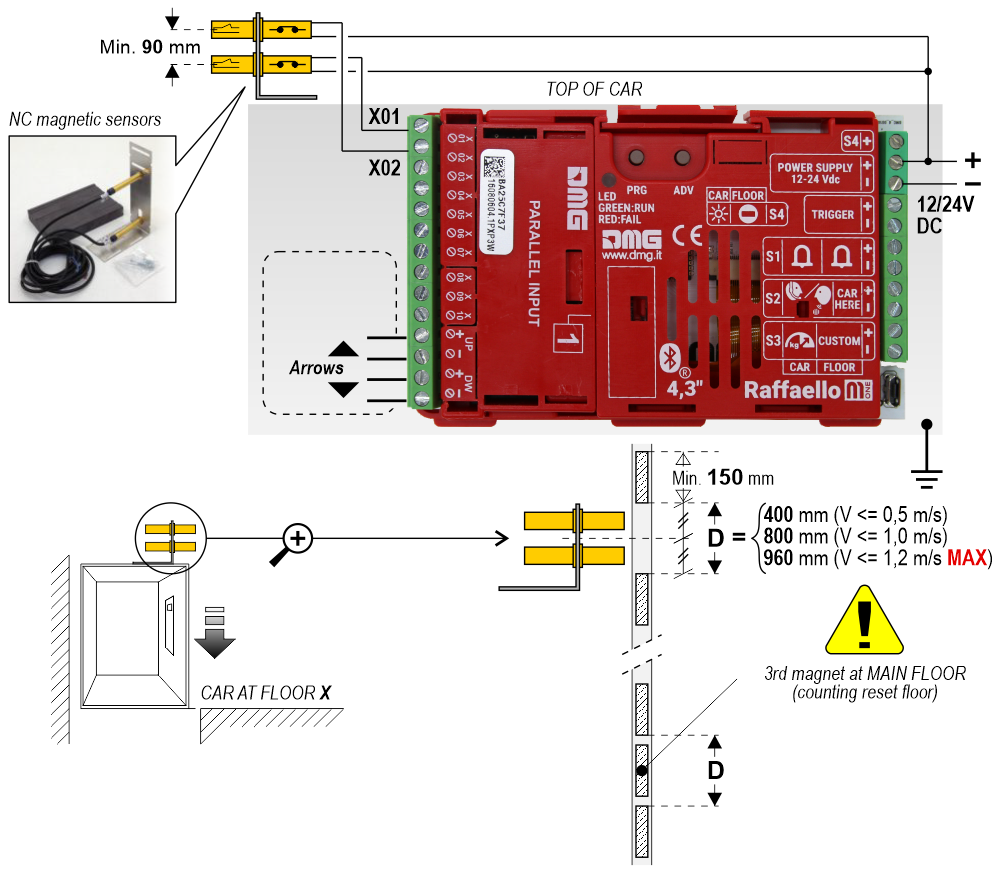 For more details please refer to the Encoder DEUM support page
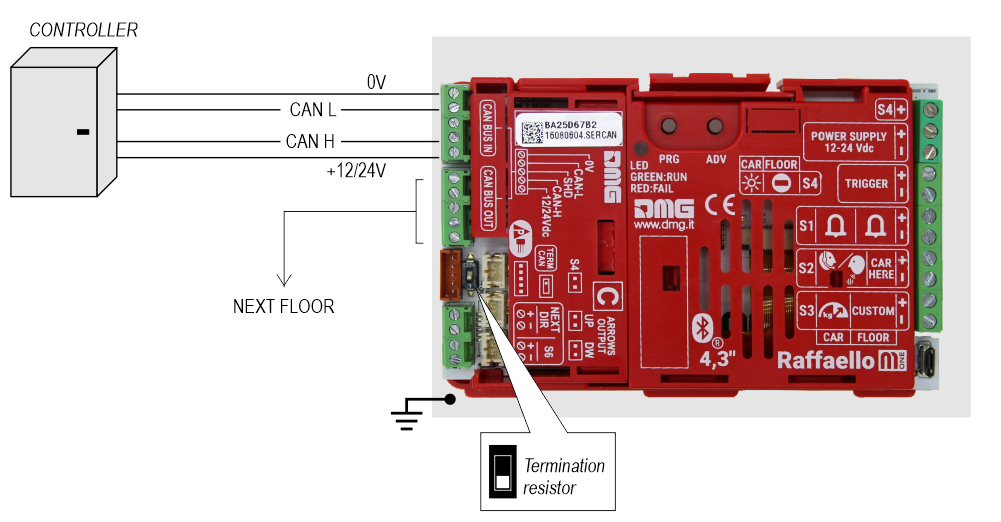
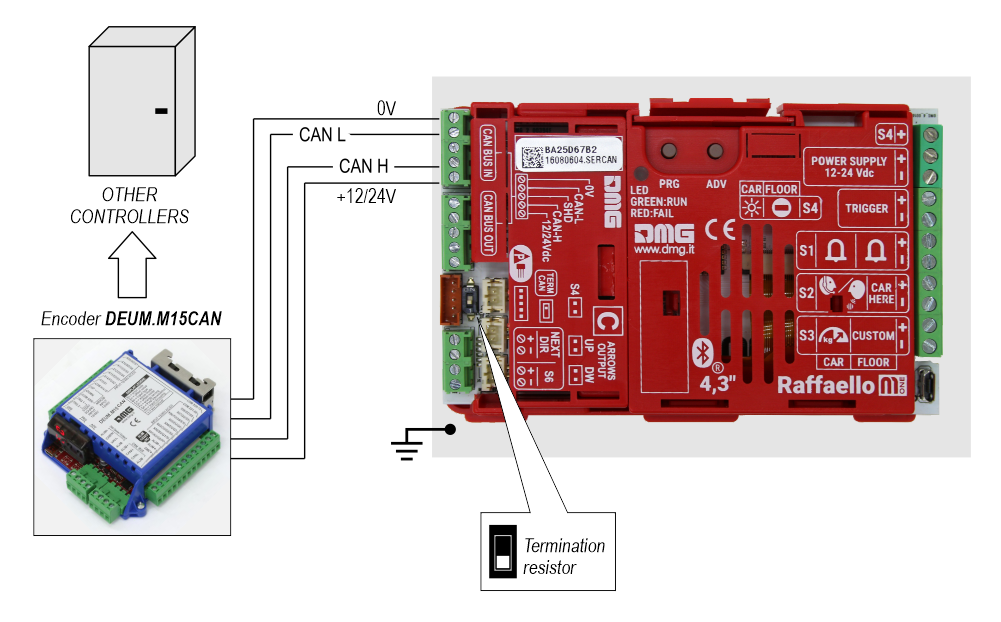
DMG CAN serial protocol
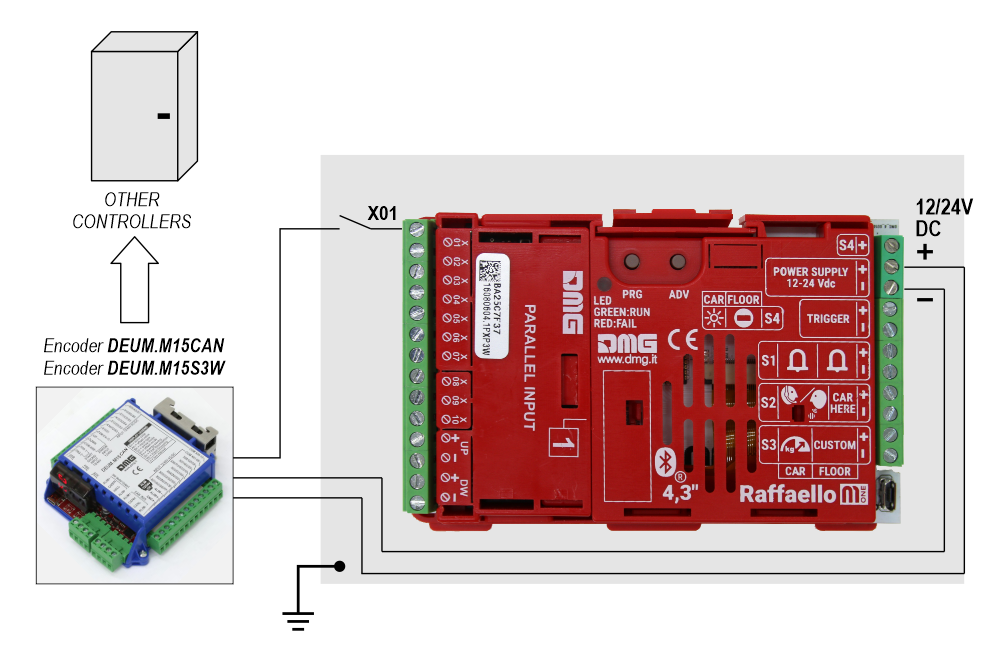
DMG 3-wires serial protocol
RS485 serial
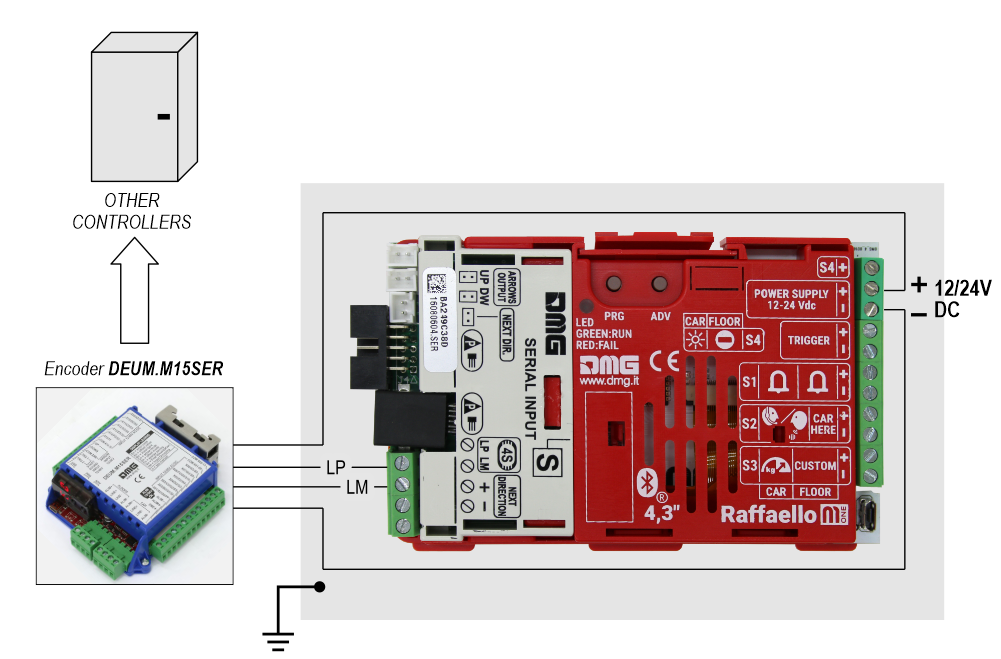
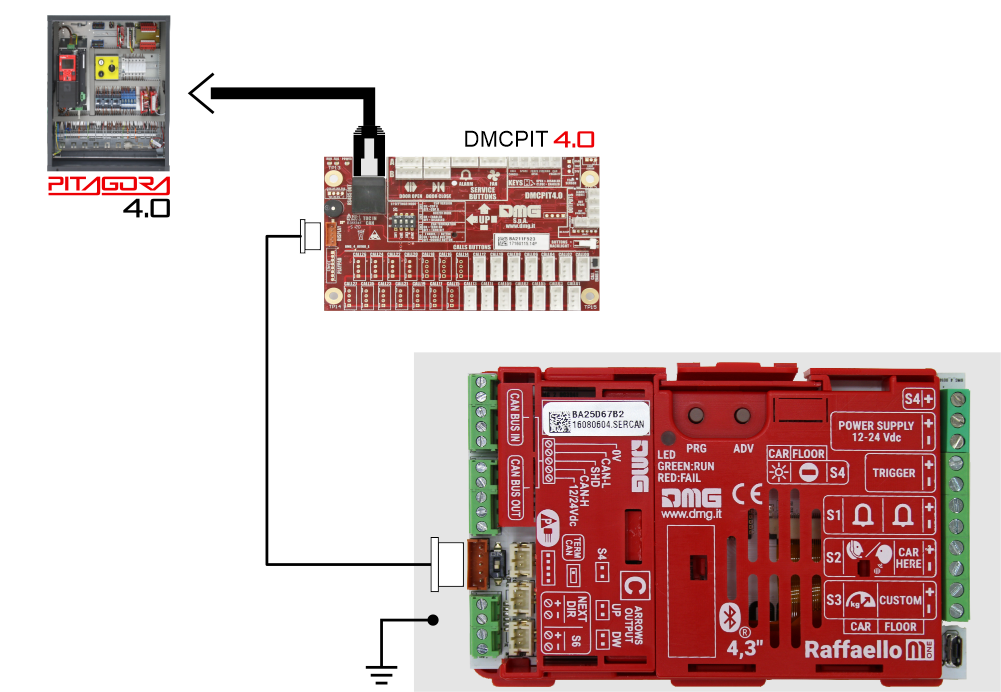
FLOOR
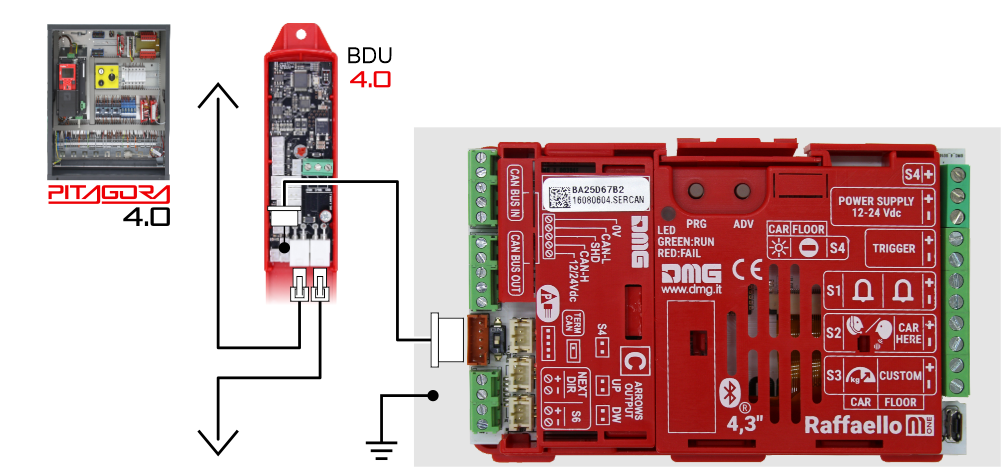
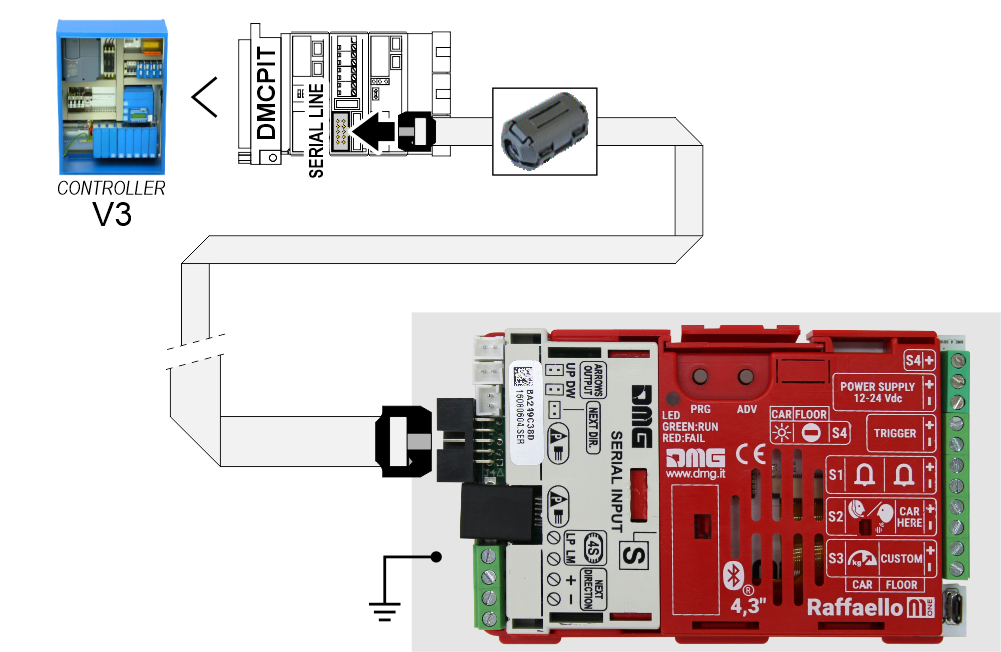
FLOOR
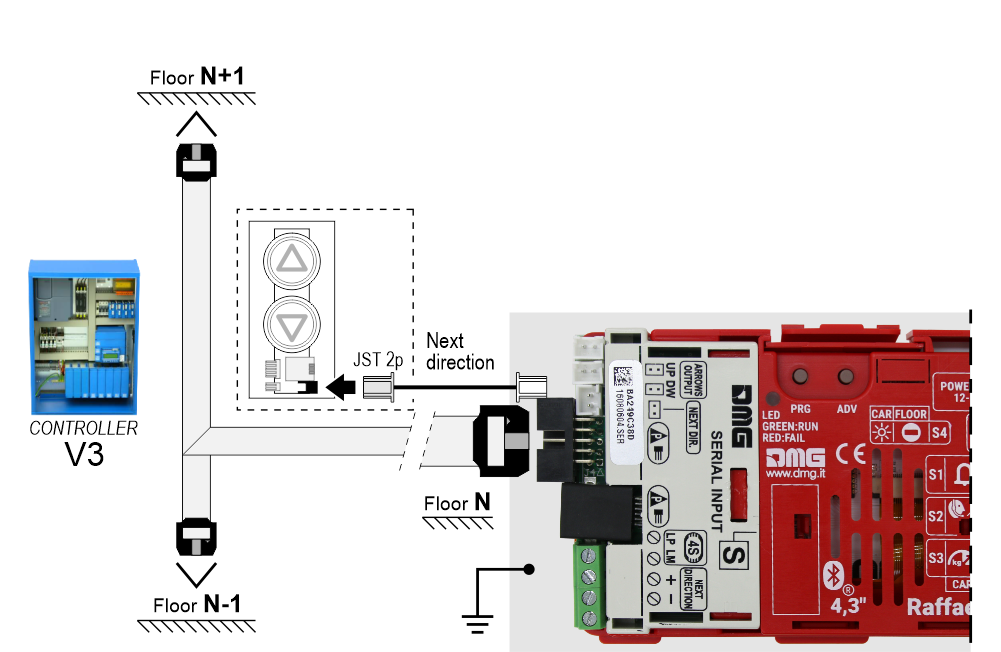
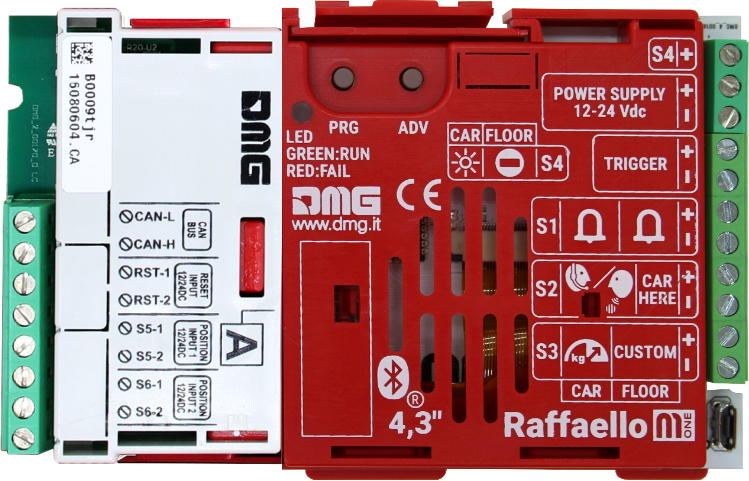
If available, it is possible to use the same position sensors used by the controller.
If NOT availale, you have to install:
• 1 NO magnetic sensor on the cabin + 1 magnet at every floors for counting position.
In this interface there is a CAN BUS serial line for piloting the position indicators of floor.
For all other functions (Voice Synthesizer, gong, indicators, etc.) please refer to the display technical support page.
Autonomous positioning System

The TFT CANopen interface is a device for interfacing DMG displays to all third-party CANopen controllers on the market.
The DMG displays of the CANopen line comply with the standards CiA-301 and CiA-417 (Lift).
The elevator functions described by the CiA-417 profile and implemented in the displays are:
1) Position
2) Arrows
3) Trigger
4) Signalisations
5) Gong
6) Lift data
The image below shows the connection principle of a CANopen DMG display.
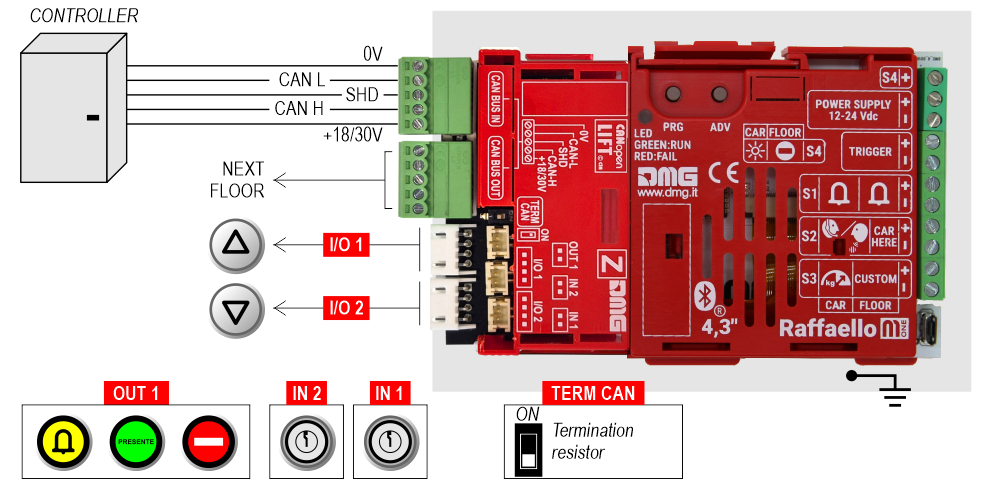
I/O 1/2, OUT 1, IN 1-2 : This is just an example of how to connect the inputs/outputs of the CANopen interface.
The DMG CANopen displays have new menu parameters through which the installer user can set:
The CANopen node ID (“NodeID”)
The baud rate of the CAN line (“Baud rate”)
Service messages wiring
Raffaello 2″
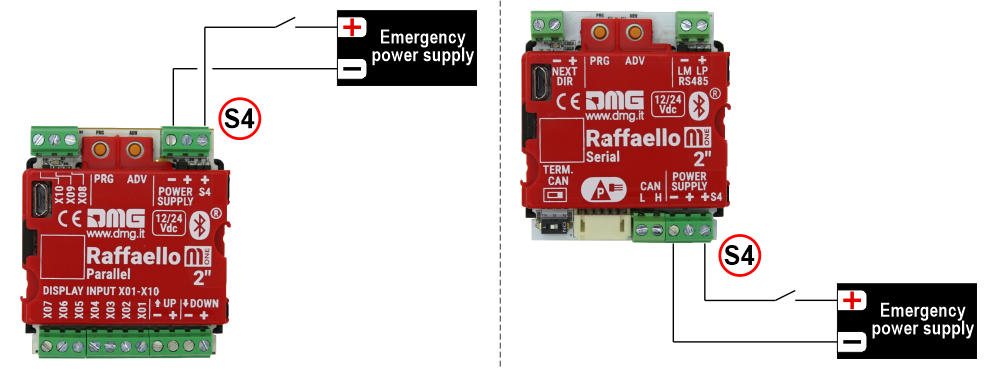
| CAR | FLOOR | |
|---|---|---|
| S4 | Antipanic light | No entry |
Raffaello 2,8″
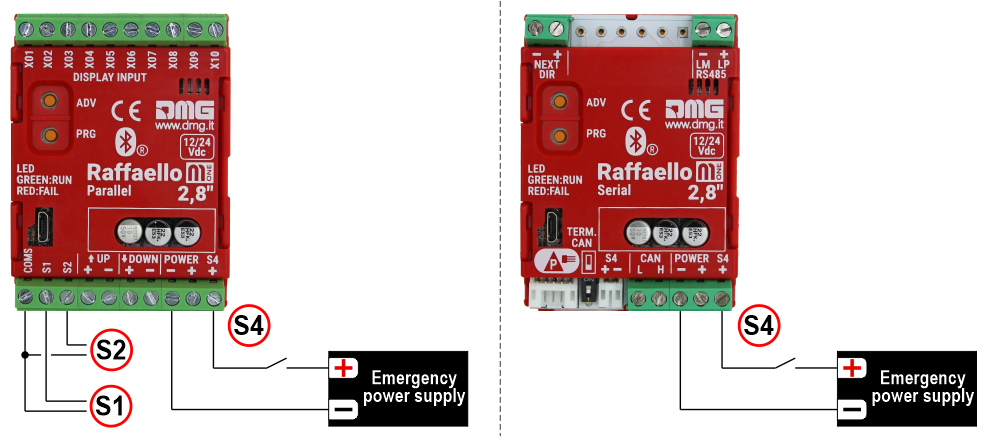
| CAR | FLOOR | |
|---|---|---|
| S1 | Alarm sent | Alarm |
| S2 | Communication establiched | Car here |
| S4 | Antipanic light | No entry |
Raffaello 4,3″ / 5″
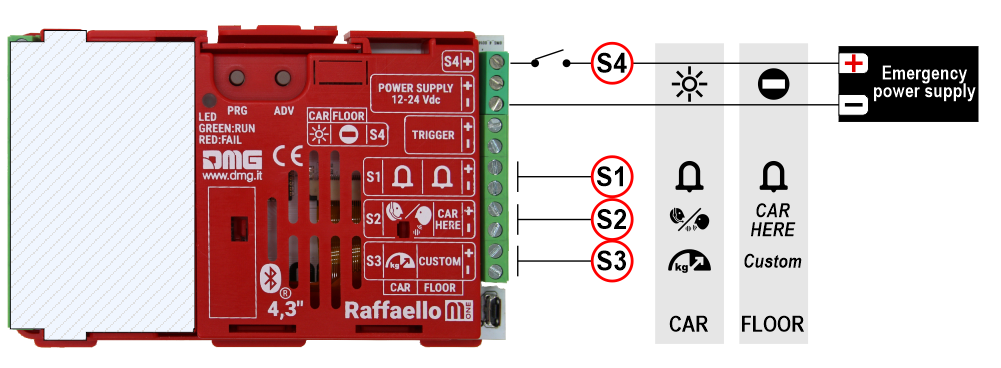
| CAR | FLOOR | |
|---|---|---|
| S1 | Alarm sent | Alarm |
| S2 | Communication establiched | Car here |
| S3 | Overload | Custom |
| S4 | Antipanic light | No entry |
TRIGGER command wiring (parallel inputs only)
This input is used to trigger the gong.
Raffaello 4,3″ / 5″
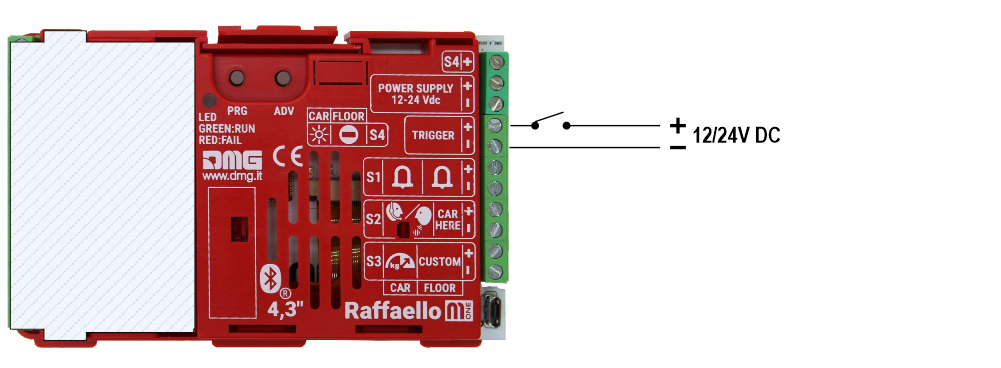
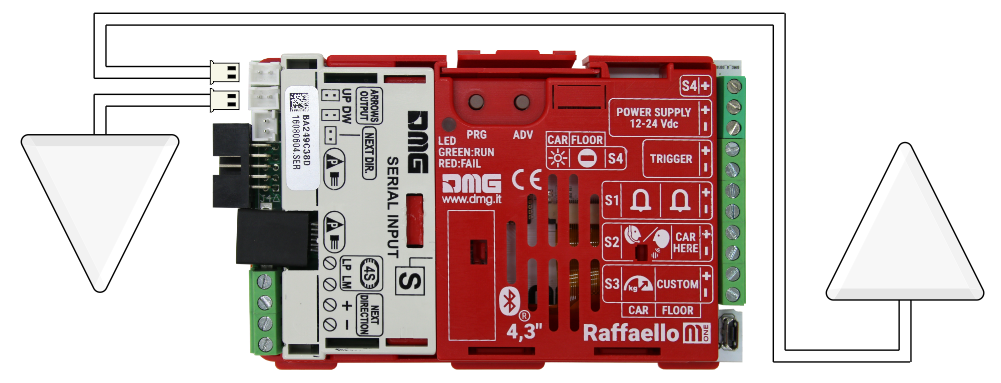
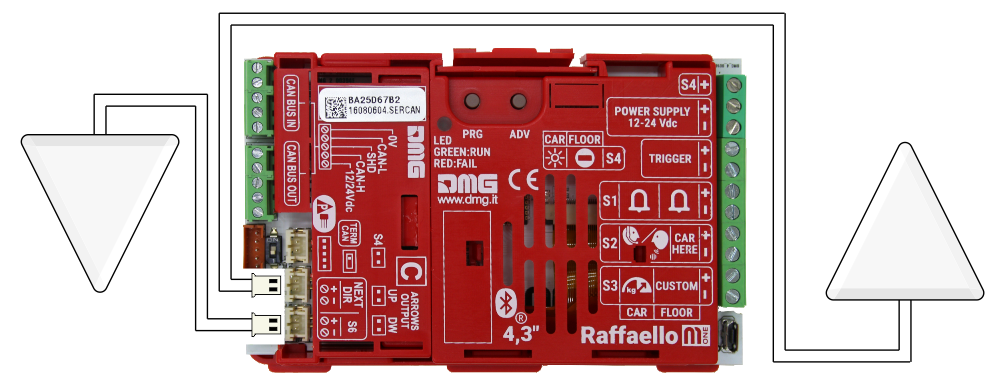
External arrows wiring
Raffaello 4,3″ / 5″
Setting on-board parameters
All the Raffaello visual setups can be viewed and modified using Mosaic One. Some parameters are only available in the on-board menu:
Raffaello TFT on-board menu navigation

PRG button
Access key to:
menu, submenu, settings
Value setting
ADV button
Menu navigation key

The Raffaello TFT display menu can be managed locally, without physically accessing the device, using the FUSION app via Bluetooth®*.
(*) Releasing Q1 of 2026
Press PRG to enter the menu.
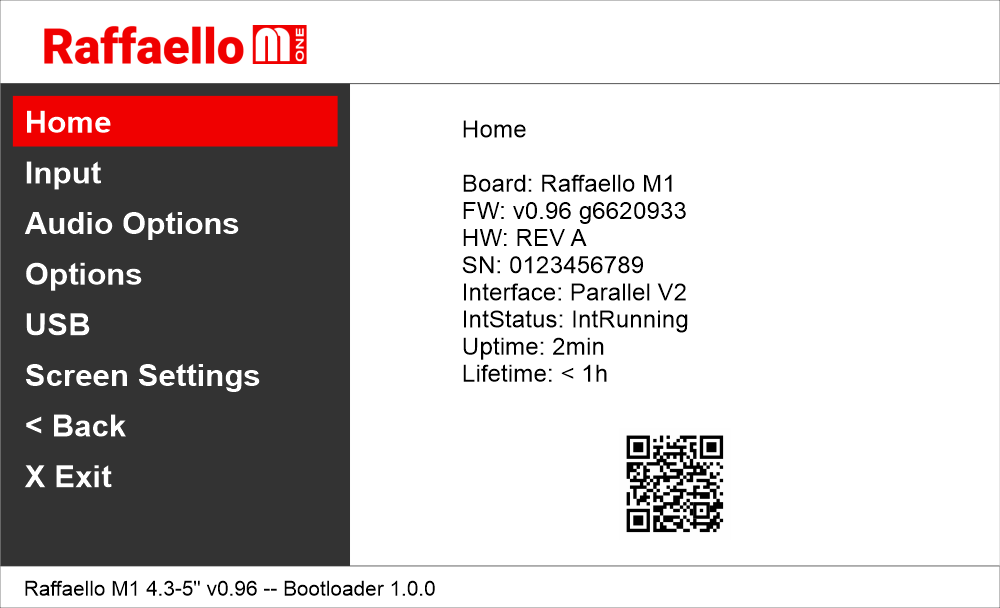
The QR code shown on the home screen refers to the DIDO web page of the Raffaello M-One
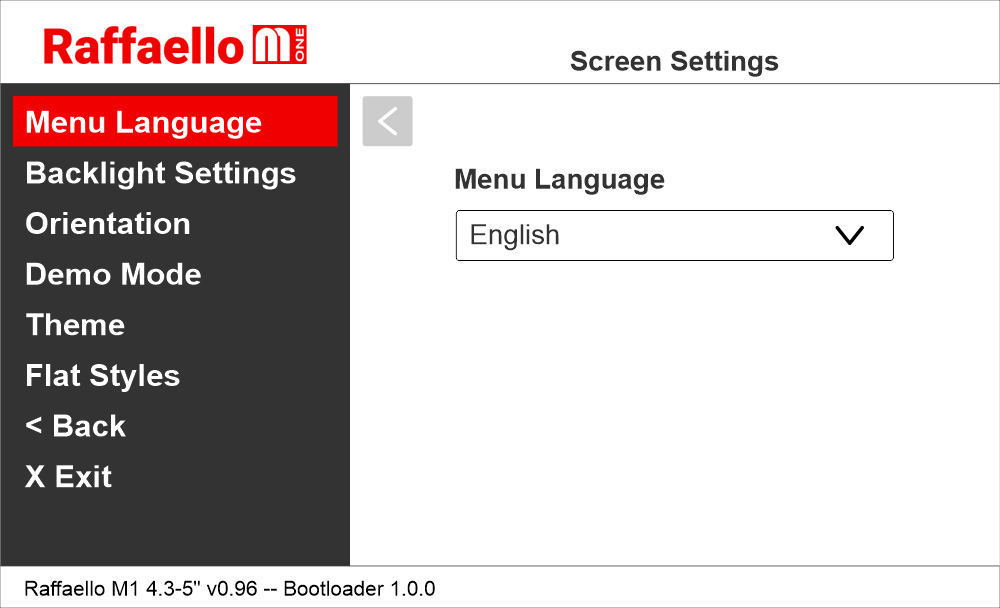
Setting the menu navigation language
Raffaello M1 / Screen Settings / Menu Language
Setting the encoding protocol
Raffaello M1 / Physical input
Raffaello M1 / Input
The parameters change according to the connected interface.
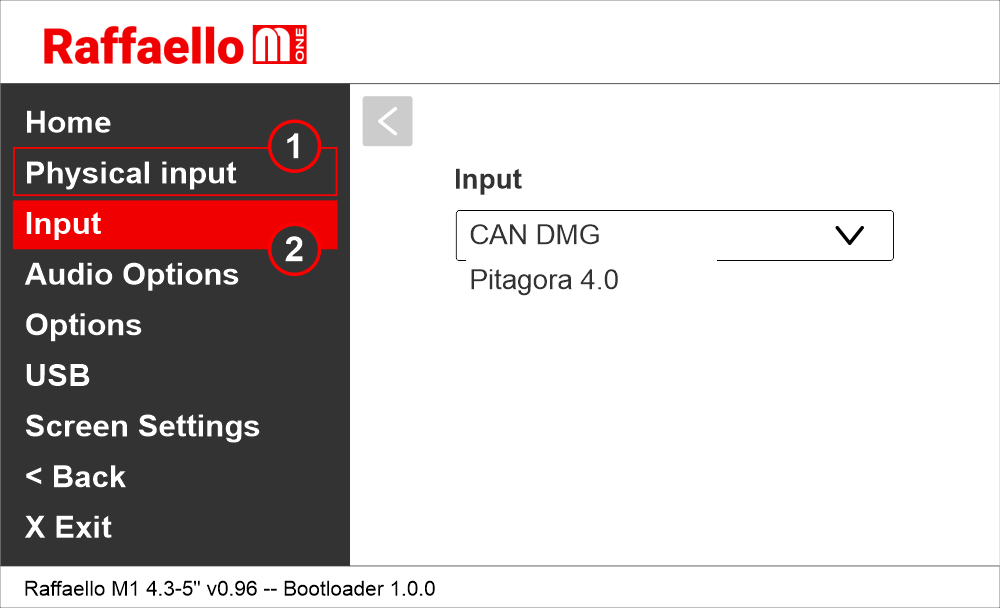
1) For 2″ and 2.8″ serial position indicators, you must first select whether the serial line is RS485 or CAN-BUS.
2) Select the protocol type.
Setting the interface options
Raffaello M1 / Options / Interface options / Display configuration
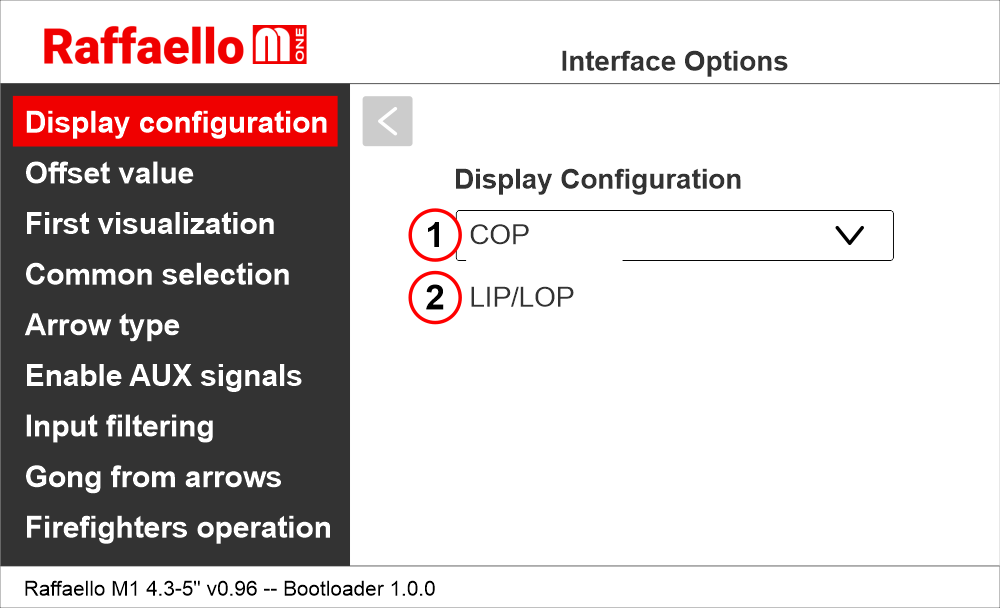
1 (COP) – Car position indicator
2 (LIP/LOP) – Floor position indicator
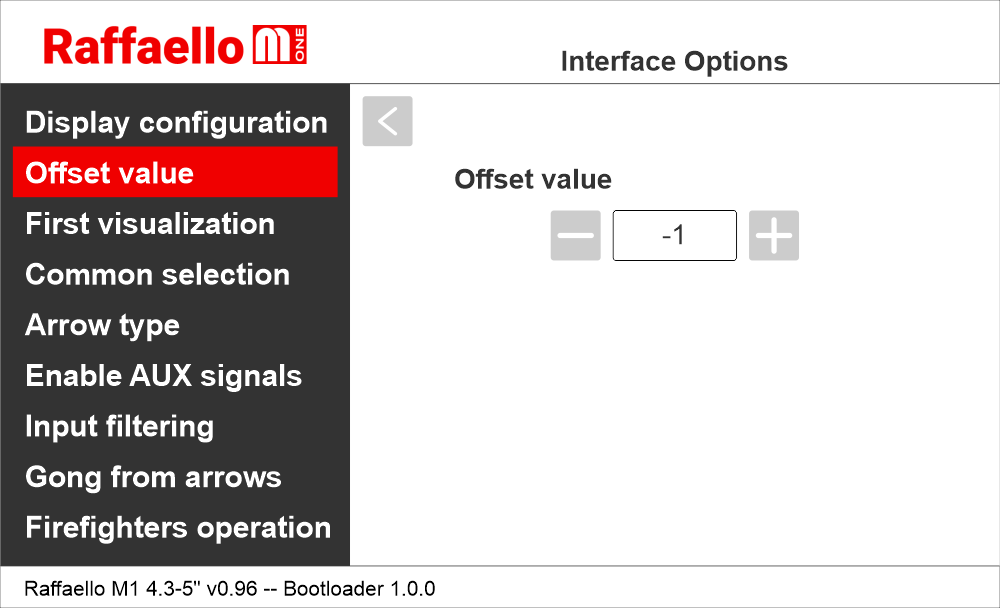
Setting the floor offset
Raffaello M1 / Options / Interface options / Offset value
Setting the first visualization
Raffaello M1 / Options / Interface options / First visualization
This parameter is used with binary or Gray input and determines the display’s behavior when all the inputs are inactive (corresponding to the controller setting all bits to “0”)
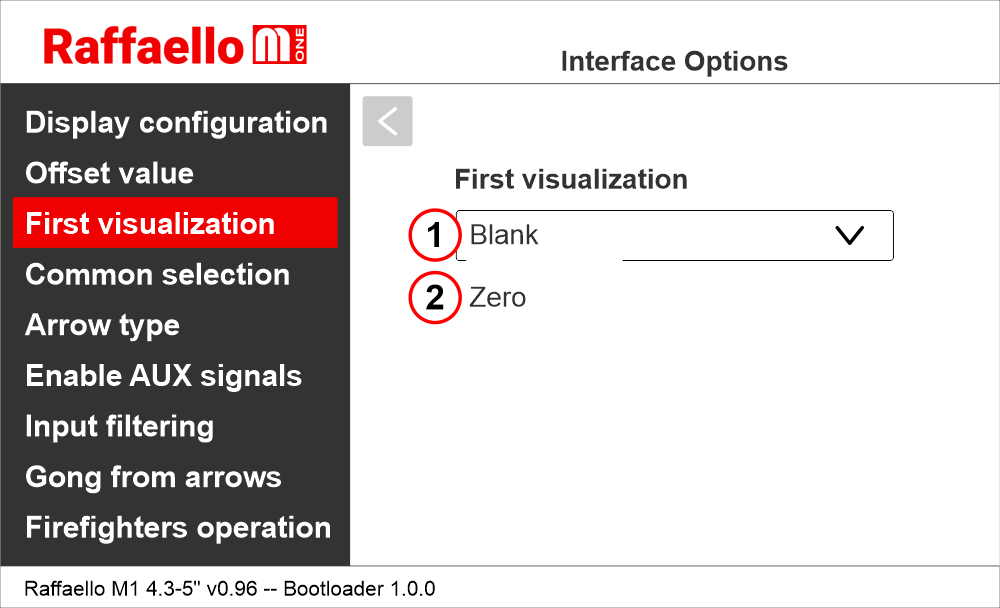
1) It does not display any numbers
2) Lowest floor
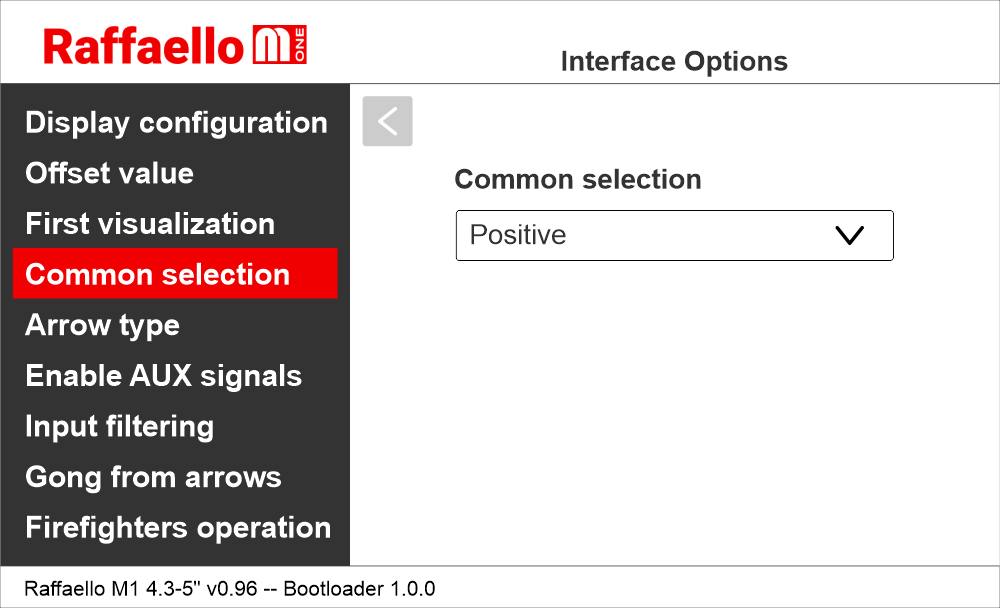
Setting the common of the parallel position inputs
Raffaello M1 / Options / Interface options / Common selection
Setting the scrolling arrows
Raffaello M1 / Options / Interface options / Arrow type
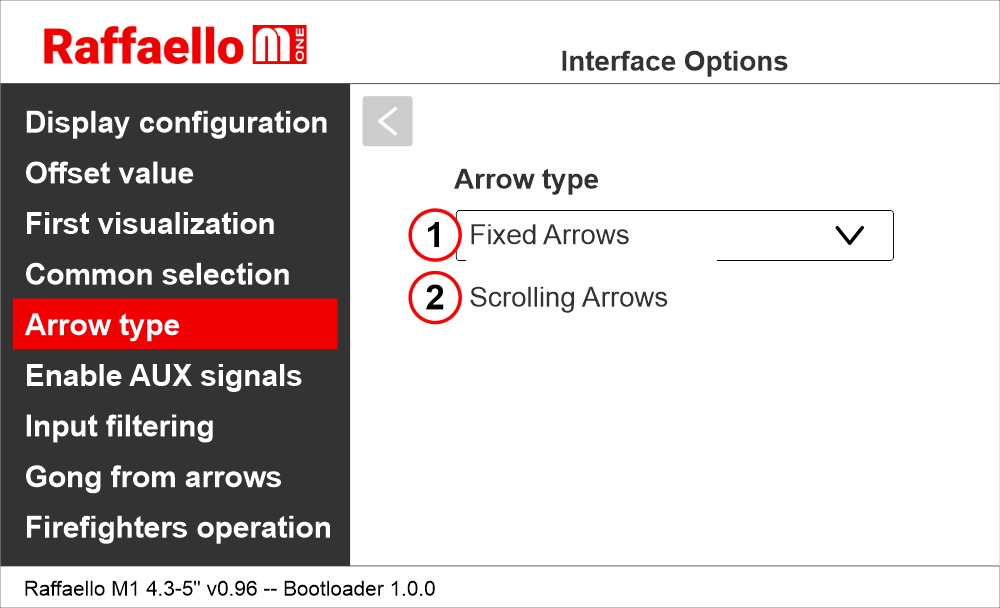
1) Fixed arrows
2) Scrolling arrows
Enabling of auxiliary signals
Raffaello M1 / Options / Interface options / Enable AUX signals
When the parameter “Enable AUX signals” is set to “6+4”, you can assign service message symbols to AUX inputs (X07 to X10) using this menu.
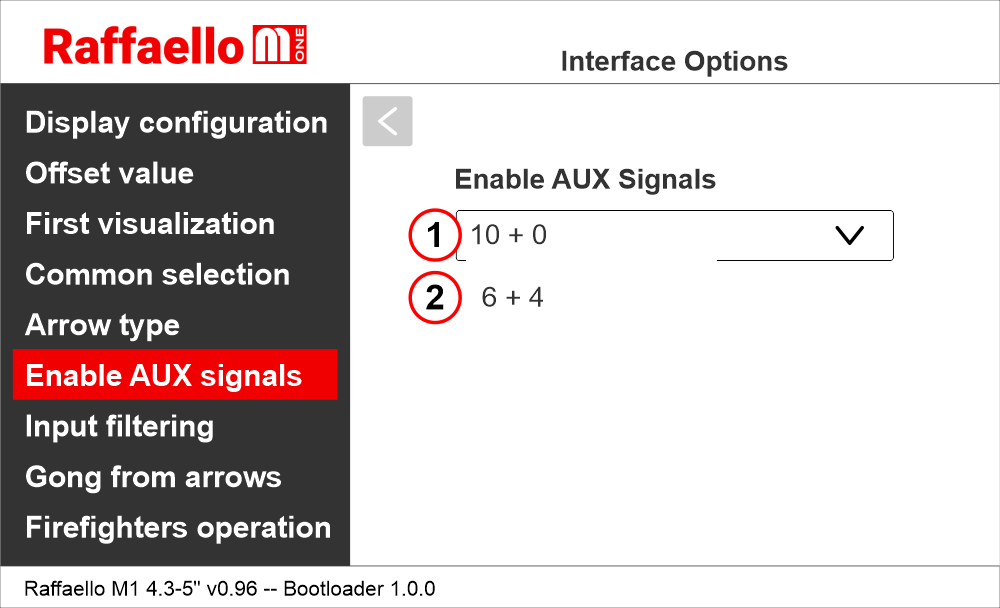
1) 10 Floor parallel inputs (X01÷X10) + 0 AUX Signals
2) 6 Floor parallel inputs (X01÷X06) + 4 AUX Signals (X07÷X10)
Setting the display delay of floor change
Raffaello M1 / Options / Interface options / input filtering
The display delay helps avoiding visualization errors during floor change.
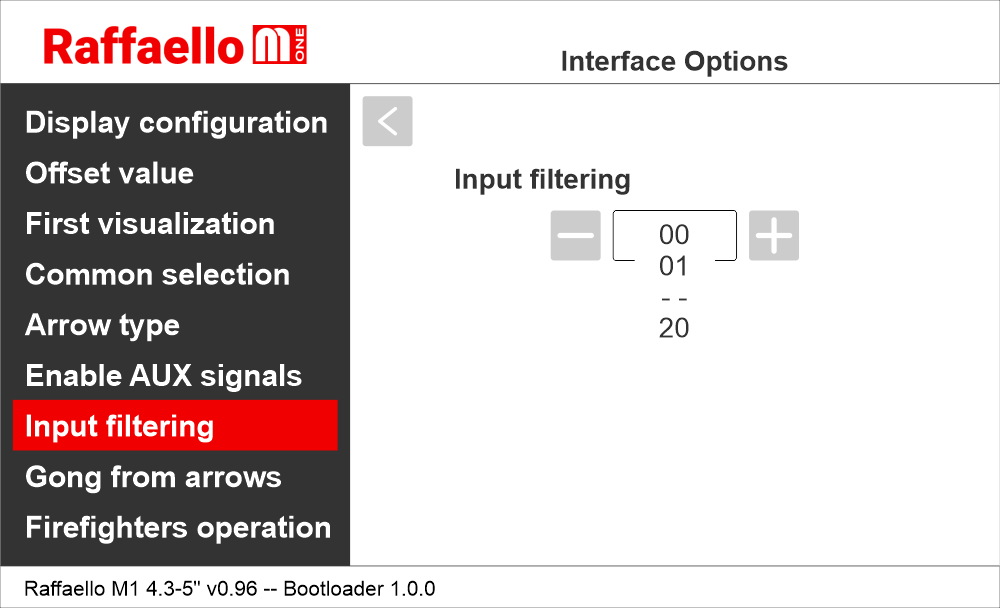
00 = disabled
01 = 100 ms
—
20 = 2000 ms
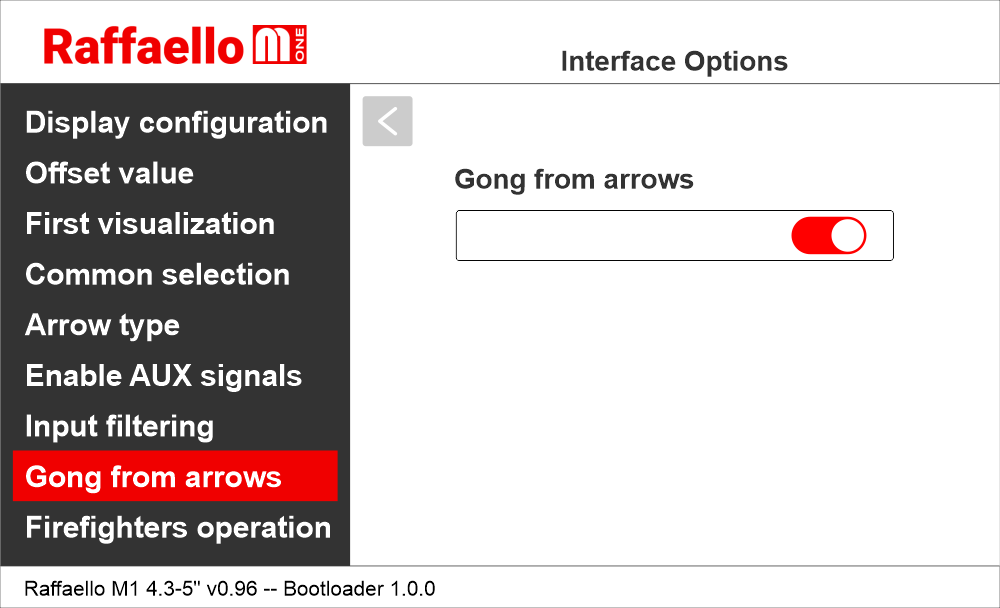
Enabling Gong from arrow input
Raffaello M1 / Options / Interface options / Gong from arrows
This option allows to use the arrow input as trigger for audio message playback.
Enabling the Firefighters Operation parameter
Raffaello M1 / Options / Interface options / Firefighters operation
This parameter allows to set the display during the firefighters operation.
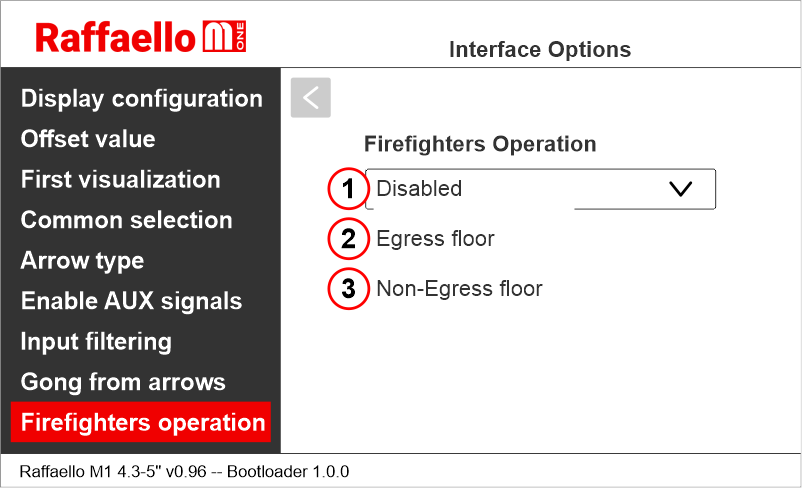
1) Disabled: normal operation
2) Egress Floor: when in firefighters operation, the indicator only shows the floor symbols.
3) Non-Egress Floor: when in firefighters operation, the indicator blacks out.
Raffaello M1 / Options / Interface options / Display configuration
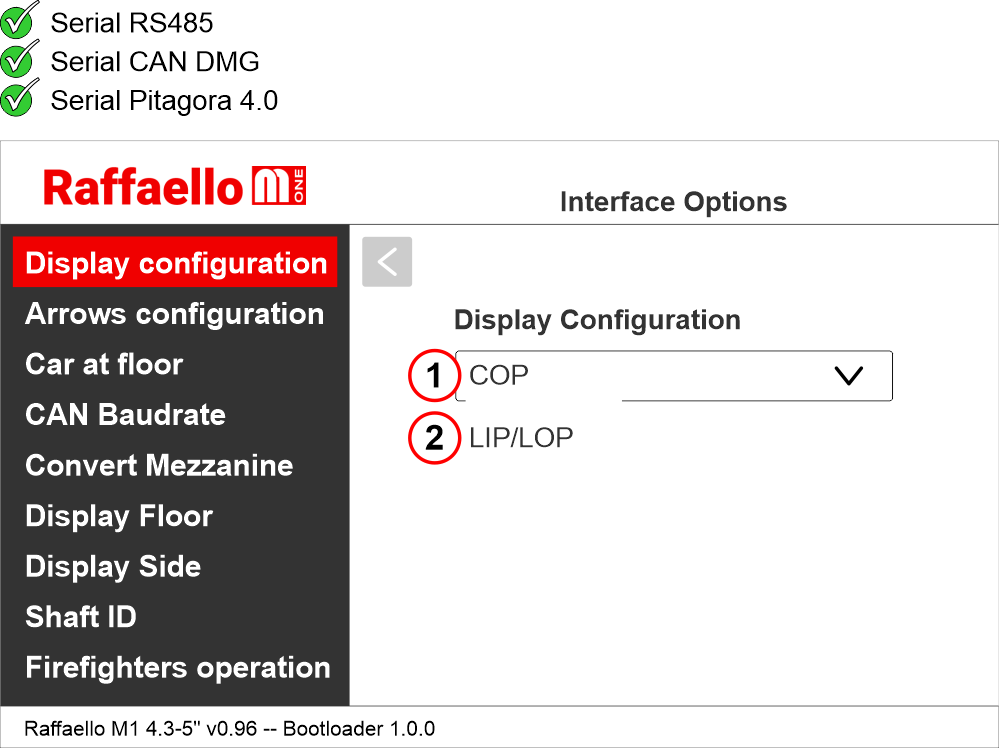
1 (COP) – Car position indicator
2 (LIP/LOP) – Floor position indicator
Setting the arrows configuration
Raffaello M1 / Options / Interface options / Arrow configuration
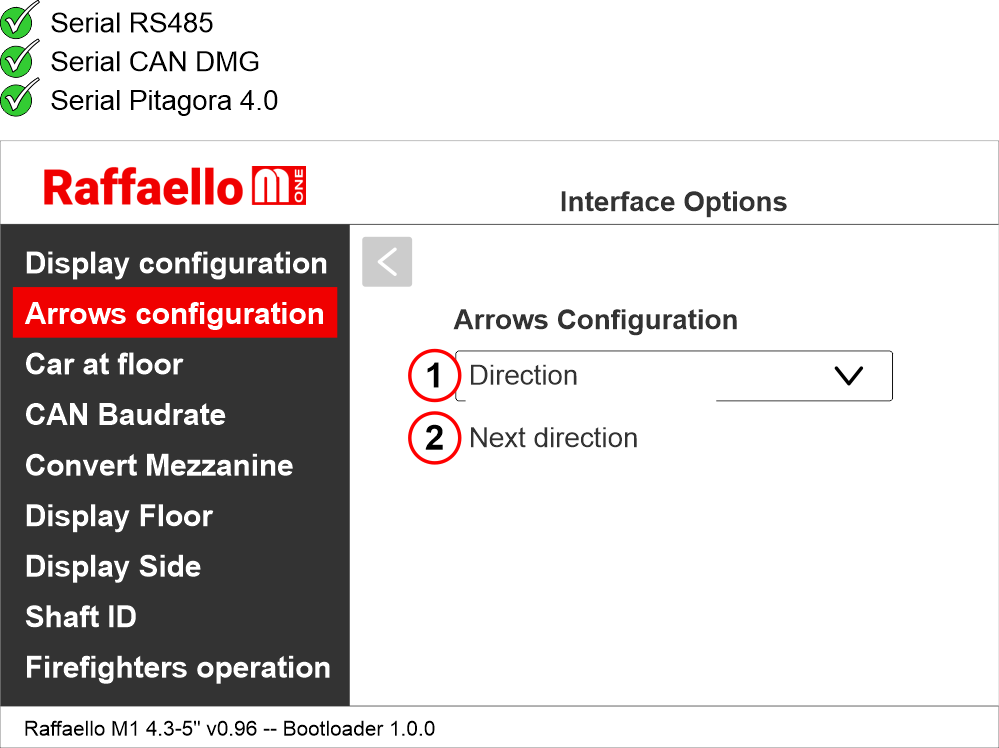
1) Direction arrows – only show the car current direction of travel.
2) Next direction arrows – show car next direction of travel after stop. (further information below)
Next Direction Arrows enabled from input
Gong and arrows light up only on the position indicators with the “NEXT DIRECTION” input powered.
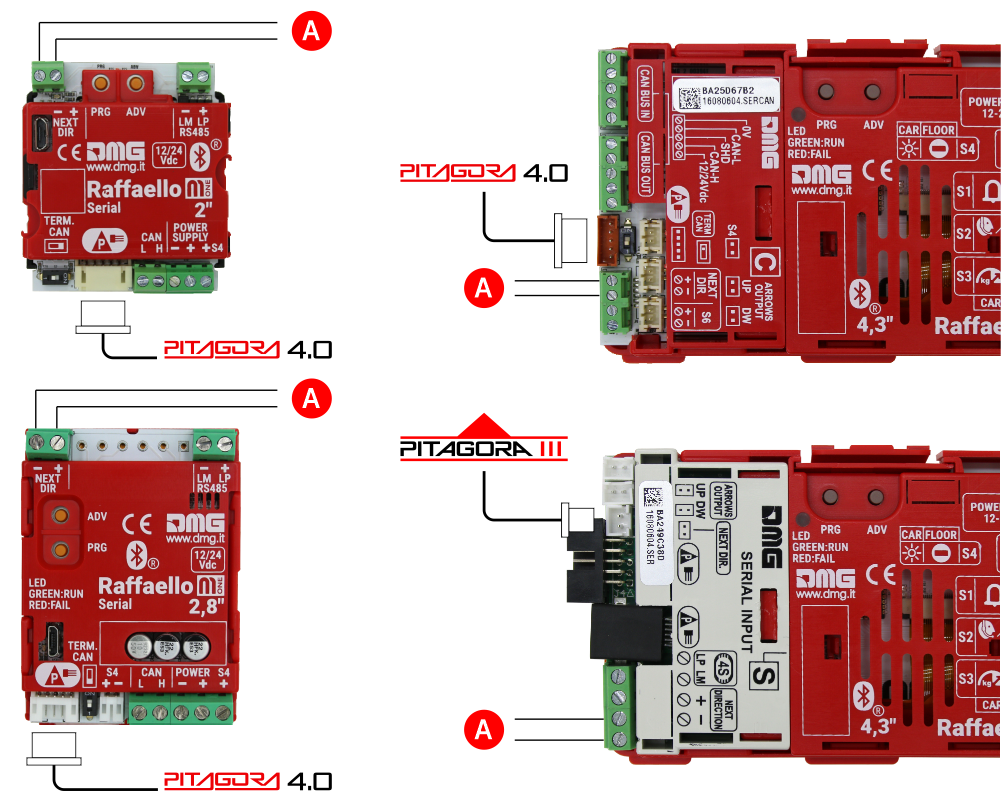
A) Next direction input from other controllers.
If the DEUM Encoder is used, please refer to the relevant manual
Next Direction Arrows locally programmed
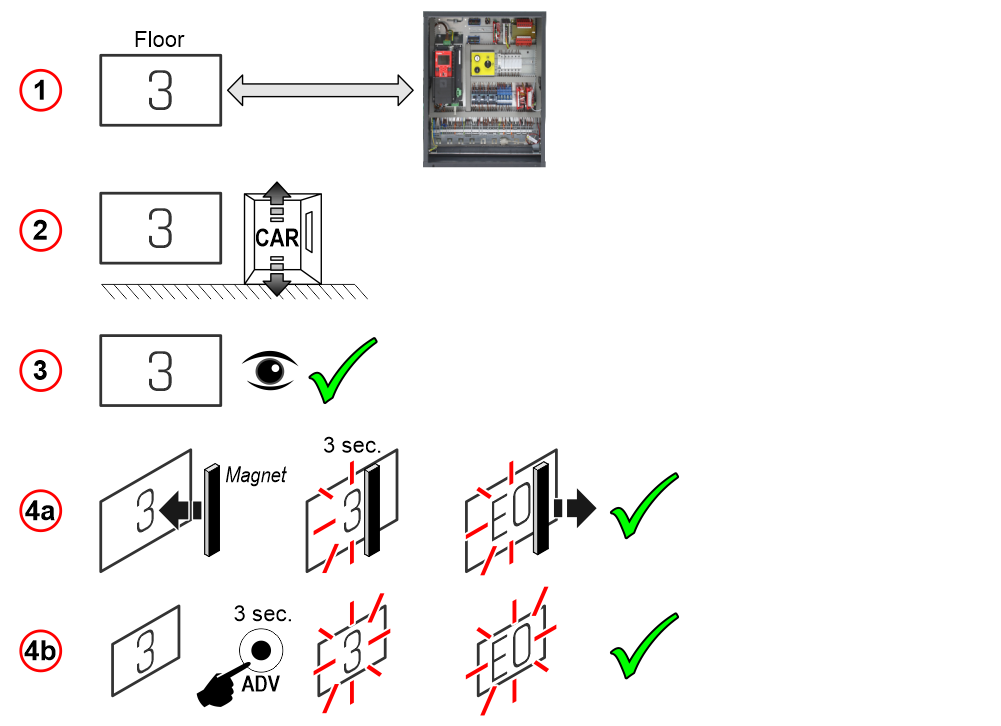
Through the addressing procedure one can permanently assign to each indicator the information of the floor on which it is mounted; in this way, next direction arrows only light up at the floor where the car is positioned.
– Addressing procedure –
1) – Connect all position indicators to the encoder or to the controller.
2) – Move the cabin to the floor corresponding to the position indicator to be addressed.
3) – Check that the lettering shown is the desired one.
4a) – Place a magnet in front of the positio indicator and wait for the display to flash for 3 seconds as confirmation.
4b) – Press and hold the ADV button and wait for the position indicator to flash for 3 seconds as confirmation.
5) – Repeat procedure for each floor.
If the DEUM Encoder is used, please refer to the relevant manual
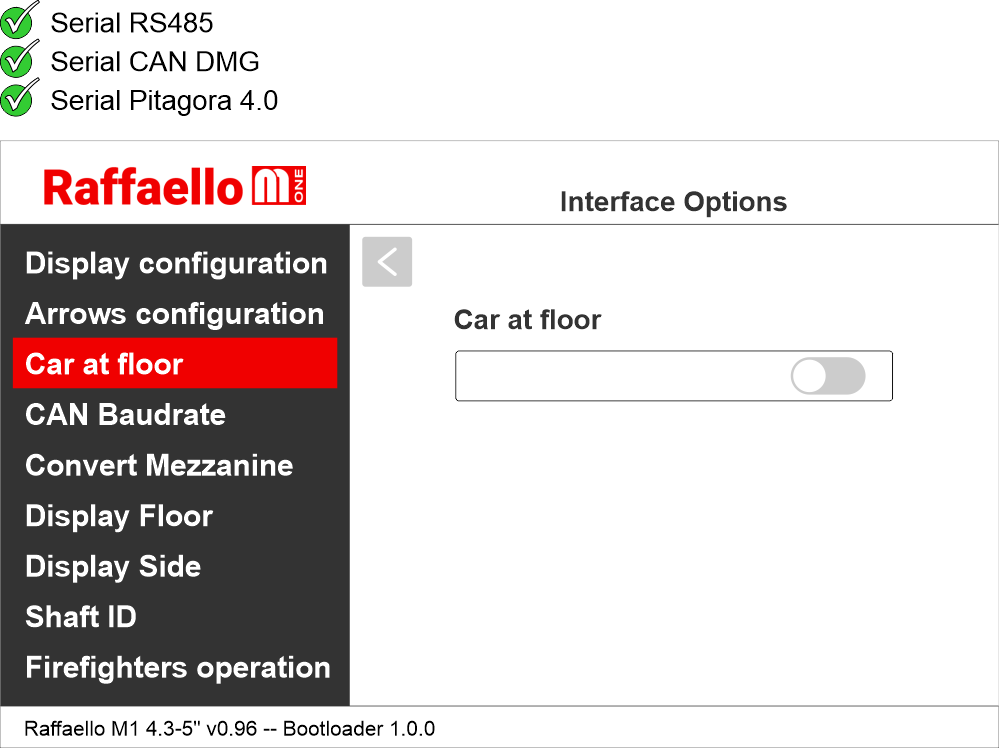
Enable signal of “Car at Floor” from “NEXT DIR.” input
Raffaello M1 / Options / Interface options / Car at floor
This option allows to use the next direction input to light up “Car at floor” signal (if applicable).
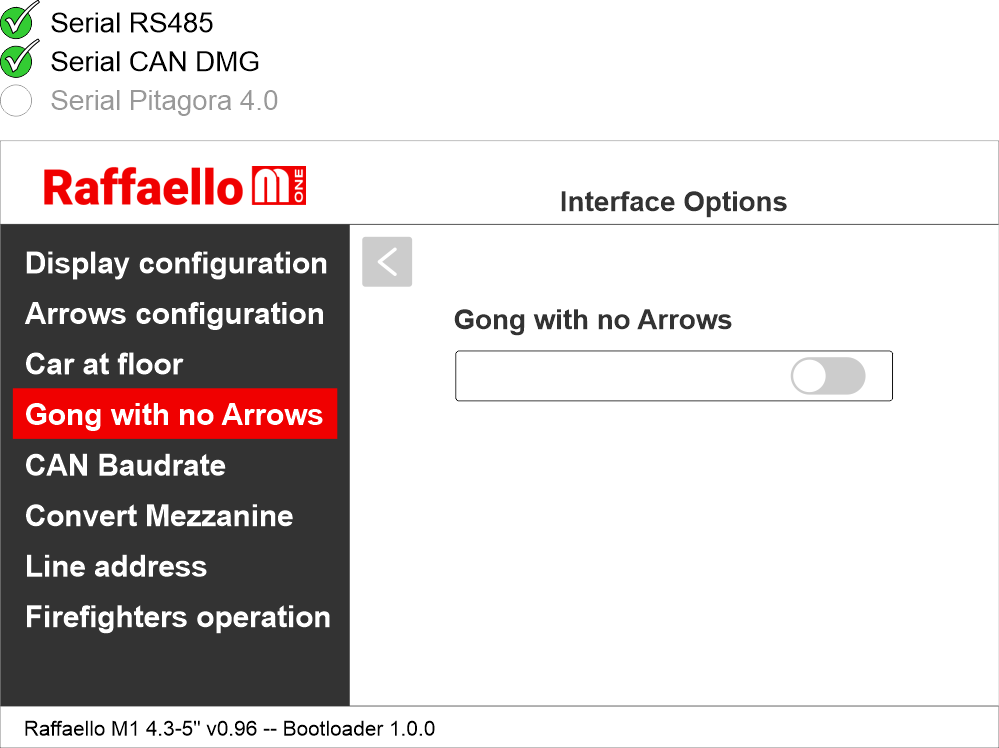
Set up the gong to be indipendent from the arrows
Raffaello M1 / Options / Interface options / Gong with no Arrows
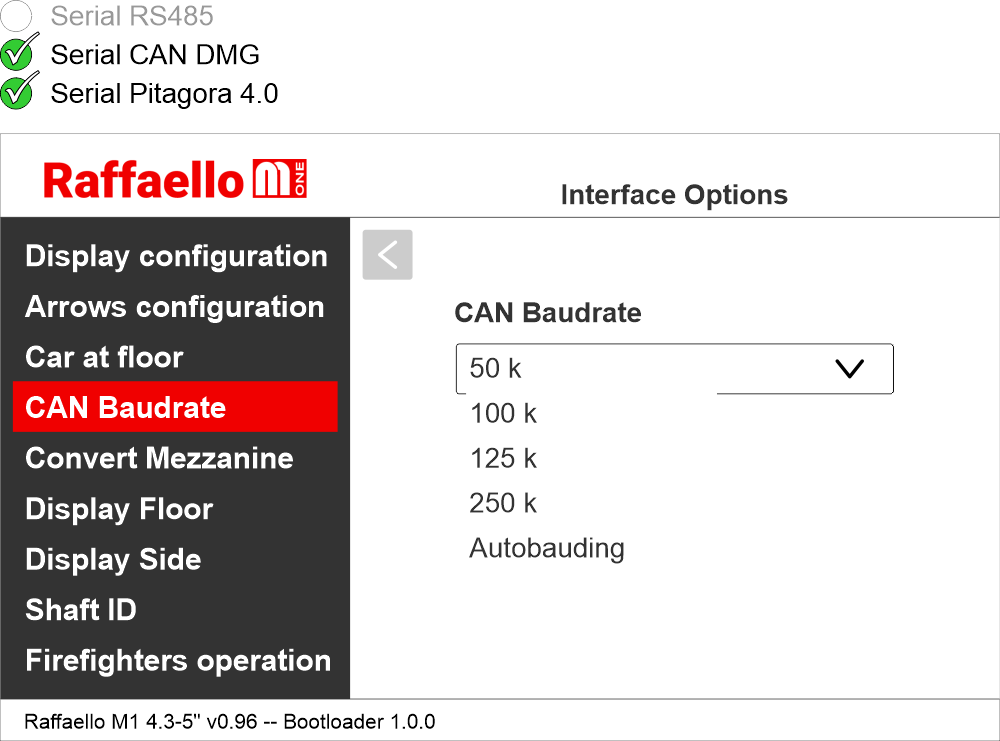
Setting CAN BUS protocol transmission speed
Raffaello M1 / Options / Interface options / CAN baudrate
Setting the visualization of the intermediate floors
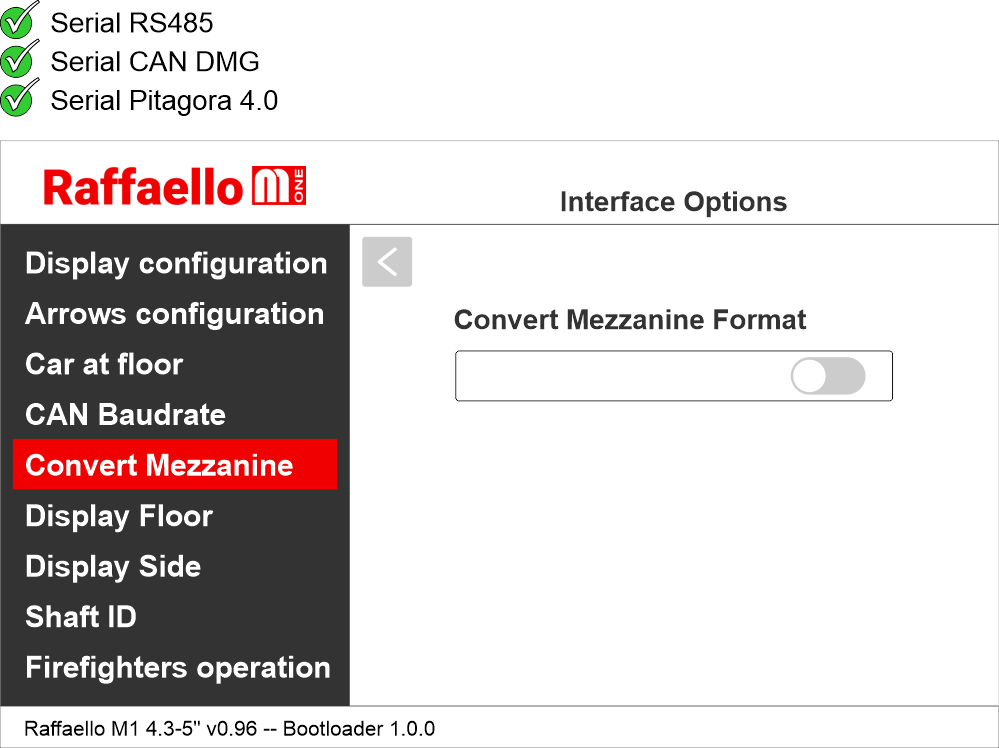
Raffaello M1 / Options / Interface options / Convert Mezzanine
This option automatically converts intermediate floor signals into traditional “Mezzanine style” format (1/2, 2/3, etc.). Available only for floors 1 to 8.
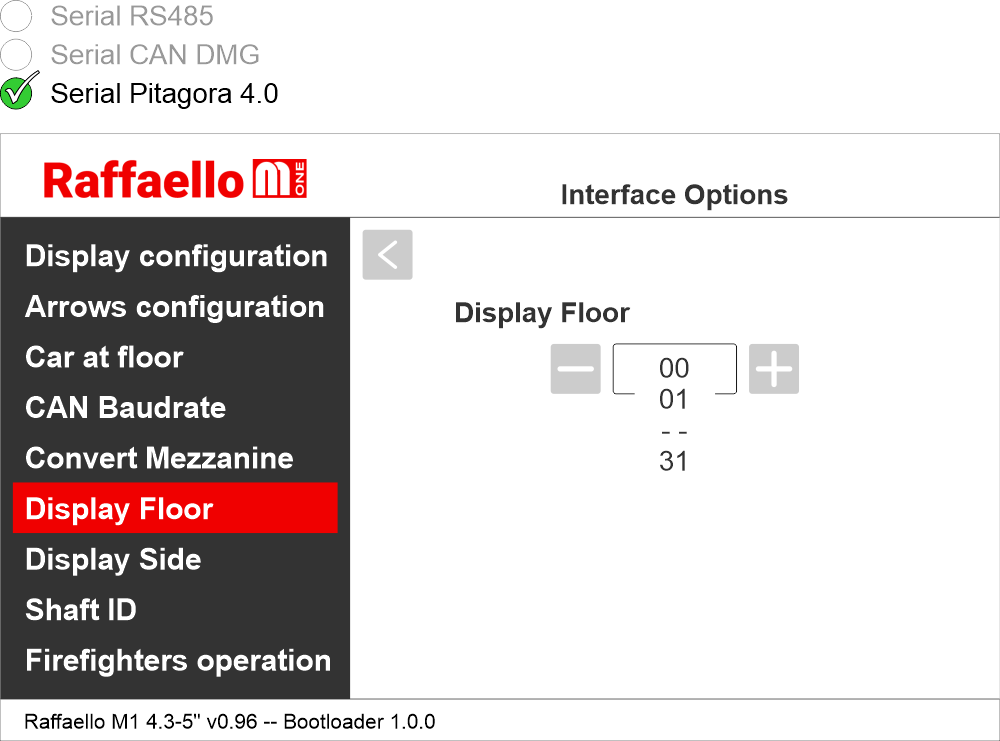
Display Floor
Raffaello M1 / Options / Interface options / Display Floor
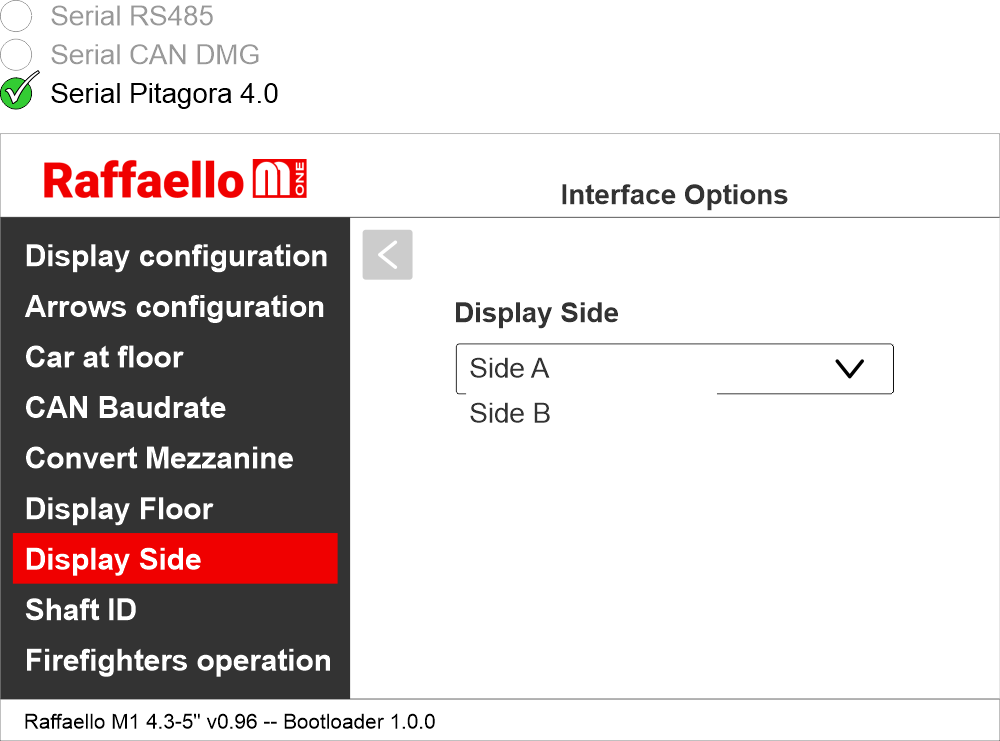
Display Side
Raffaello M1 / Options / Interface options / Display Side
Associate the floor position indicator with the duplex controllers
Raffaello M1 / Options / Interface options / Shaft ID
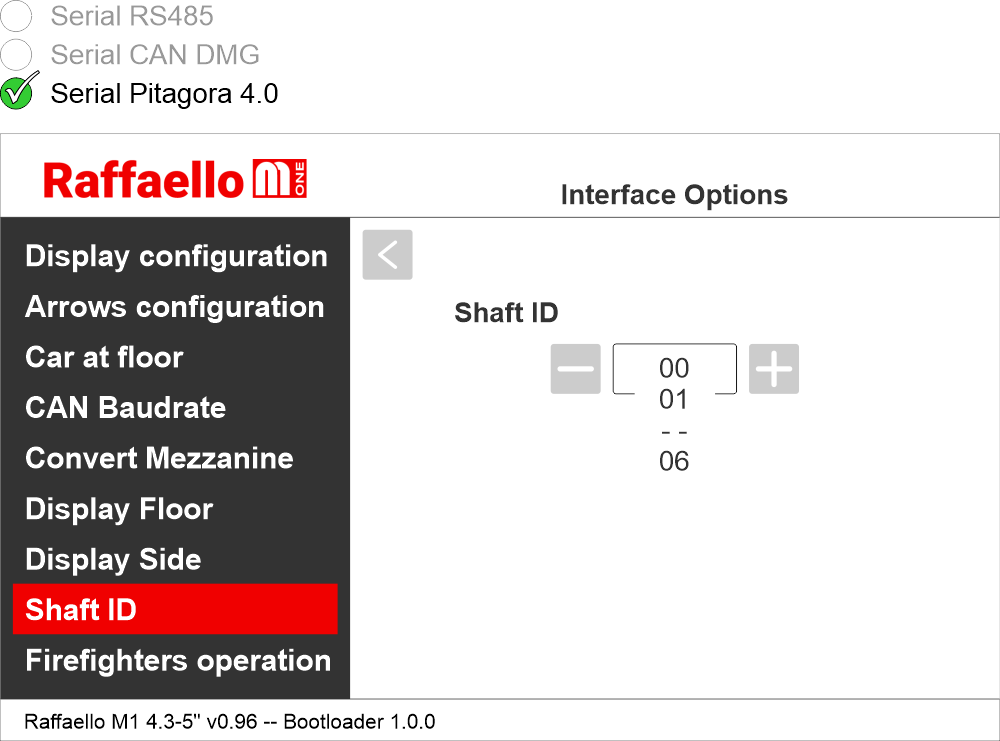
Select the ID of the elevator this indicators refers to.
0 for legacy, generic or car indicator.
1 to 6 for a specific elevator.
Enabling the Firefighters Operation parameter
Raffaello M1 / Options / Interface options / Firefighters operation
This parameter allows to set the display during the firefighters operation.
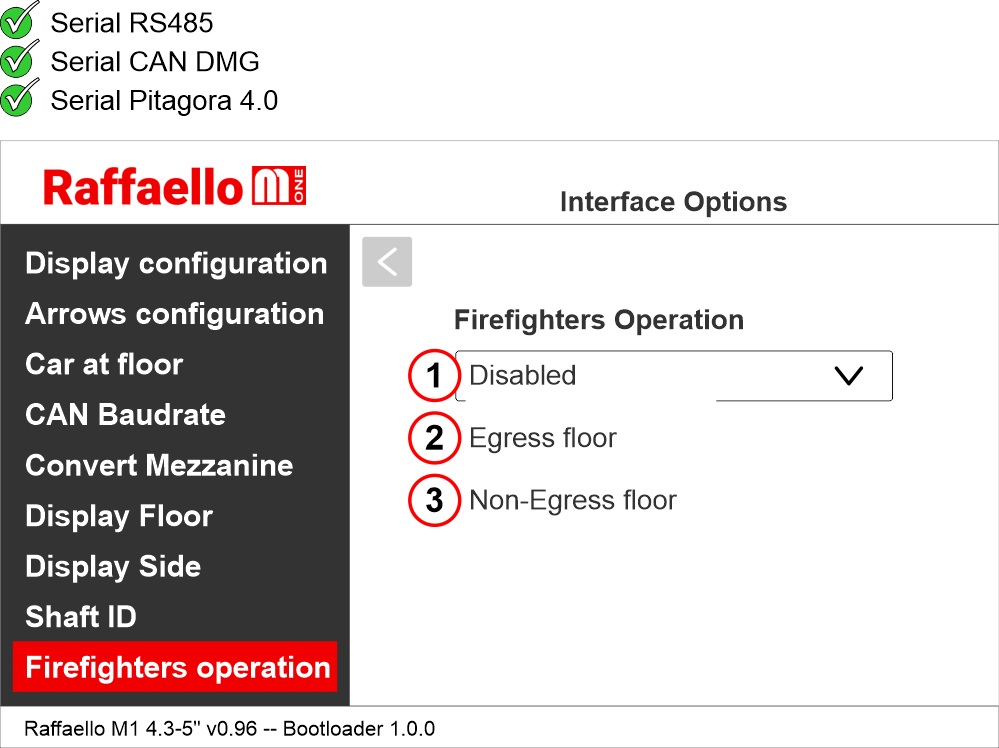
1) Disabled: normal operation
2) Egress Floor: when in firefighters operation, the indicator only shows the floor symbols.
3) Non-Egress Floor: when in firefighters operation, the indicator blacks out.
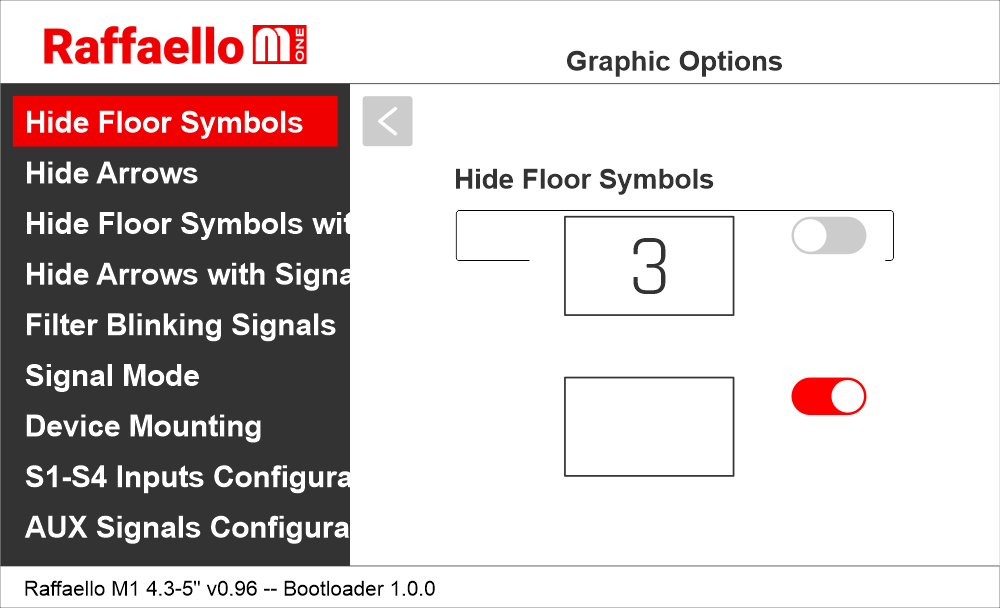
Setting the graphic options
This option allows to show or hide the floor symbol on the screen.
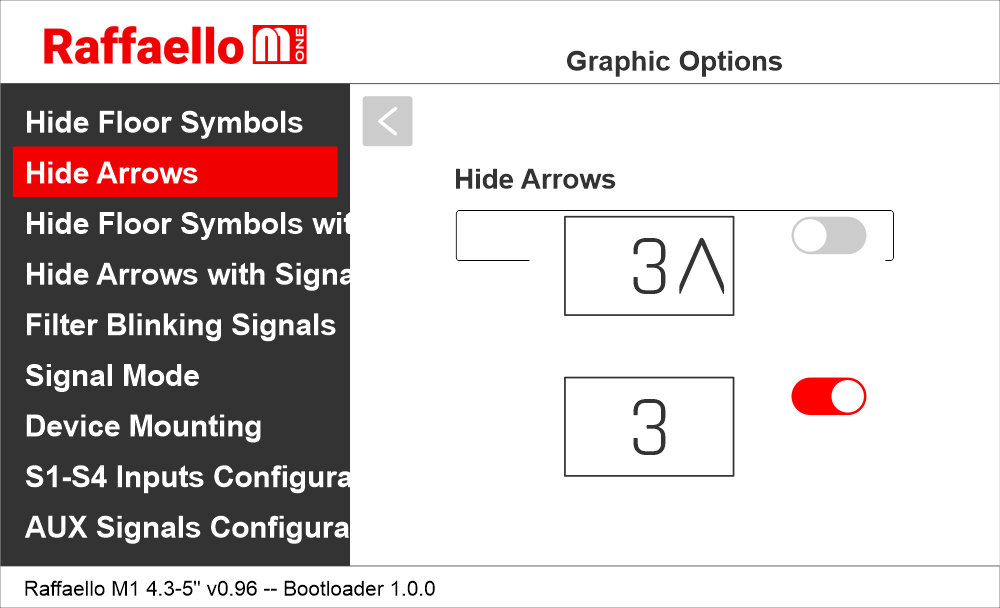
This option allows to show or hide the arrows on the screen.
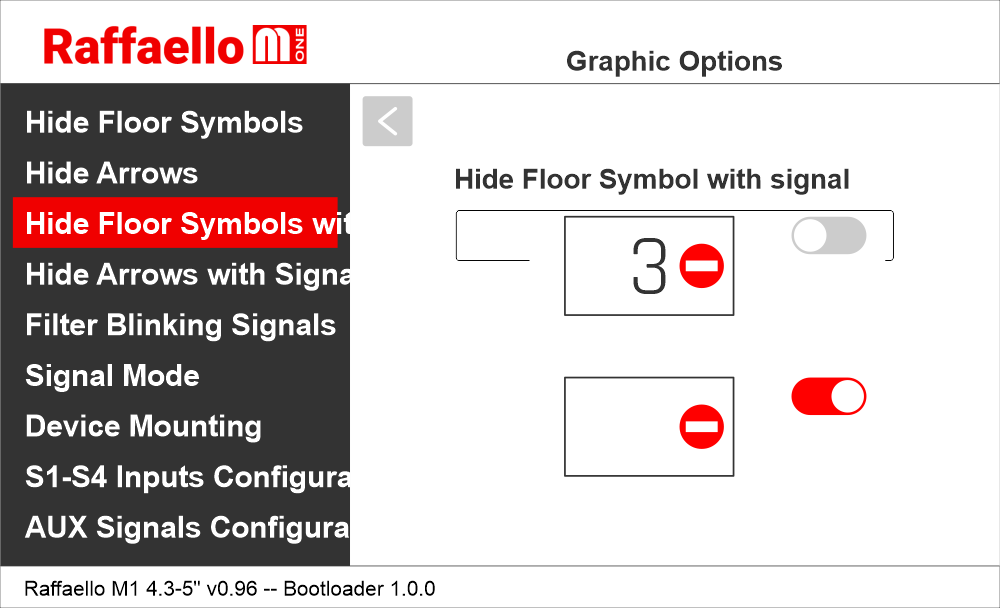
This option allows to show or hide the floor symbol on the screen when a service message is displayed.
This option allows to show or hide the arrow on the screen when a service message is displayed.
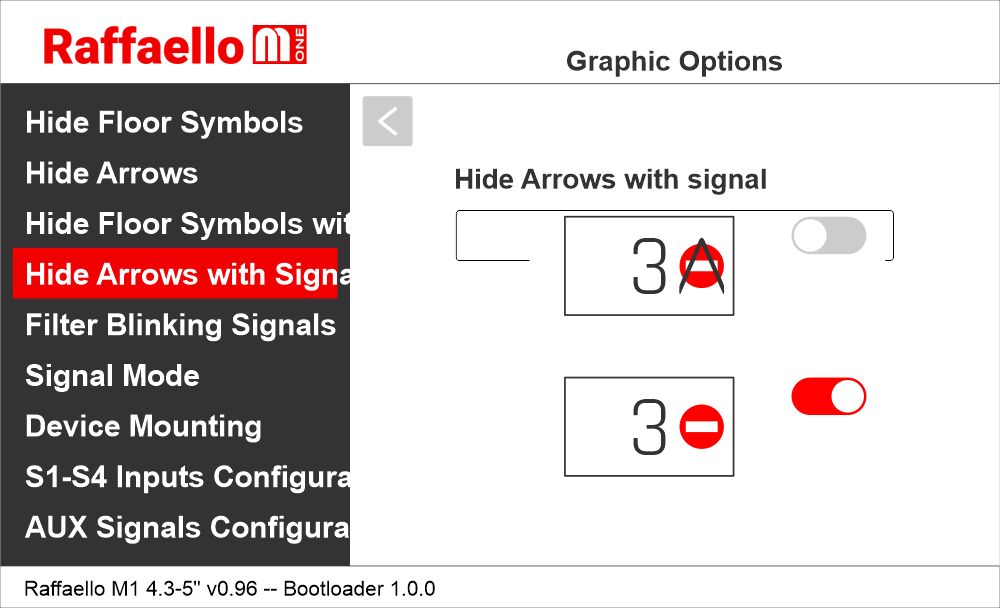
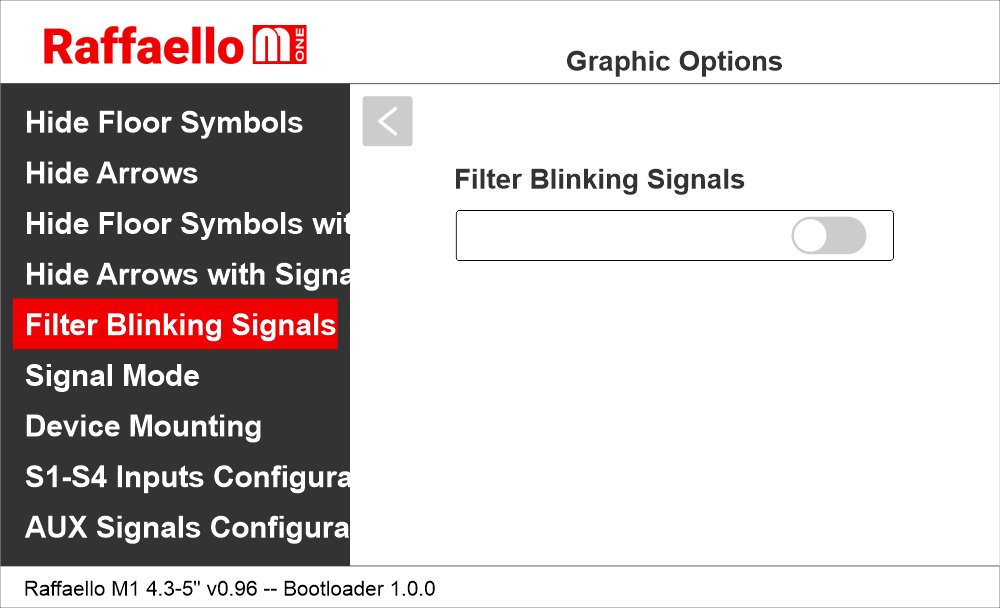
This option filters blinking signals from controller to avoid unwanted fading effects on TFT screen.
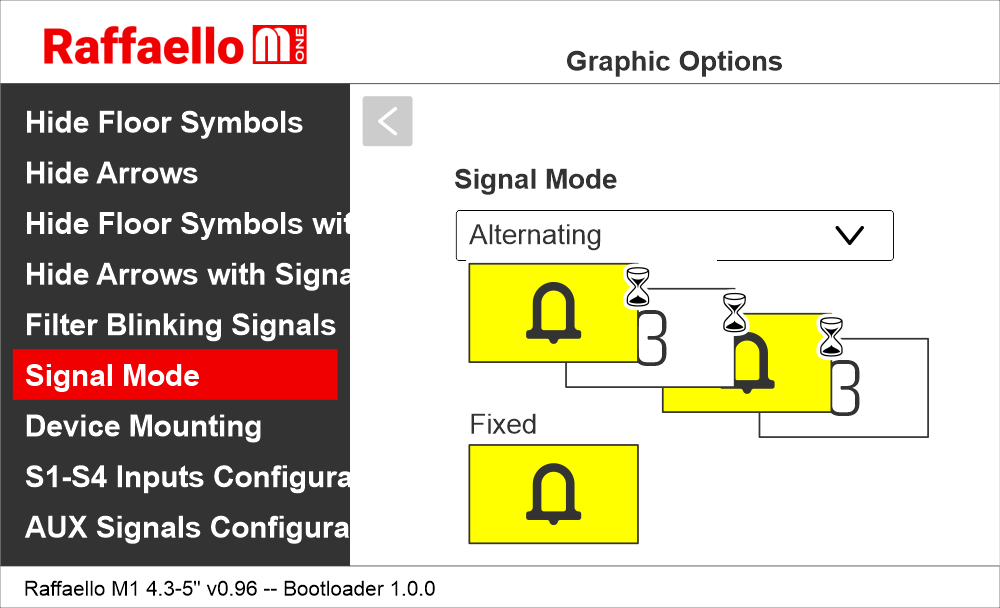
Choose alternating so that service messages alternate with floor symbol; fixed to have them visible as long as they active.
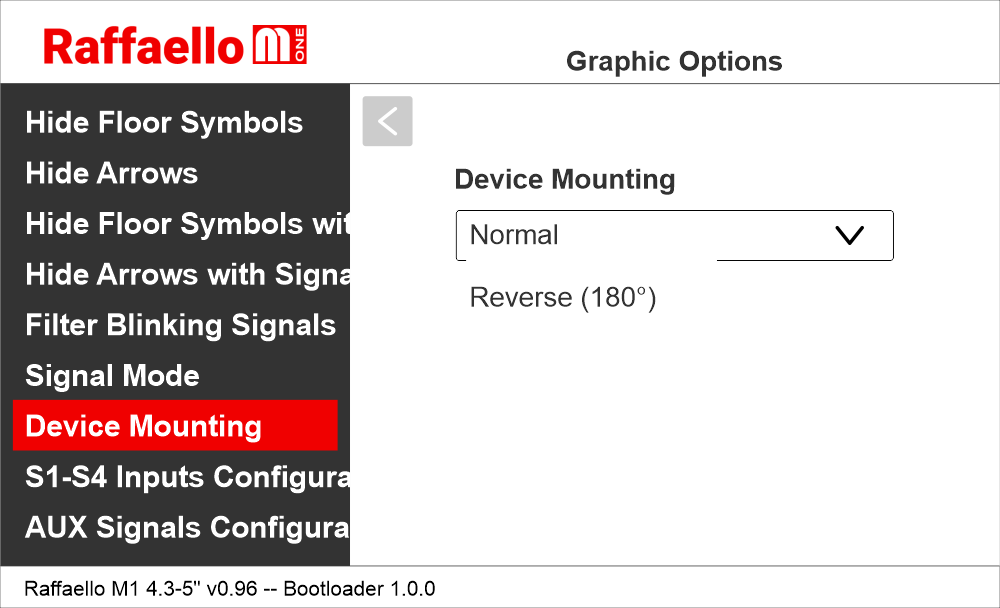
This option allows the user to rotate the content of the screen according to the mounting of the display.
Inputs S1–S4 are factory-configured with default settings; parameter changes can be performed via the configuration menu.
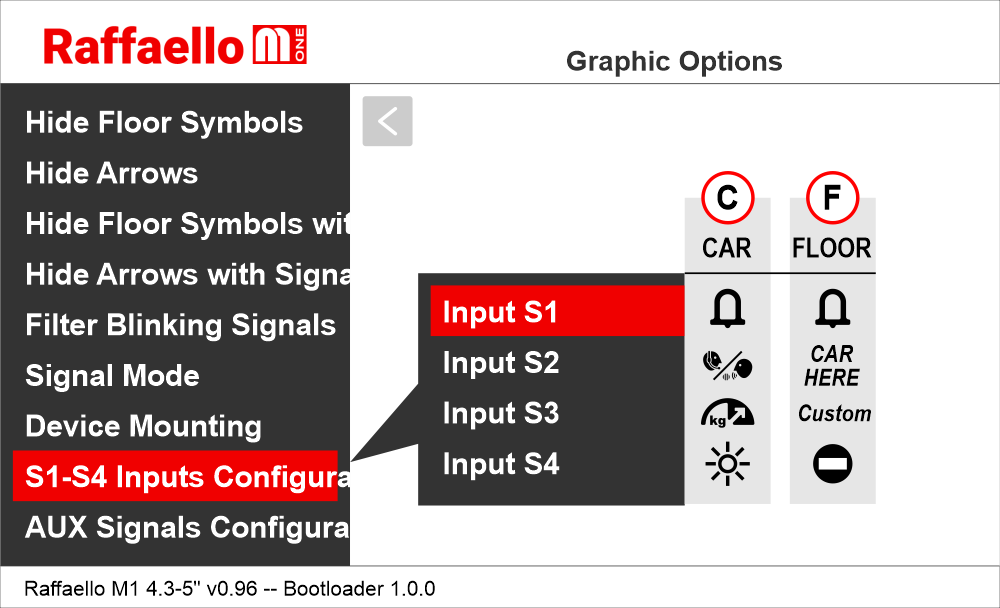
C) Car
F) Floor
See also:
Service Messages wiring
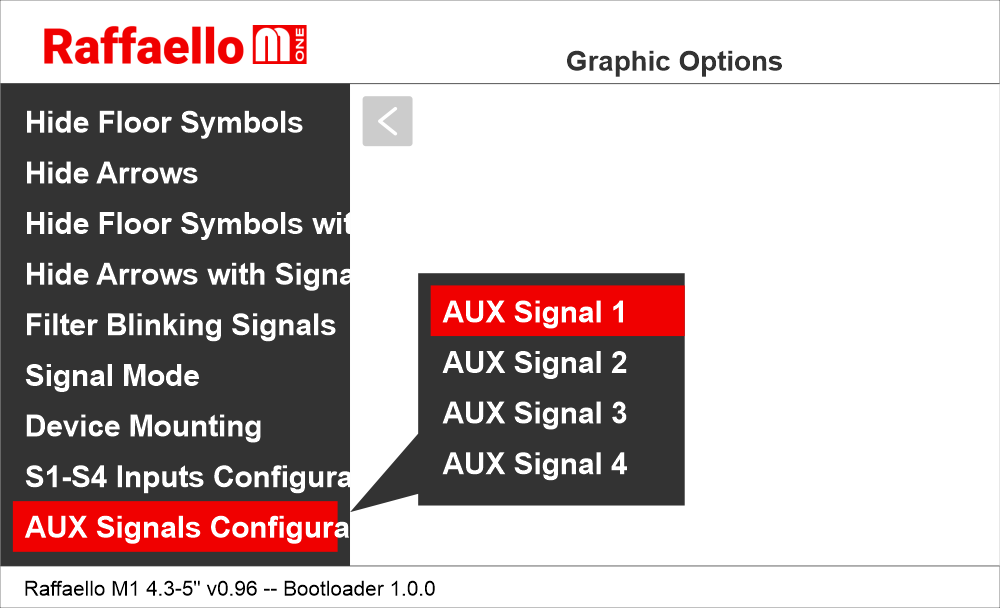
To assign additional signals beyond those managed by inputs S1–S4, first enable the parallel inputs X07–X10 (if unused) via:
Raffaello M1 >> Options >> Interface options >> Enable AUX signals.
Once enabled, assign the signals as follows:
AUX signal 1 = X07
AUX signal 2 = X08
AUX signal 3 = X09
AUX signal 4 = X10
See also:
Enable AUX signals
(Setting the interface options >> Parallel interface >> Enable AUX signals)
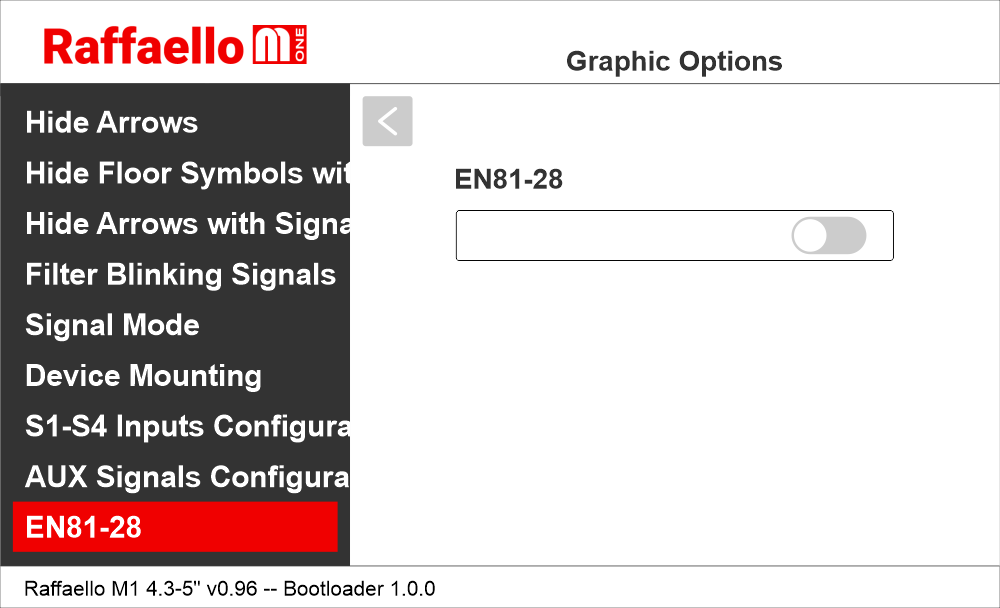
If this setting is enabled, EN81-28 signals (if active) are displayed together. If this setting is disabled, EN81-28 signals are displayed alternately.
If this setting is enabled, EN81-28 signals (if active) are displayed together. If this setting is disabled, EN81-28 signals are displayed alternately.
Setting the audio options
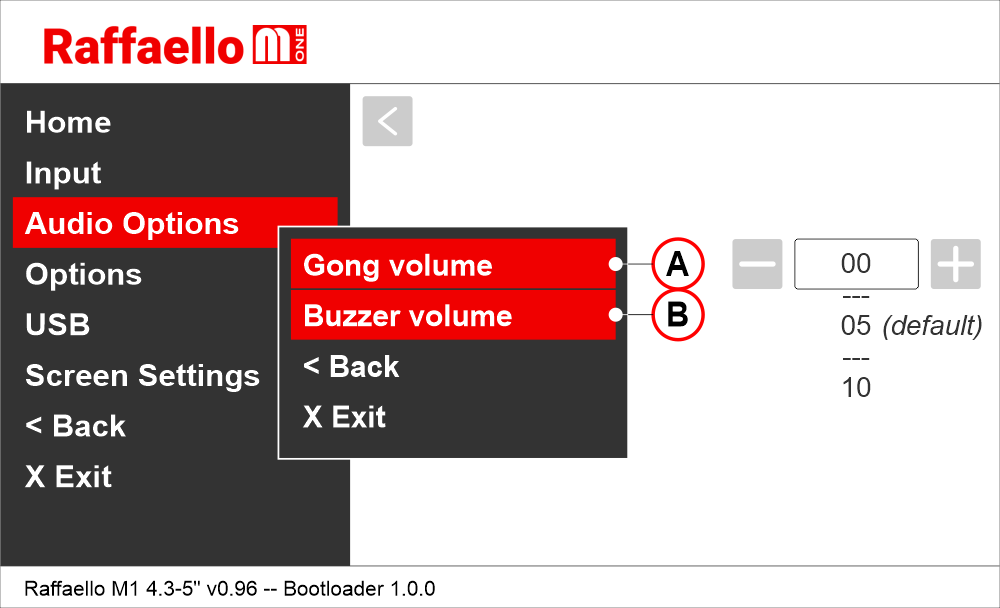
A) Adjusting the gong audio level
B) Adjusting the buzzer audio level
Other settings
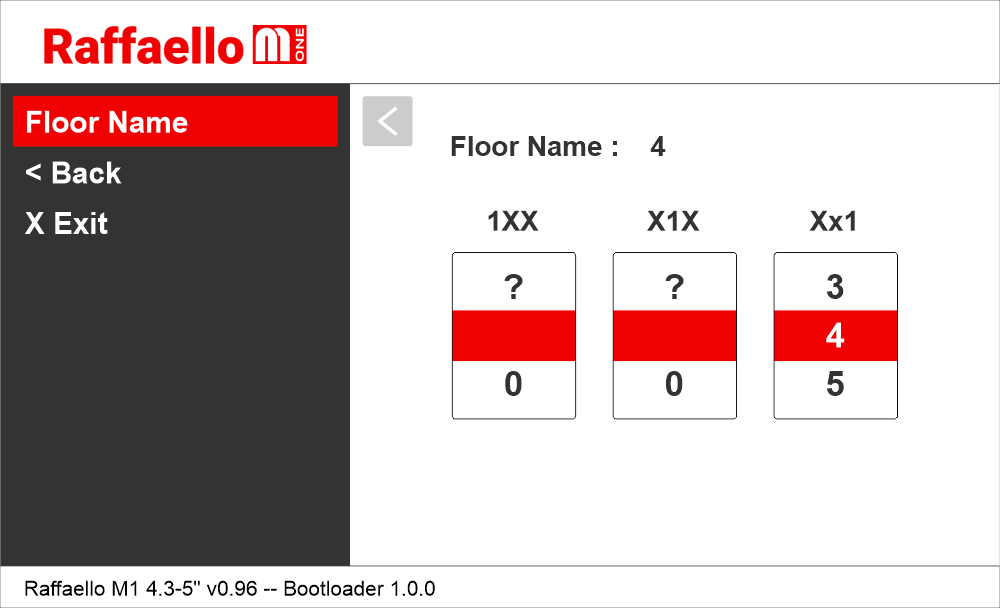
Before starting customization, move the car to the floor to be customized.Press and hold the PRG button for 3 seconds to access the customization menu.
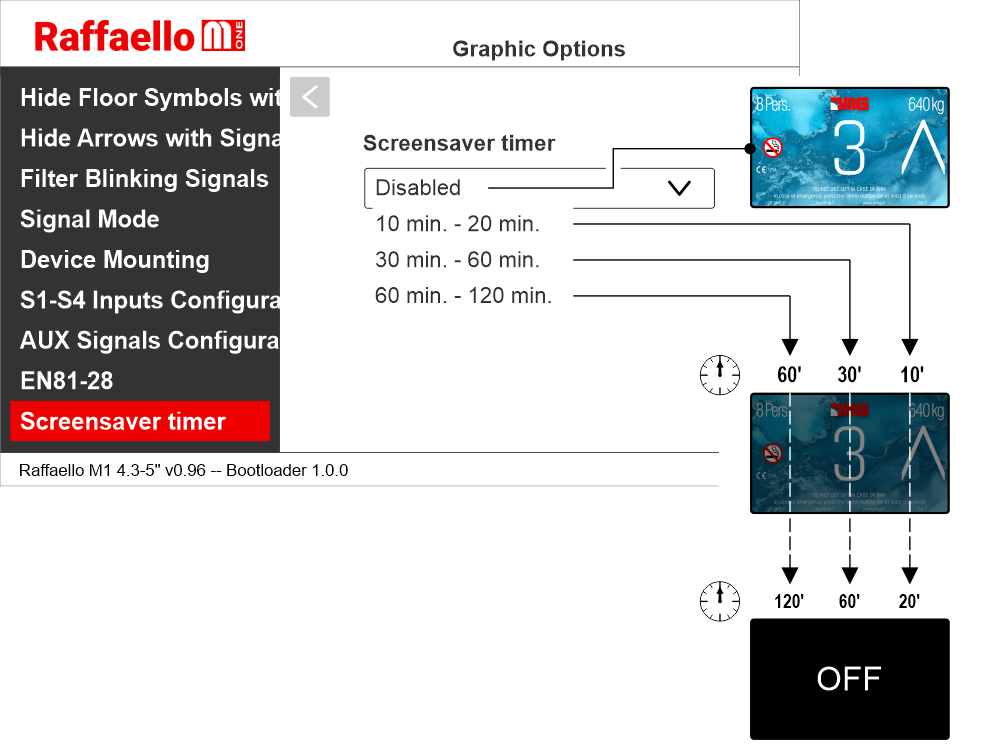
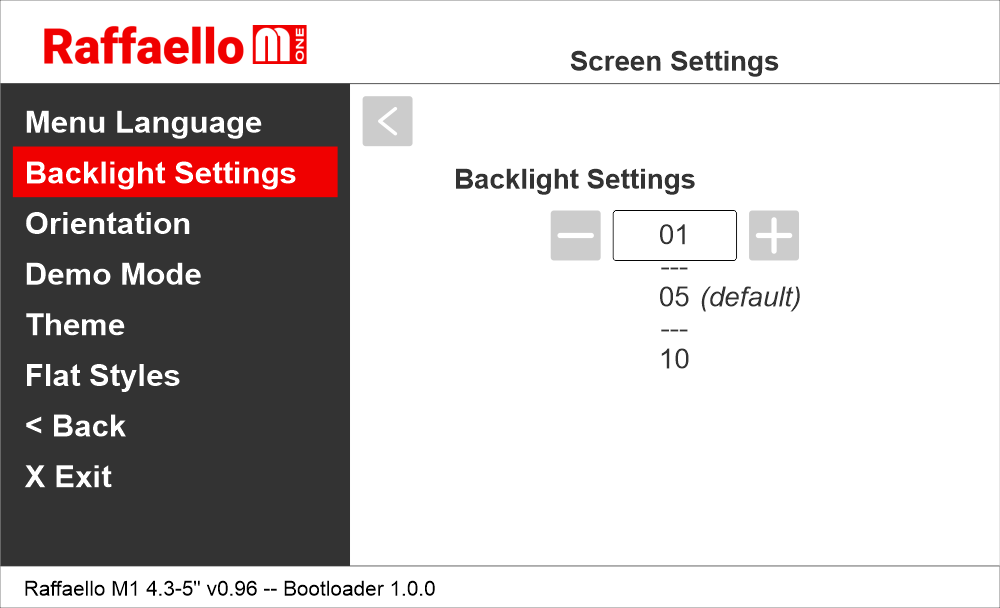
The backlight values of the screen will remain fixed and should not be confused with the power saving function..
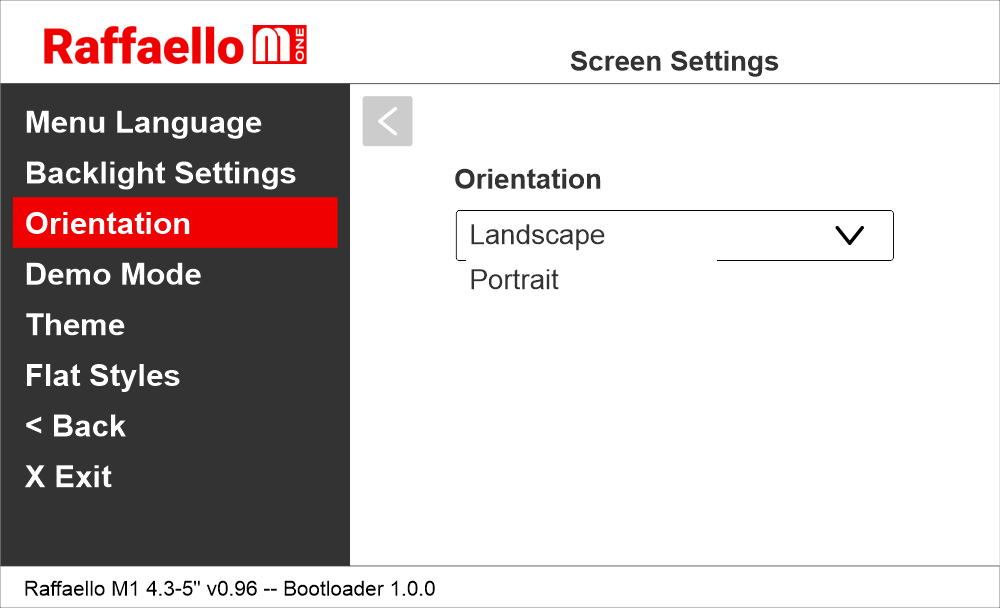
The parameter allows the user to switch between landscape (horizontal) and portrait (vertical) orientation.
This is only available for themes that support both of them. A device reset is mandatory.
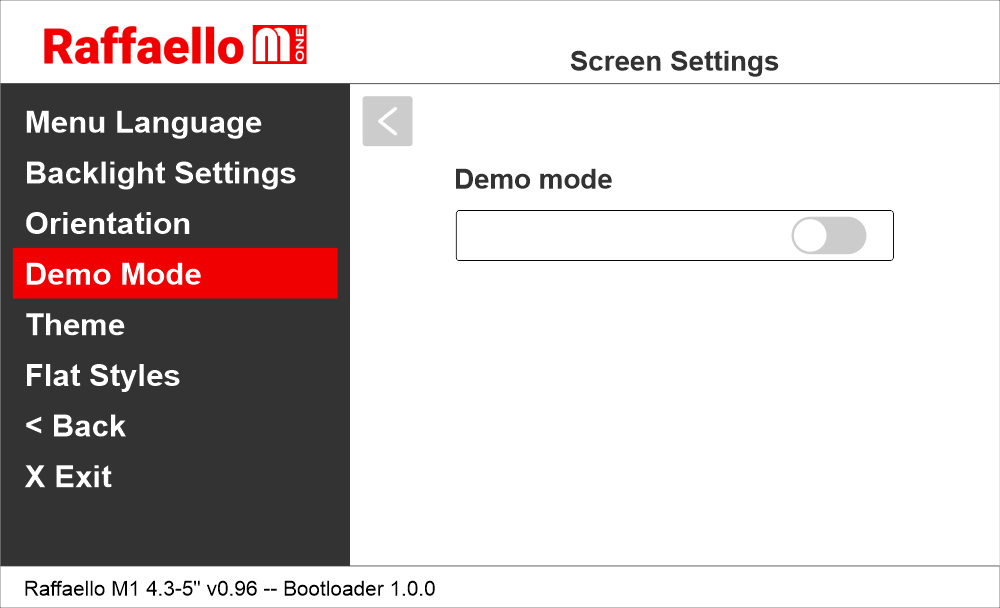
To select a graphic background theme.
Raffaello M1 / Screen Settings / Flat Styles
To select two solid colors for the background and digits.
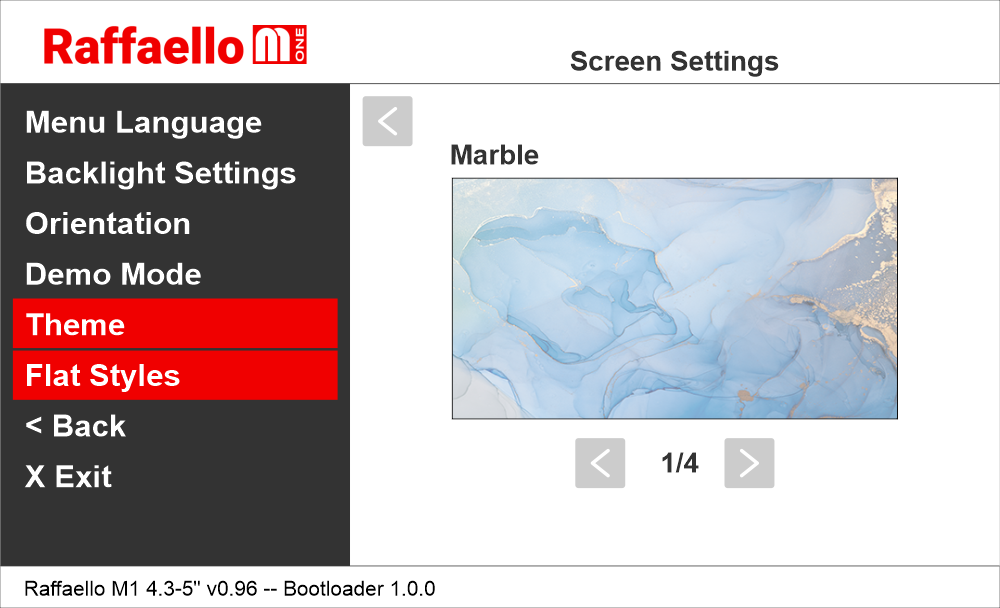
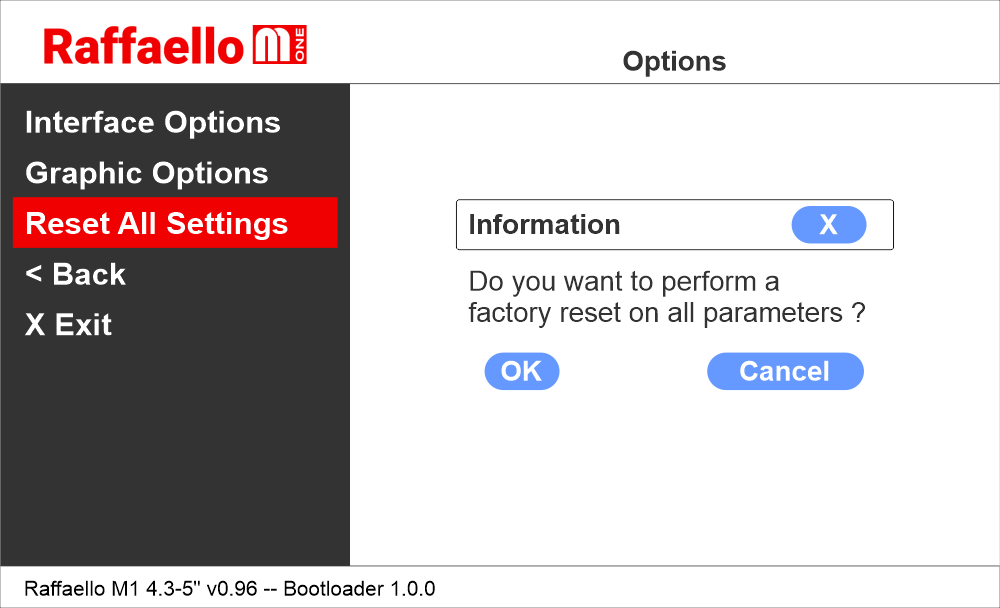
The display original factory settings will be restored and configurations will be deleted.
Raffaello display update (firmware and graphic)
 1) Export the chosen configuration (.rr5/.bin) from the MosaicONE cloud software.
2) Rename the files as follows:
• rm1.zbin (firmware update)
• theme.rr5 (graphic update)
3) Copy the file to USB memory (FAT32 formatted). Upload only one file at a time for the update.
4) Insert the micro-USB OTG adapter directly into the micro-USB port of the Raffaello display; the system will automatically detect the renamed file and start the installation procedure.
During this update process, graphical glitches or temporary display anomalies may occur. This behavior is expected and does not indicate a malfunction of the device.
 1) Export the chosen configuration (.rr5/.bin) from the MosaicONE cloud software.
2) Copy the file to USB memory (FAT32 formatted).
3) Insert the micro-USB OTG adapter directly into the micro-USB port of the Raffaello display and use the contextual menu.
Raffaello M1 / USB / Import file
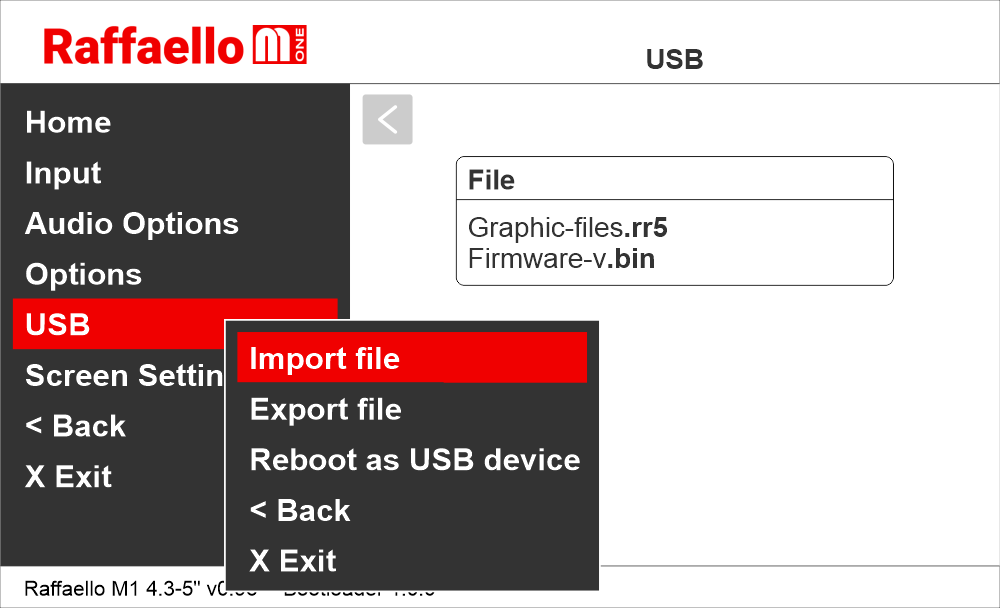
 1) Export the chosen configuration (.rr5/.bin) from the MosaicONE cloud software.
2) Connect the PC directly to the Raffaello display using a USB cable.
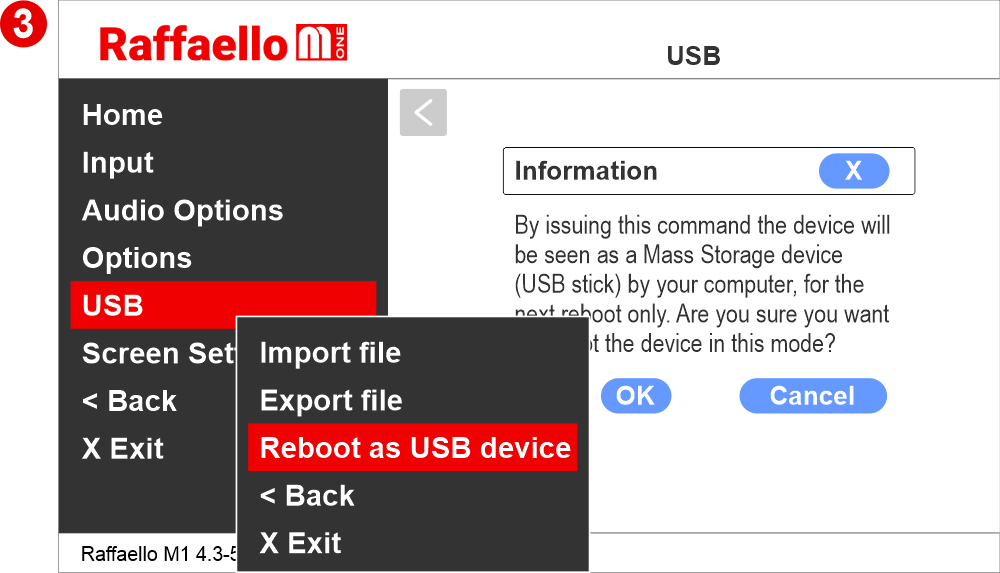
Raffaello M1 / USB / Reboot as USB device
3) Wait until the display has fully completed the reboot sequence before it is recognized by the PC as a USB mass storage device.

4) Copy the files to the Raffaello M1 device memory
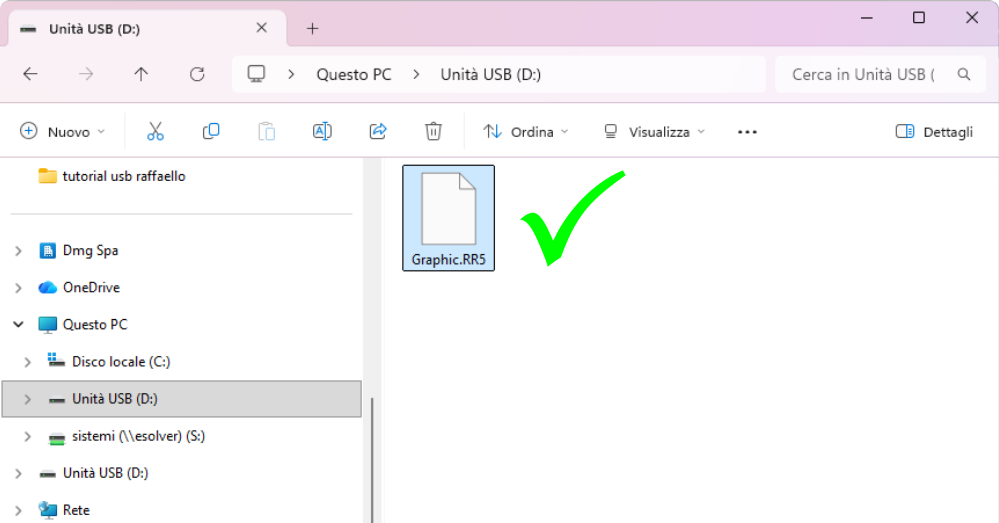
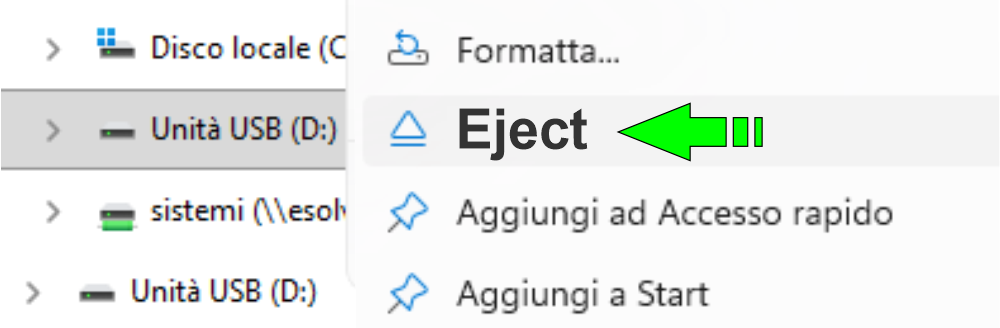
 5) To correctly install the file on the Raffaello M1 device, right-click on the USB Drive and select “Eject”.
Once the USB drive has been safely removed, wait for all operations shown on the TFT display to complete; the procedure will automatically finish with a device reboot.
 Warning:
Any removal procedure other than the one specified above will result in a failed file installation.
Do not disconnect the cable until the display has fully rebooted.
Using the FUSION app with the Raffaello display
For safety reasons, Bluetooth is switched off by default.
To modify parameters and perform customization, Bluetooth must be switched on and the device must be connected using the FUSION app.
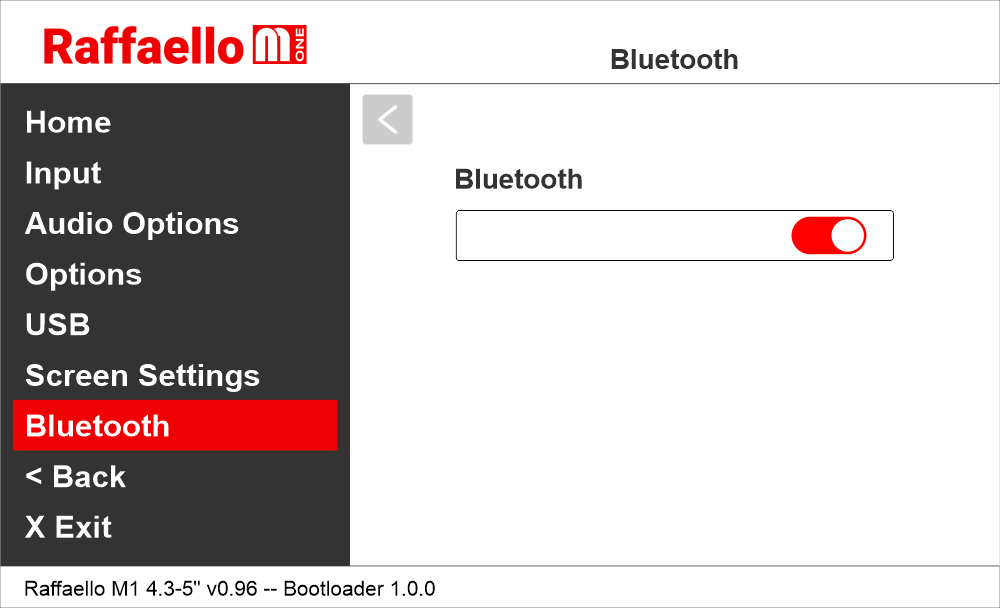
Download, install, and launch the FUSION app.
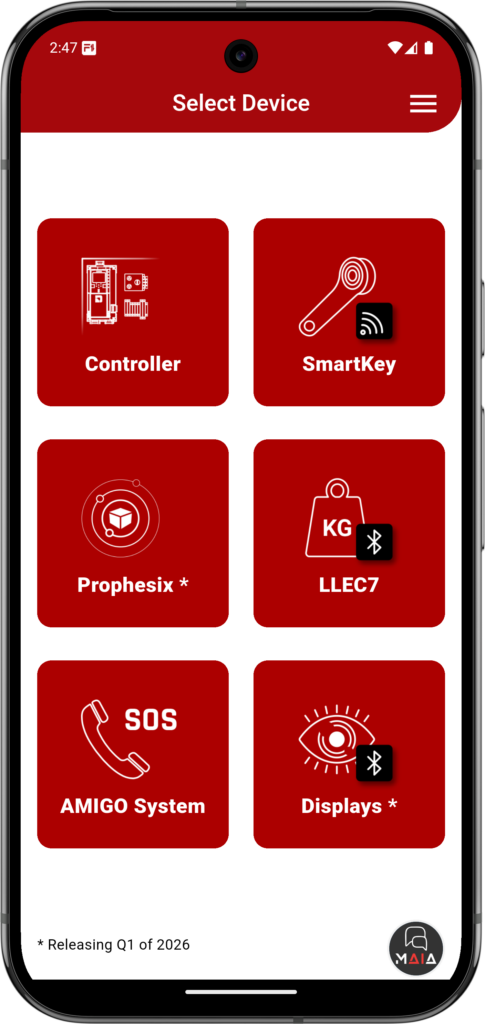
The FUSION app allows you to manage various DMG devices.
In this case, select the display category.
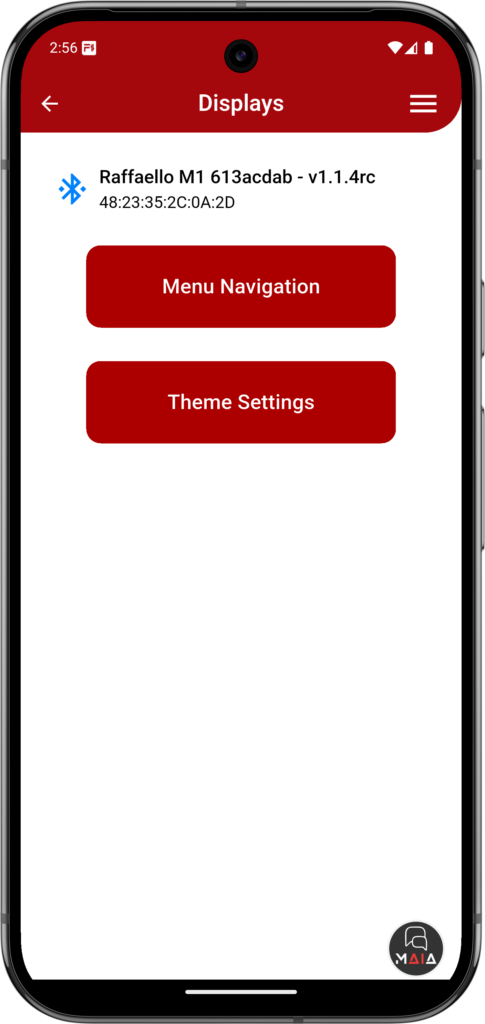
With Bluetooth®* turned on, initiate a scan for available displays and select the device to be managed.
(*) Releasing Q1 of 2026.
By tapping the name, the corresponding display will flash, allowing the operator to identify the device being interacted with.
Two options will be displayed:
• Menu Navigation
• Theme Settings
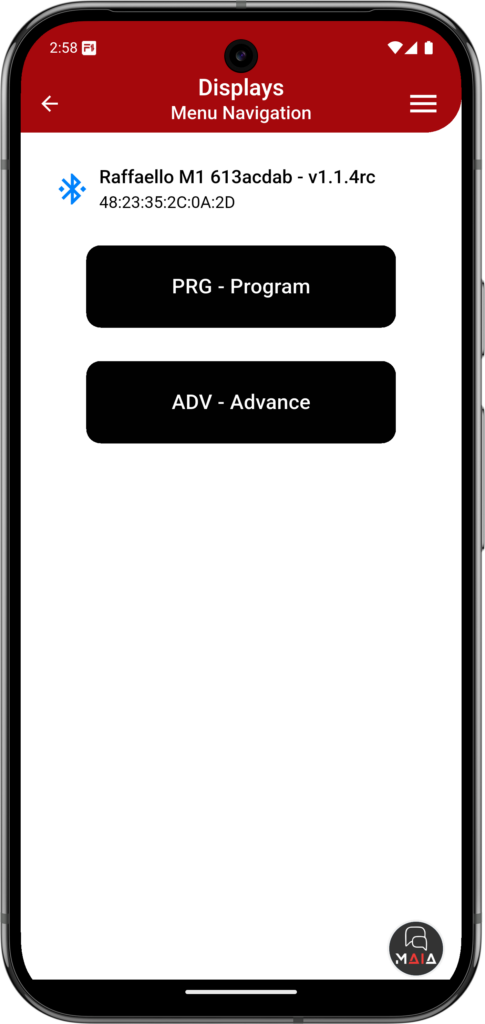
Menu Navigation
Allows navigation within the menu as if using the ADV and PRG buttons on the display.
Interaction occurs in real time, just like operating the physical programming buttons on the display.
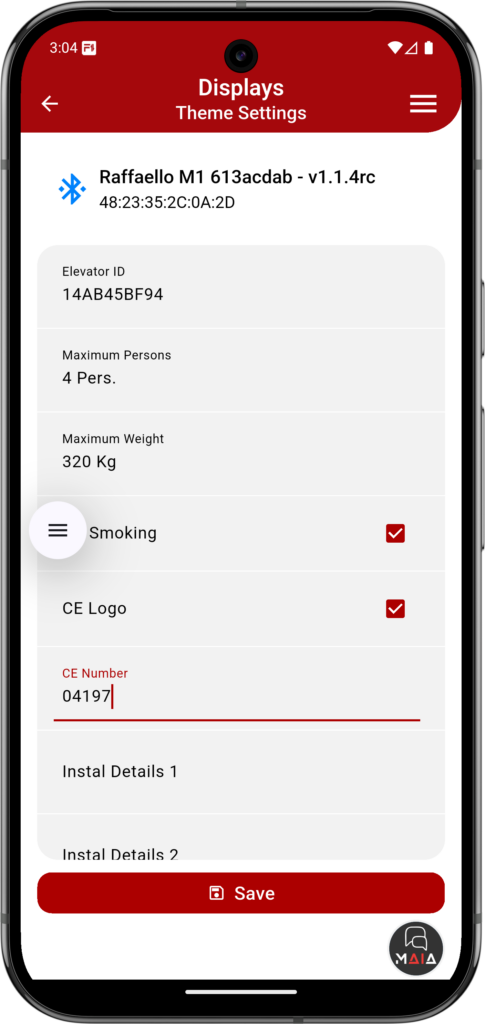
Theme Settings
Allows editing of the variable fields that make up the existing graphic theme, including installation data.
Does not permit graphic editing activities.
Datasheet
| Dimensions | 2" | 52 x 57 mm (H17) |
| 2,8" | 90 x 55 mm (H21) | |
| 2,8" (EN81-71) | 100 x 67 mm (H27) | |
| 4,3" | 132 x 80 mm (H22) | |
| 4,3" (EN81-71) | 138 x 100 mm (H29) | |
| 5" (Frontal mounted) | 132 x 80 mm (H23) | |
| Screen (Viewable area) | 2" | 40,7 x 30,5 mm • 320 x 240 pixel • 65.000 colors |
| 2,8" | 57,6 x 43,2 mm • 320 x 240 pixel • 65.000 colors | |
| 4,3" | 95,1 x 53,9 mm • 480 x 272 pixel • 65.000 colors | |
| 5" | 110,9 x 62,8 mm • 480 x 272 pixel • 65.000 colors | |
| Power supply (position input) | 12÷24V DC ±10% | |
| Absorption | 2" | 12V DC: Max 50mA 24V DC: Max 30mA |
| 2,8" | 12V DC: Max 60mA (Buzzer +120mA) 24V DC: Max 40mA (Buzzer +60mA) |
|
| 4,3" | 12V DC: Max 100mA (Buzzer +120mA) 24V DC: Max 50mA (Buzzer +60mA) |
|
| 5" | 12V DC: Max 180mA (Buzzer +120mA) 24V DC: Max 40mA (Buzzer +60mA) |
|
| IP protection | 2"/2,8"/4,3"/5" | IP44 |
| Operating temperature | 2"/2,8"/4,3"/5" | -10°C ÷ +50°C |
Software
MosaicONE Guide
Troubleshooting
| Fault description | Raffaello 2" | |
|---|---|---|
| Installation errors | The display does not light up | Check for the presence of 12/24VdC voltage. |
| Make sure that the type of voltage complies with that required (direct voltage, not alternating, not rectified). | ||
| Check the correct polarity on the power terminals. | ||
| Press the PRG key and make sure that the menu does not appear. In this case the screen is black but without input it could give the idea of being turned off. | ||
| The display does not show numbers and/or arrows | Make sure that the type and voltage value comply with those required for the inputs, make sure you have correctly set the type of common. | |
| Long presses of the PRG key are not detected by the display. | Update the display to the latest firmware version. | |
| Error messages | BLOCKED DEVICE INSERT CODE | If this message appears when you turn on the device, it means that it was not unlocked by mistake during production. Please contact DMG. |
| The display shows the indication "E" followed by a number X | In this case, it is a generic error indication due to an incorrect setting of the display. Please contact DMG | |
| Display defects | The display shows vertical lines | If the lines are fixed and black, please contact DMG. |
| The display shows horizontal lines | ||
| The display is white | Please contact DMG. | |
| The display has inverted colors or with a "negative" effect | Please contact DMG. | |
| Fault description | Raffaello 2,8" | |
|---|---|---|
| Installation errors | The display does not light up | Check for the presence of 12/24VdC voltage. |
| Make sure that the type of voltage complies with that required (direct voltage, not alternating, not rectified). | ||
| Check the correct polarity on the power terminals. | ||
| Press the PRG key and make sure that the menu does not appear. In this case the screen is black but without input it could give the idea of being turned off. | ||
| The display does not show numbers and/or arrows | Make sure that the type and voltage value comply with those required for the inputs, make sure you have correctly set the type of common. | |
| Long presses of the PRG key are not detected by the display. | Update the display to the latest firmware version. | |
| Error messages | BLOCKED DEVICE INSERT CODE | If this message appears when you turn on the device, it means that it was not unlocked by mistake during production. Please contact DMG. |
| The display shows the indication "E" followed by a number X | In this case, it is a generic error indication due to an incorrect setting of the display. Please contact DMG | |
| Display defects | The display shows vertical lines | If the lines are fixed and black, please contact DMG. |
| The display shows horizontal lines | ||
| The display is white | Please contact DMG. | |
| The display has inverted colors or with a "negative" effect | Please contact DMG. | |
| Fault description | Raffaello 4,3" / 5" | |
|---|---|---|
| Installation errors | The display does not light up | Check for the presence of 12/24VdC voltage. |
| Make sure that the type of voltage complies with that required (direct voltage, not alternating, not rectified). | ||
| Check the correct polarity on the power terminals. | ||
| Even if the display seems off, check that the red FAIL led on the back is not on, if it is, in this case the problem would be of a different nature. Please contact DMG. | ||
| Press the PRG key and make sure that the menu does not appear. In this case the screen is black but without input it could give the idea of being turned off. | ||
| Steady red LED | Device in FAIL. Indicates a Serious system ERROR, inherent in a hardware defect or other unresolvable defect. Please contact DMG. | |
| Flashing red LED | Device in FAIL. Indicates a generic system ERROR, in this case there may have been a problem relating to the graphic or fw programming of the device, an update via USB may be sufficient. Ex: the display shows "NO GRAPHIC FOUND" associated with the flashing red LED (see error messages). | |
| The display does not show numbers and/or arrows | Make sure that the type and voltage value comply with those required for the inputs, make sure you have correctly set the type of common. | |
| Long presses of the PRG key are not detected by the display. | Update the display to the latest firmware version. | |
| Error messages | BLOCKED DEVICE INSERT CODE | If this message appears when you turn on the device, it means that it was not unlocked by mistake during production. Please contact DMG. |
| Wrong recognition Coding interface | For displays that use coding interfaces (slots), the data of the inserted interface is shown on the screen at startup. If an inconsistency occurs, the defect is to be attributed to the HW. | |
| The display shows the indication "E" followed by a number X | In this case, it is a generic error indication due to an incorrect setting of the display. Please contact DMG | |
| Display defects | The display shows vertical lines | If the lines are fixed and black, please contact DMG. |
| The display shows horizontal lines | ||
| The display is white | Please contact DMG. | |
| The display has inverted colors or with a "negative" effect | Please contact DMG. | |
Download
| Reference | Version | Link |
|---|---|---|
| Raffaello M1 | V1.0 | Download PDF (English) |